Channel dashboard
On the Channel dashboard, marketing teams, strategists, and analysts can access and manage critical project data in one place. With detailed analytics, and tools for management and for monitoring the progress of ongoing strategies, team members can work together seamlessly. They can analyze marketing data and make informed decisions to effectively achieve their goals.
To open the dashboard:
- hover with the mouse over a tile in Channels, and click Dashboard.
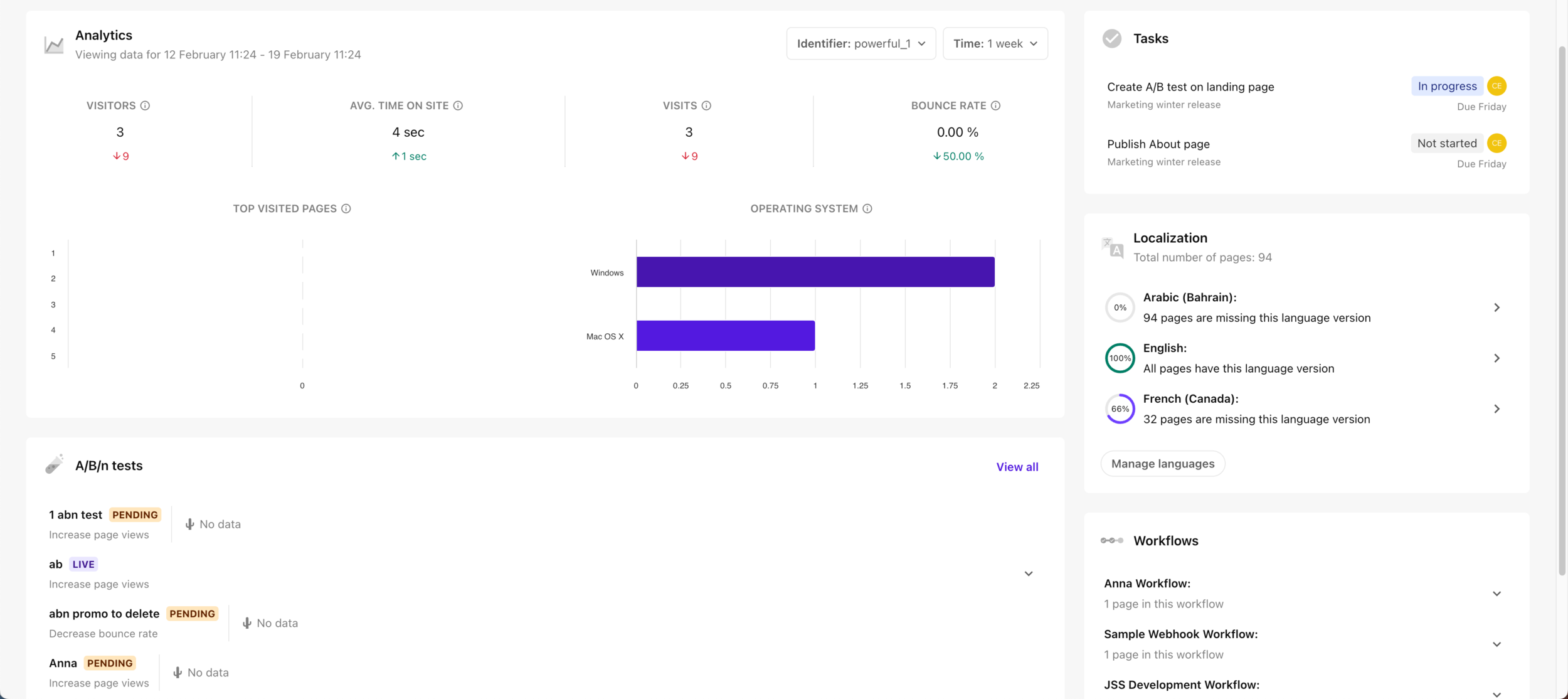
The dashboard provides a comprehensive overview of key site information with widgets such as:
- Analytics – how do your website’s visitors interact with your site?
- A/B/n tests – how many A/B/n tests are or were running on the website? How are the variants performing against the goal of the test?
- Localization – what languages is the website available in? How many pages are missing in each language?
Tasks
If you are using the tasks management capability in SitecoreAI Strategy, you can see on your dashboard a subset of the tasks that were assigned to you, as well as their completion status.
To see the full list of tasks, as well as to create additional tasks, click All tasks.
Viewing localization progress
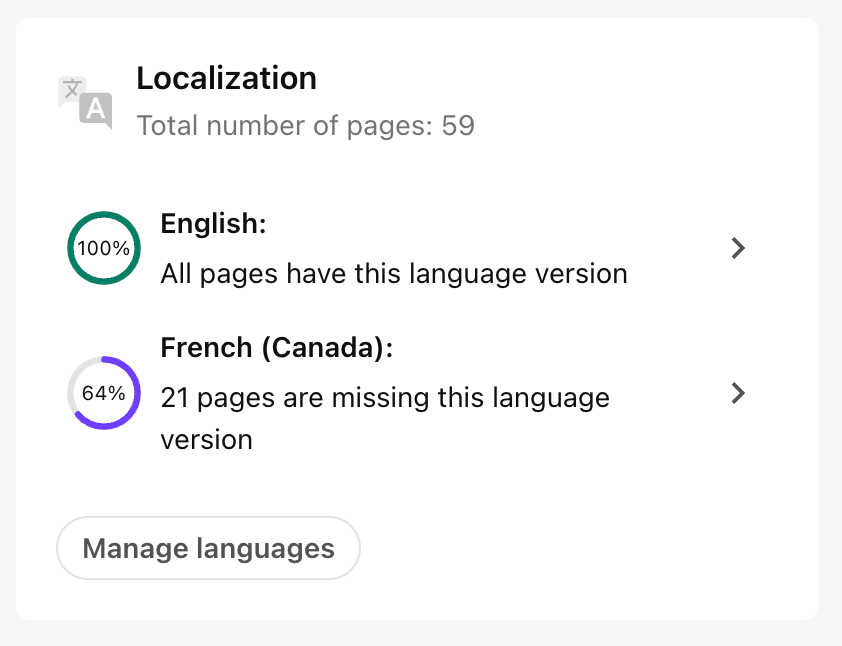
On a SitecoreAI Managed Web site dashboard, on the Localization widget, you can see what languages the site supports, and how much of the site has been translated in each language, as well as how many pages still need to be translated.
To add translated pages:
- Click the arrow next to the desired language. The site opens in Page builder in the relevant language.
To monitor AI-powered site translations as they run:
- Go to the Localization Status tab.