Edit image properties
You can edit image properties in the Media Library.
To edit image properties in an image field:
-
In the Content Editor, navigate to the item or page that you want to edit.
-
In the Content Editor, on the Content tab, scroll to the field that contains the image and click Properties.
-
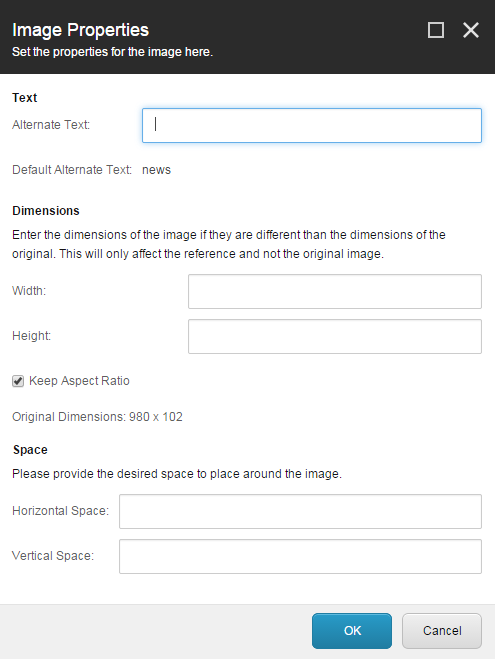
In the Image Properties dialog, make the relevant changes to:
-
The Alternate Text field - enter the text that will appear when the image cannot be displayed.
-
The Dimensions section - specify the dimensions that the image should be displayed in, if they differ from the actual size of the image.
-
The Space section - specify how much space should be placed around the image.
-
-
Click OK and save your changes.