Forms performance dashboard
The Forms performance dashboard shows how your forms are performing by tracking key engagement metrics such as form views, interactions, and submissions.
The dashboard insights help you understand how effectively your forms capture input and drive conversions. These insights help you evaluate engagement, identify friction, and measure contribution to goals.
How form analytics are generated
The Forms dashboard automatically collects data from all active forms used in Pages and Components when visitors interact with them. The dashboard collects form data based on three event types: VIEWED, INTERACTION, and SUBMITTED,
To ensure data is captured, make sure the form has been activated and form is used on pages that receive traffic.
Open the dashboard
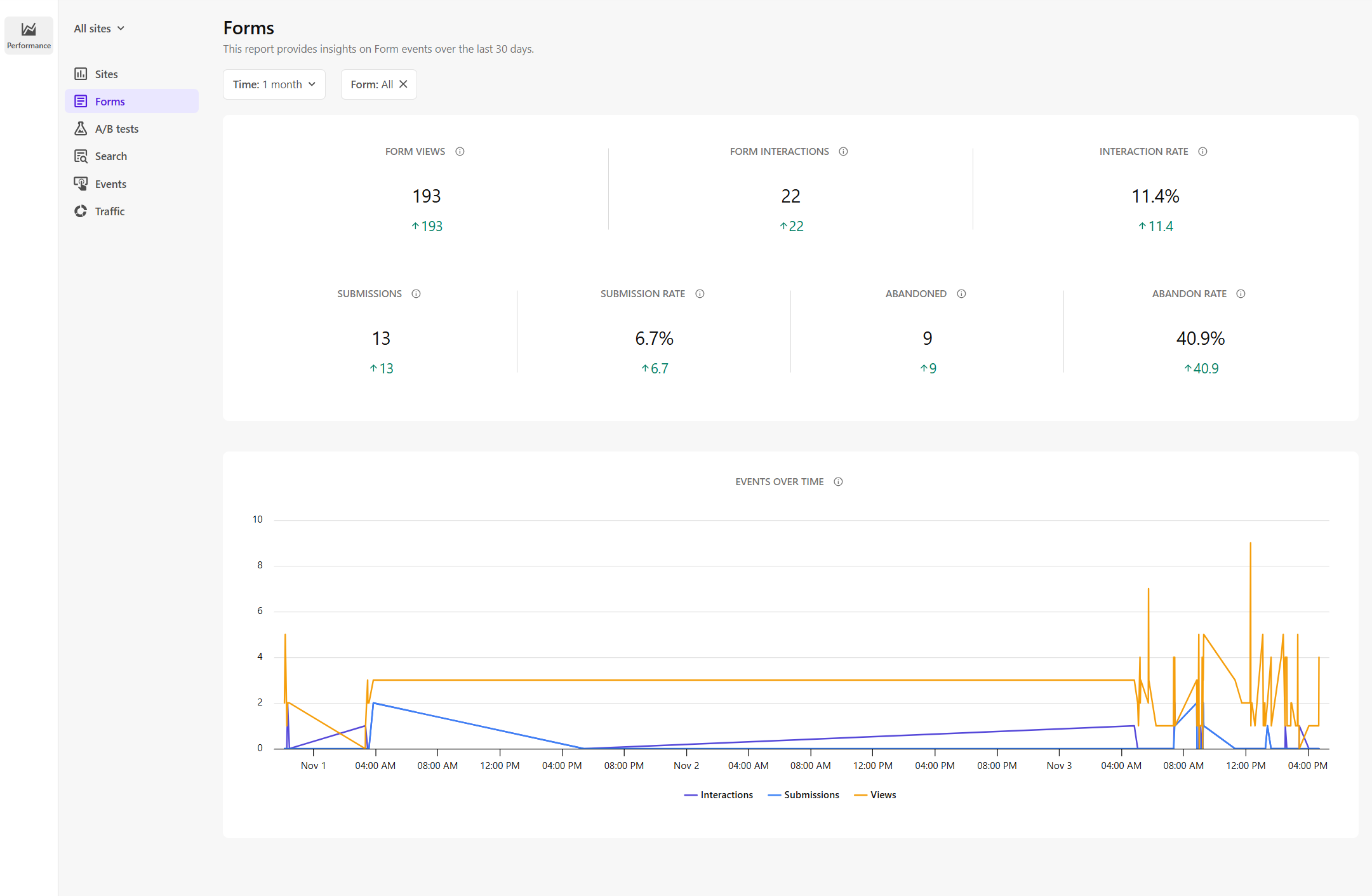
To open the Forms dashboard, in the navigation menu, click Performance. Then, select Forms.
Filter form data
Use filters to narrow down the data displayed on the Forms dashboard:
- Site - select a specific site from the All sites drop-down list to view data for forms published on that site. By default, data from all sites is shown.
- Time - choose a time frame such as such as 1 hour, 1 day, 1 week, 1 month, or specify a custom date range up to the previous two months. The default view shows data from the previous 30 days.
- Form - select a specific form to view detailed metrics. By default, data from all available forms in your tenant and site is displayed.
Dashboard data automatically refreshes every 15 minutes.
Form metrics
The Forms performance dashboard summarizes how users view, interact with, and submit forms over the selected period.
The dashboard displays totals and trends so you can compare results with the previous period. Trend indicators help highlight these changes.
-
A green upward arrow represents an increase.
-
A red downward arrow represents a decrease.
For example, a red value under Submission Rate means a decrease in form submissions.
-
Key performance indicators - these are the primary metrics used to measure form engagement and interaction:
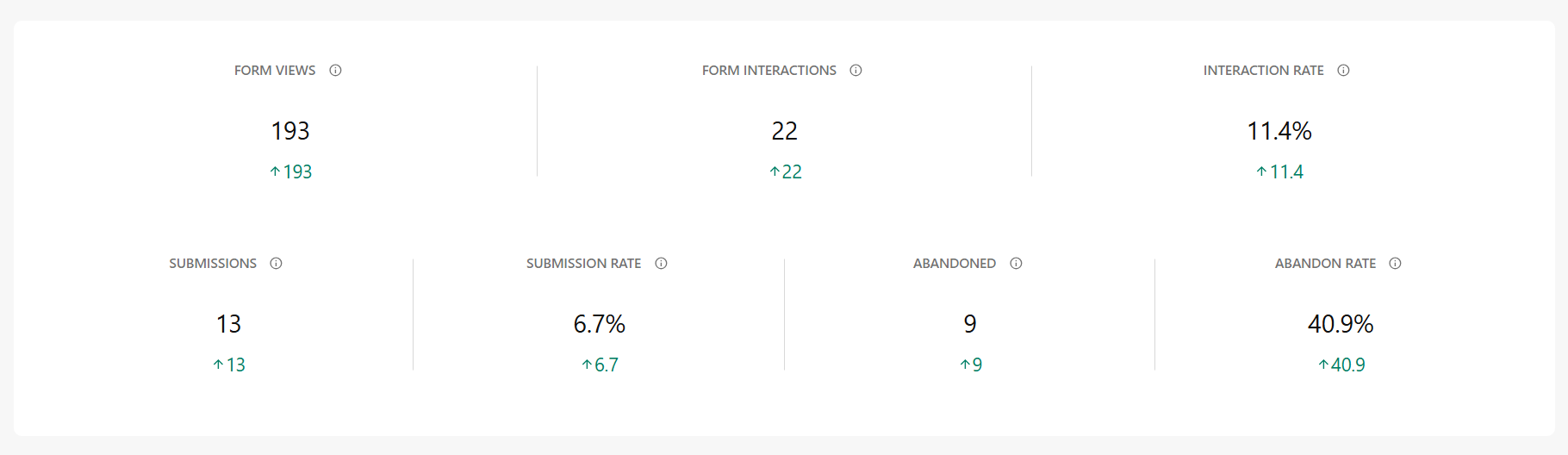
- Form views - the total number of times a form was viewed. Calculated by counting all
VIEWEDevents during the selected period. - Form interactions - the total number of clicks on the form. Calculated by counting all
INTERACTIONevents during the selected period. - Interaction rate - the percentage of form views that resulted in interactions. Calculated by dividing the number of
INTERACTIONevents by the number ofVIEWEDevents for the form during the time period. - Submissions - the total number of completed form submissions. Calculated by counting all
SUBMITTEDevents during the selected period. - Submission rate - the percentage of form views that resulted in submissions. Calculated by dividing the number of
SUBMITTEDevents by the number ofVIEWEDevents for the form during the selected period. - Abandoned - the total number of times users clicked a form but did not submit it. Calculated by getting the difference between the number of
INTERACTIONandSUBMITTEDevents for the form during the selected period. - Abandon rate - the percentage of form interactions that did not lead to a submission. Calculated by dividing the number of abandoned forms by the number of
INTERACTIONevents for the form during the selected period.
- Form views - the total number of times a form was viewed. Calculated by counting all
-
Events over time (graph) - shows the trends in
VIEWED,INTERACTION, andSUBMITTEDevents during the selected period.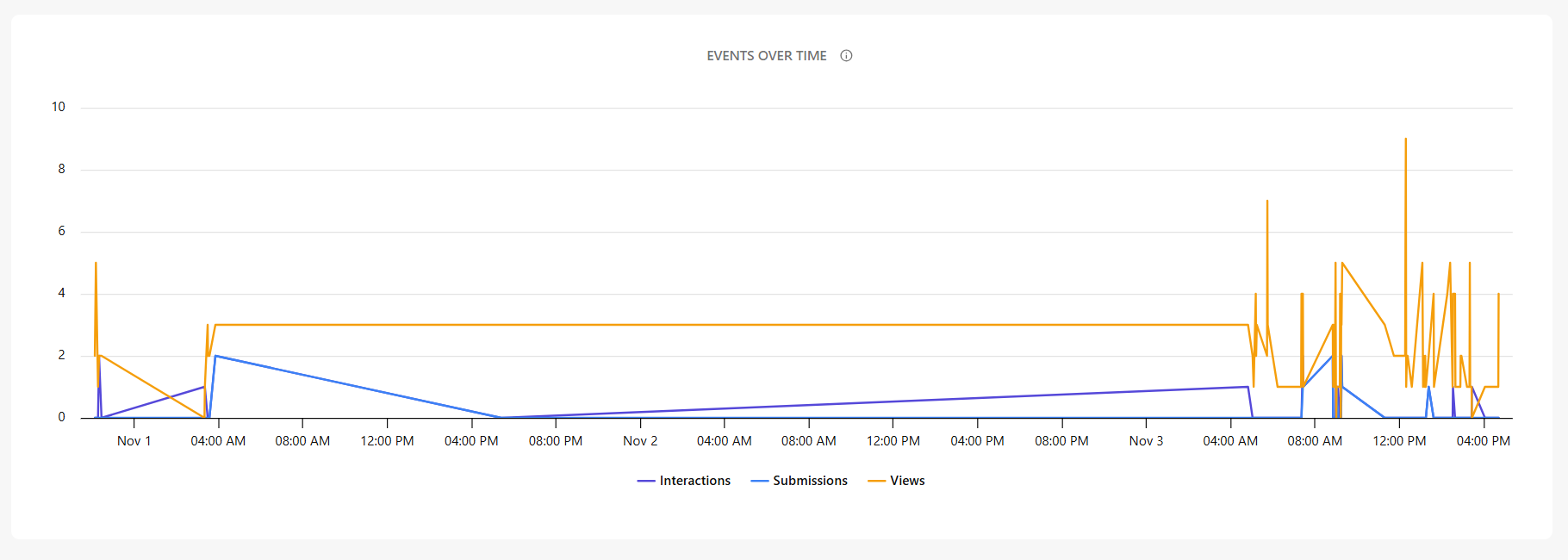
- Hover over any point in the chart to see specific values.
- The y-axis shows the total number of events, and the x-axis shows time intervals.
- Click an event name in the legend to show or hide it. Hidden events appear with a strikethrough label.
Interpreting dashboard values
Form metrics gain value when reviewed over time or compared across forms. The table below outlines common signals and recommended next steps.
| Metric | Signals to investigate | Recommended steps |
|---|---|---|
| Form views | Decreasing views could indicate reduced visibility or less traffic reaching the page. | Review page placement, navigation paths, and SEO visibility. |
| Form interactions | Low interactions could indicate users see the form but are not motivated to engage. | Improve call to action, adjust placement, and refine supporting text. |
| Interaction rate | Declining interaction rate could indicate unclear value or hesitation to start the form. | Clarify purpose, simplify introduction, and reduce surrounding distractions. |
| Submissions | Low submissions could indicate friction completing the form or technical issues. | Reduce required fields, test validation, and improve error handling. |
| Submission rate | A drop in submission rate could indicate the form feels long or effort outweighs value. | Shorten fields, justify sensitive questions, and simplify flow. |
| Abandoned | A high number of abandoned forms could indicate confusion or barriers during completion. | Reorder fields, add help text, and remove unnecessary friction. |
| Abandoned rate | An increasing abandon rate could indicate frustration or unclear next steps. | Improve label clarity and instructions, test mobile experience. |
| Events over time (graph) | Spikes or drops over time could indicate the impact of releases, campaigns, or outages. | Validate against release schedules and campaign calendars. |