Get performance insights
SitecoreAI provides multiple ways to monitor how your digital experiences perform and to understand the impact of the changes you make. These insights help you spot engagement patterns and make informed, data-driven decisions.
Optimization includes several ready-to-use dashboards. Under Analytics, these dashboards bring together insights from your sites, forms, tests, search interactions, events, and traffic so you can see how users behave and how your experiences are performing.
Dashboards update in real-time, powered by Azure services. This enables fast processing of live activity without relying on scheduled jobs or batch refreshes and supports future integration with Microsoft analytics tools such as Power BI and Fabric.
Use Analytics whenever you need a clear view of audience behavior, engagement trends, and performance outcomes across your digital touchpoints. The dashboards can help you:
- Monitor new content or feature launches.
- Optimize live campaigns.
- Validate personalization updates immediately.
- Catch sudden drops, anomalies, or spikes early.
Analytics dashboards in Optimization
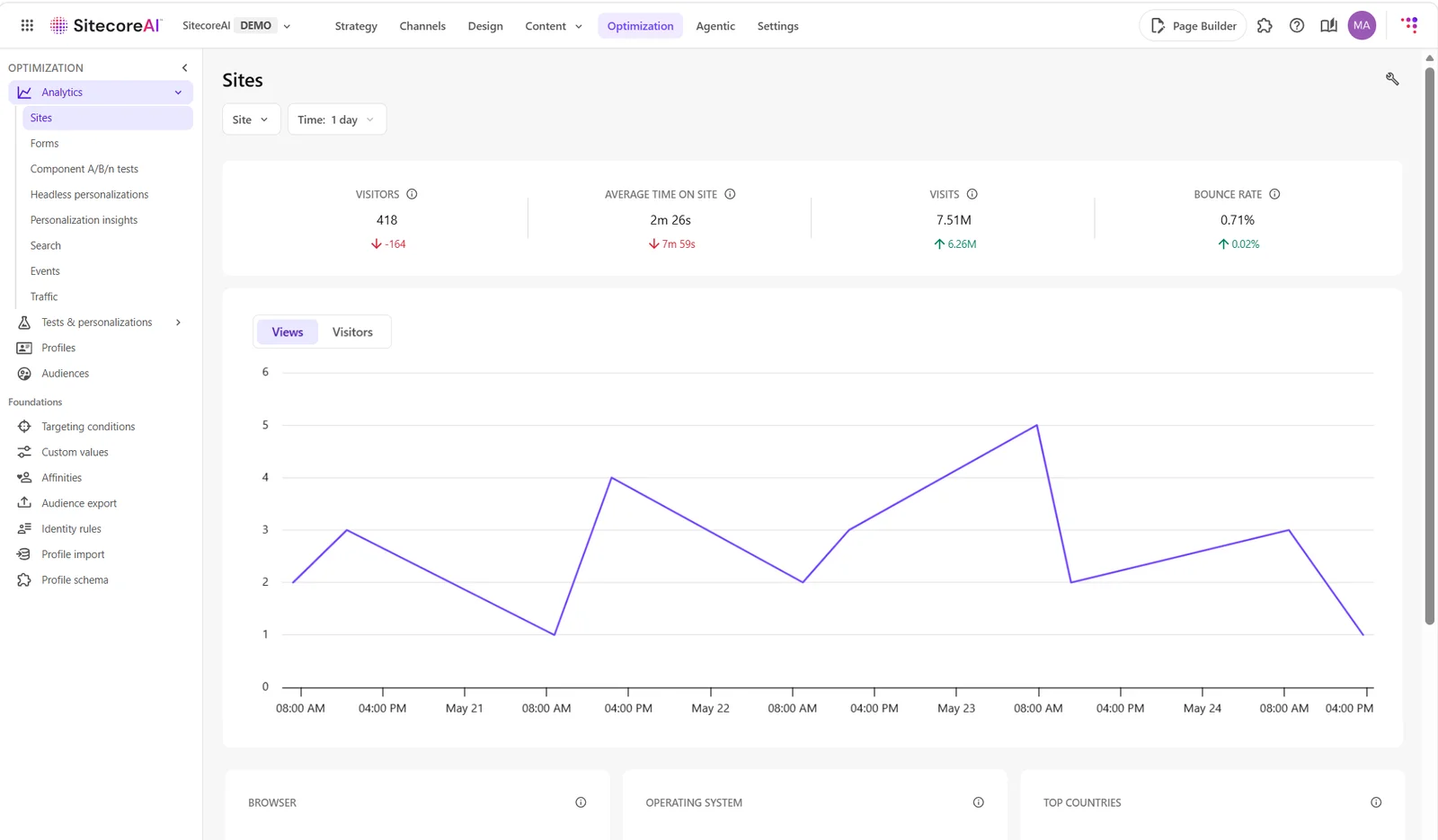
Each dashboard displays insights based on the interactions that occur on your site, such as page views, form submissions, searches, tests, or other tracked actions. Data appears once the related feature is in use and visitors interact with it.
To enable performance tracking, you must create an analytics identifier and assign it to your website on the Settings tab.
To consolidate data from multiple sites into one dashboard, assign the same identifier to each one.
You can explore the following dashboards:
- Sites - track metrics for one site or a group of sites that share the same analytics identifier, including visitors, views, bounce rate, and average time on site. To view standalone sites and pages dashboards, see sites and pages dashboards
- Forms - monitor user engagement with forms, including views, interactions, submissions, and conversion rates.
- Component A/B/n tests - compare A/B/n test variants to find top performers and make data-driven improvements.
- Headless personalizations - monitor the performance of a headless experience becomes Live.
- Personalization insights - track personalization reach, default experience delivery, delivery errors, delivery performance, and activity across channels and languages.
- Search - analyze how users interact with your site’s search, including views, clicks, click-through rates, top keywords, and null searches.
- Events - view standard and custom events to understand user actions.
- Traffic - track entry routes, page activity, and movement across the site.
Navigating and filtering dashboards
To open the analytics dashboards:
- In the navigation menu, click Optimization.
- In the left sidebar, click Analytics.
- Use the left panel to switch between dashboards, including Sites, Forms, Component A/B tests, Personalization operations, Search, Events, and Traffic.
- Use the sites filter to choose between:
- All sites - view combined analytics for all sites sharing the same analytics identifier, except for A/B test analytics, which cannot be aggregated across sites.
- Single site - view analytics for a specific site.
- Use the Time filter to choose a time frame such as such as 1 hour, 1 day, 1 week, 1 month, or specify a custom date range up to the previous two months.
Additional sites and page dashboards
Beyond the analytics dashboards in Optimization, SitecoreAI also offers related standalone insights for pages and sites:
- Page insights - analyze the performance of a specific page or compare it with a variant directly within Analyze in Page builder.
- Sites dashboard - review analytics, manage site settings, and monitor campaigns for an individual site. You can customize this dashboard to show only the widgets that matter to your workflow, including those available through Marketplace.
These dashboards offer additional insights for optimizing performance at both the site and page level.