Manage languages and locales
The Page builder lets you create multilanguage sites. This is done by creating different language versions of each page of the site, letting the user switch between languages with a drop-down menu available on each page.
In multilanguage websites, if a language version of a page is missing, the live website will display that page in the default language of the site. If you've enabled language fallback, the site will provide the fallback language version of the site instead.
To handle this complexity, languages are managed and configured at different levels:
- Sitecore provides many standard languages and locales to choose from.
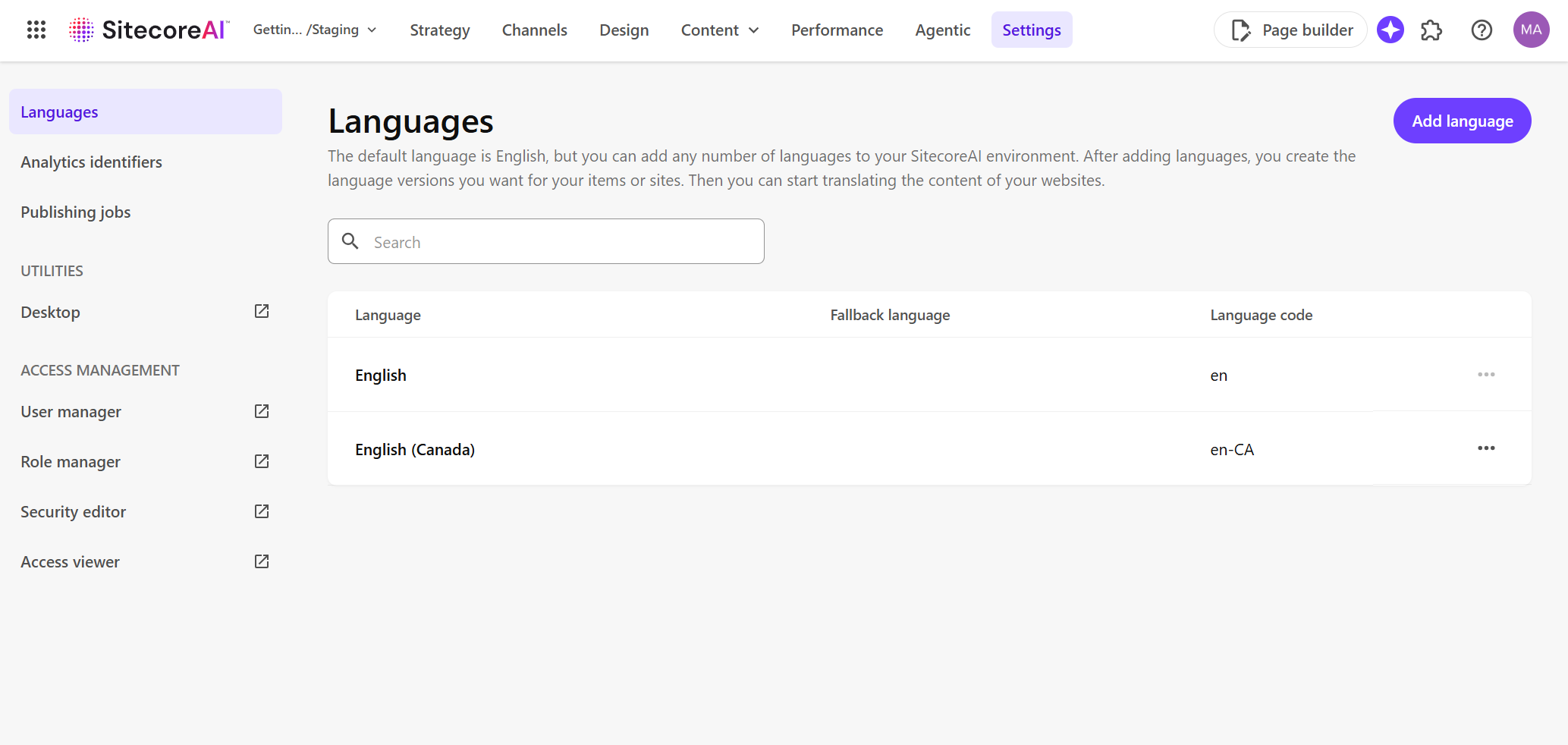
- At the environment level, on the Settings tab, a table lists the subset of languages and locales enabled for use by your sites, as well as the language fallback strategies for these languages. The table also lists custom languages if you have created any.
- When creating a site, you can choose which languages you want this site to exist in.
- You can also configure for each site a default language from one of the languages that the site exists in.
Developers can also enable and set up language fallback by changing the settings in the configuration file.
Enable a language for the environment
There are two ways to enable a language at the environment level:
-
In the navigation menu, click Settings. In the left-hand pane, select Languages then click Add language. Choose the language you want to enable from the drop-down list of all languages supported by Sitecore.
-
In Channels, when creating a new site, you can add languages to be used for the site from the list of all languages supported by Sitecore. These languages are then automatically added to the list of languages enabled for the environment.
Set up language fallback
At the environment level, for each of the languages listed in the table, you can decide which language will be used if the primary language is unavailable. This is known as language fallback.
For this configuration to be taken into consideration, language fallback must be enabled at the environment and at the site level.
To set up language fallback:
- In the navigation menu, click Settings. In the left-hand pane, select Languages.
- Find the language you want to set up and click the Options menu
 > Edit.
 - In the Edit language dialog, in the Fallback language drop-down menu, click the language or locale you want to use as fallback.
- Click Save.
The language now has a language fallback, valid for every sites in this environment.
Language fallback can slow down your system according to the depth of your fallback settings.
Add or delete a language for a site
To create a multilingual site, define the languages that each site supports. Page builder uses this information to display the relevant languages in the language version drop-down menu, so you can create pages in multiple language versions.
You can define the languages during the process of creation of a site, as well as after the site is created.
If you do not define any language for the site, the language version drop-down menu in Page builder will show all the languages enabled at the environment level.
To add a specific language to an existing site:
-
In Channels, for the site of your choice, click Dashboard
 .
. -
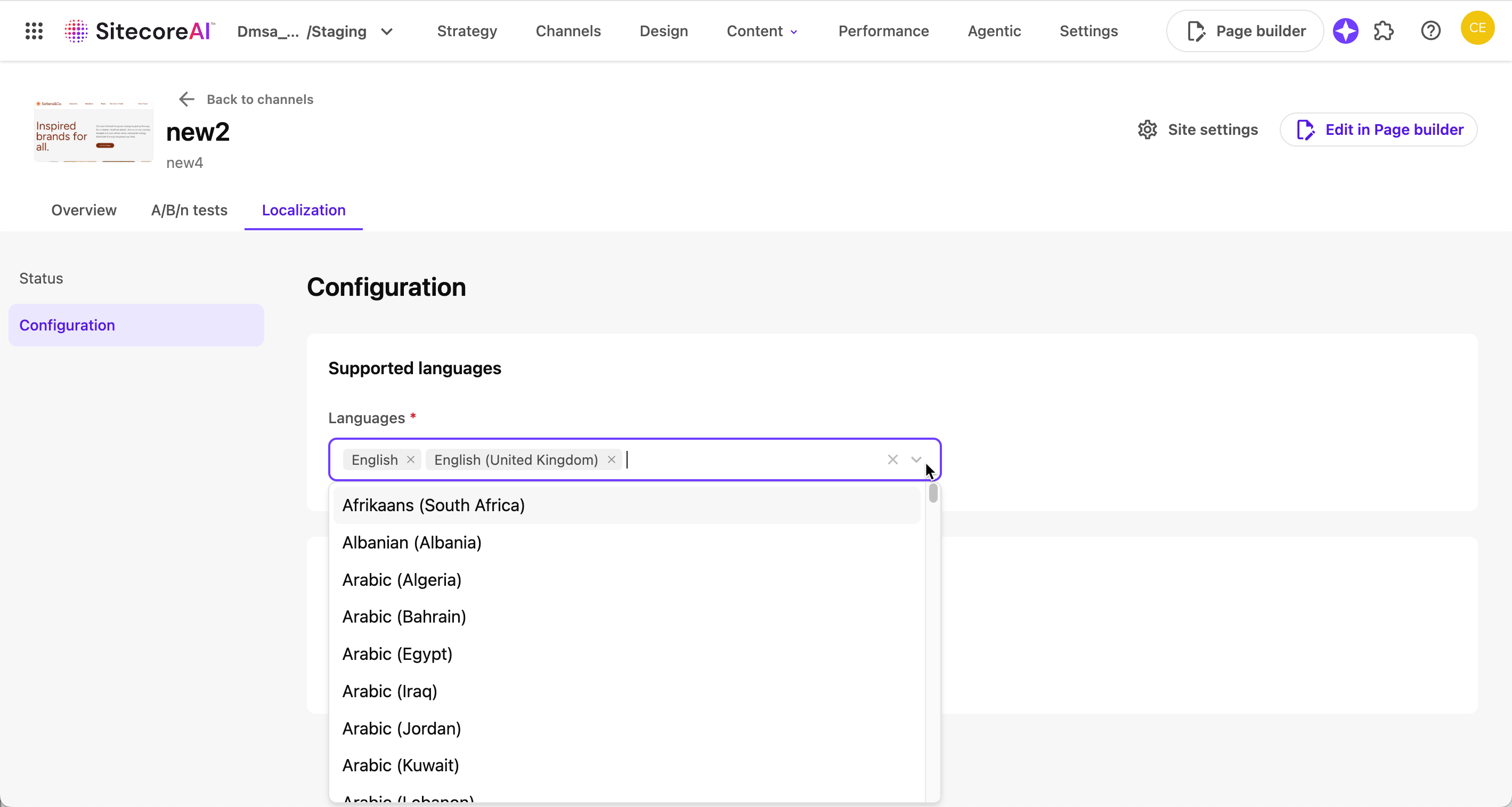
In the Localization tab, click Configuration.
-
In the Supported languages field, either enter the first two characters of the language or open the drop-down menu, and then click the name of the language you want to add. If the language you want is not in the list, it means it has not been enabled at the environment level yet.
-
You can add as many languages as you want. When you are done, click Save.
To delete a language from the site:
- On the Languages tab, in the Languages field, click the cross of each language or locale you want to delete.
- Click Save.
Choose a default language for the site
Default languages are defined at the site host level.
To choose a default language for your site host:
- In Channels, click the Options menu > Settings on the tile of site you want to edit.
- In the left-hand pane, click Site hosts.
- In the table, click the name of the desired site host.
- In the Site hosts settings, in the Languages section, in the Default language field, click on the language you want to use as default.
Delete a language from the environment
Deleting a language from an environment results in the permanent loss of that language's data.
You can delete a language from the list of languages enabled for the environment, even if that language is in use as a default language or fallback language for a site host. Deleting a language from the environment means that all the language versions in that language will be deleted, so you need to be sure, when deleting a language for an environment, that it does not negatively affect any sites of that environment.
To delete a language:
- In the navigation menu, click Settings. In the left-hand pane, select Languages.
- Find the language you want to delete and click the Options menu > Delete.
After you delete a language:
- All the language versions from any page from any site in that language are deleted.
- If the language was used as fallback for another language, you need to choose a new fallback language strategy in the system settings on the Settings tab.
- If a site was using this language as a default language, you need to choose a new default language for the site in the site host settings.
While deleting a language does delete the language versions of a page from the authoring environment, it does not remove the language version of the pages and content items saved on Experience Edge. To fully delete a language, a Sitecore admin must:
-
Delete the language in SitecoreAI as described above.
-
Install the Sitecore Database Cleanup plugin to perform a database cleanup. This ensures that all items and pages in that language version are deleted.
-
Add the language to the environment again.
-
Perform a full republish of the sites of the environment to unpublish all the pages and items in that language version from Experience Edge.
-
Remove the language again.
To validate the current state, you can:
-
Use the Preview GraphQL IDE to confirm that the language versions are no longer present in the authoring database.
-
Use the Live GraphQL (Experience Edge) endpoint to confirm what content is currently available to delivery applications.