Navigate the Media library
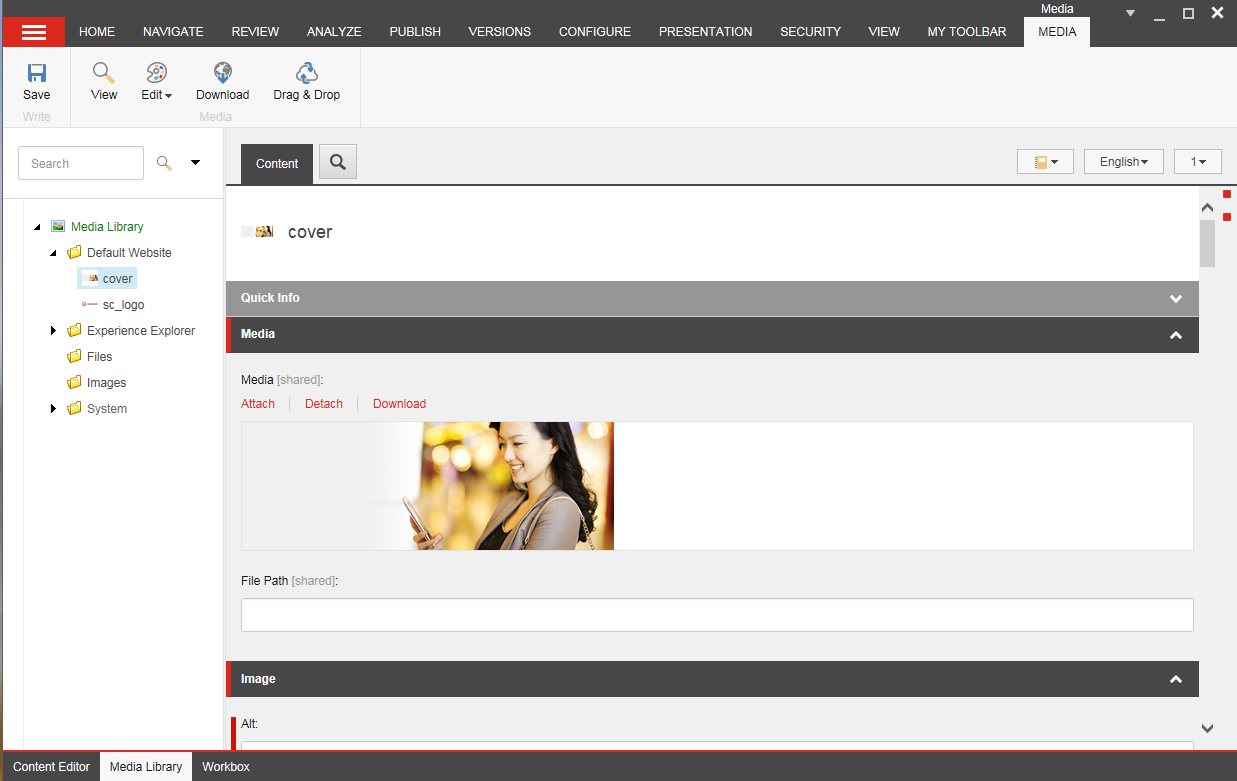
The Media Library user interface consists of a ribbon , a content tree, and a content area.
You can open the Media Library from the following places:
-
In the navigation header, click Content > Media library.
-
In the Content Editor, navigate to the Media Library in the content tree. If you want to open the Media Library separately, click Media Library in the page bar at the bottom of the Content Editor.

The ribbon
In the Media Library, you get the same set of options on the ribbon as you do in the Content Editor, although the Insert group allows you to create new media folders and upload media files.
If you select a media item in the content tree, the Media tab displays on the ribbon. This contains the Media group with the actions that you can perform on the media item.

The functionality on the ribbon depends on the user rights you have been assigned by the website administrator and the type of media item you have selected.
The content tree
Use the content tree or the search to find media items. Expand folders in the content tree to see all subfolders and media items, and collapse the folders again to hide subfolders.
Make sure you store all your media items in folders and give the folders meaningful names. An easy way to organize your Media Library folder structure is to mirror the structure of your website. For example, if your site has four main sections: Home, Products, Jobs,, and Contact Us, you could create four folders with the same names to store all your images and other media. This will make it easier to locate media items as your site grows and you need to update media items.
The content area
The content area displays the following tabs:
-
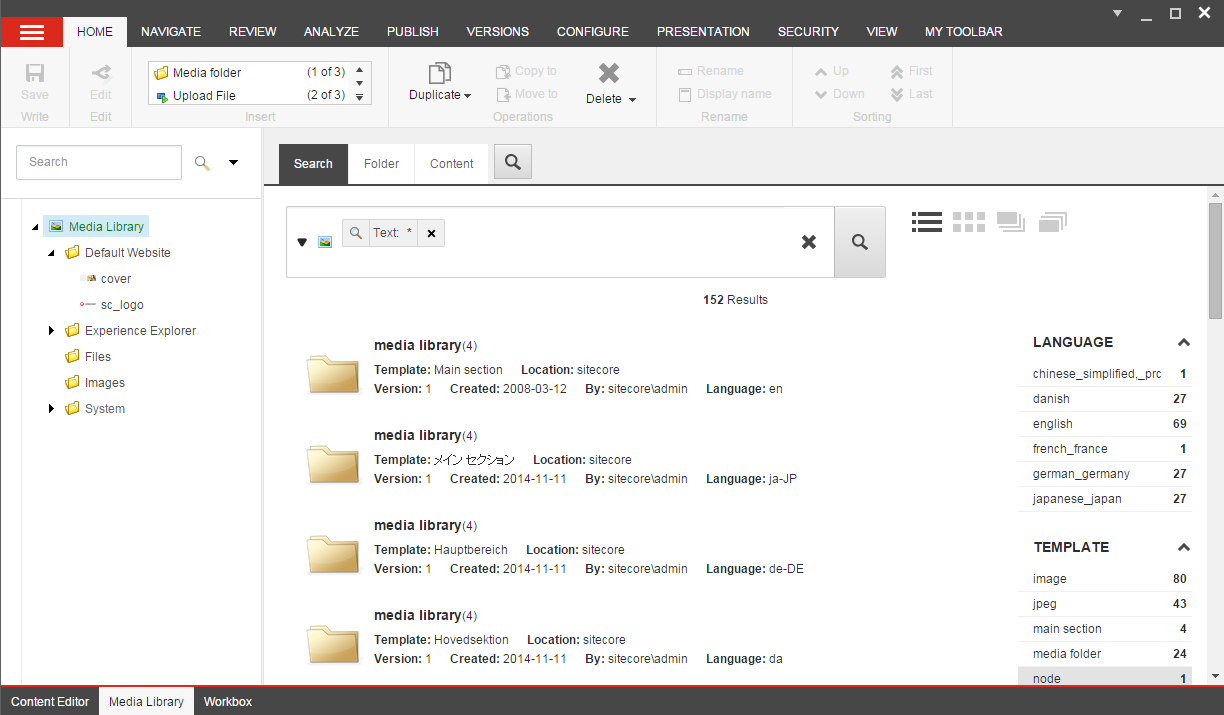
Search - this tab offers an elaborate search functionality that can help you find very specific items among maybe thousands of items in the Media Library. The Media Library opens by default on the Search tab, with a search already run for all items in the Media Library.
-
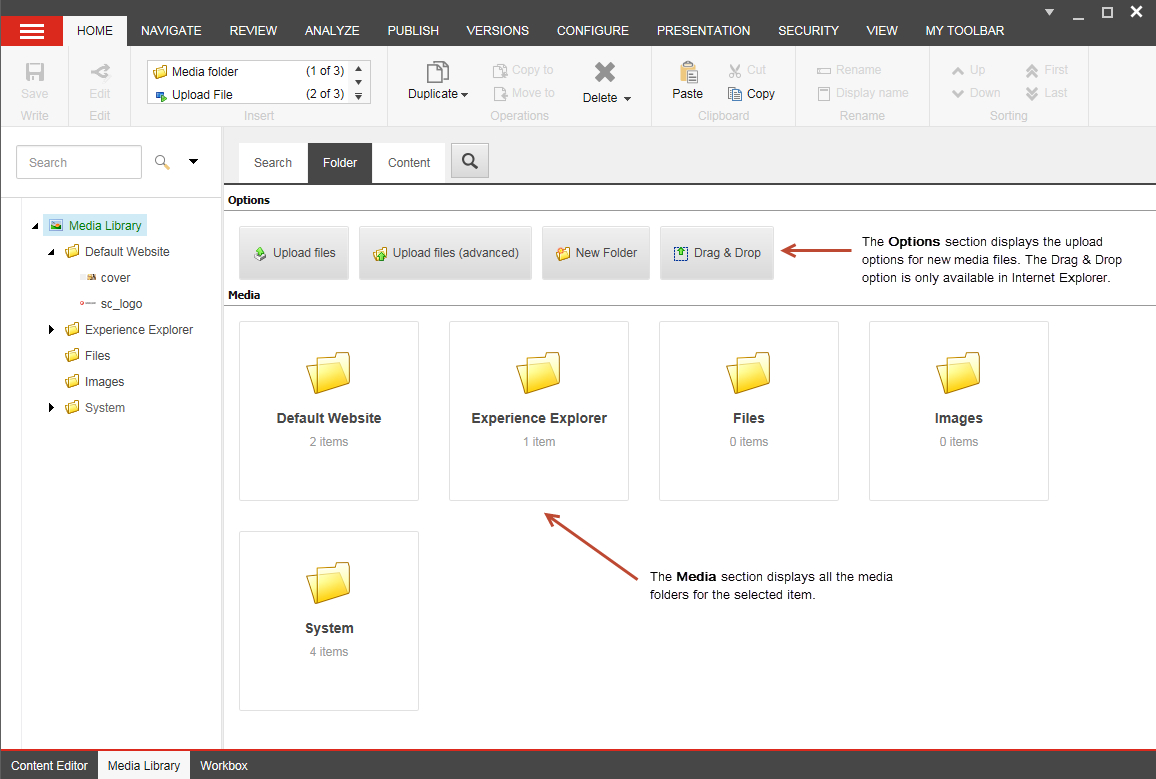
Folder - this tab displays the options and media contents for the selected folder in the Media Library.
-
Content - this tab displays all the fields that you can edit for the media item that you have selected.