Test the component personalization
Feature availability is part of a phased rollout. Your organization may not see this functionality yet. It will become available when your environment is included in the rollout.
After configuring personalization inputs and rules, save your changes, then test component personalization against profiles to verify the expected behavior.
Save your personalization rules before testing. If a test matches an unsaved rule, the specific matched rule cannot be identified until the changes are saved.
To test personalization:
-
In the Page builder Editor mode, open the page containing the personalized component you want to test.
TipA page with component personalization is indicated by the
 icon in the Site tree, and the personalized component displays the same icon when selected.
 -
Select the personalized component, then in the right pane, click Edit personalization rules .
-
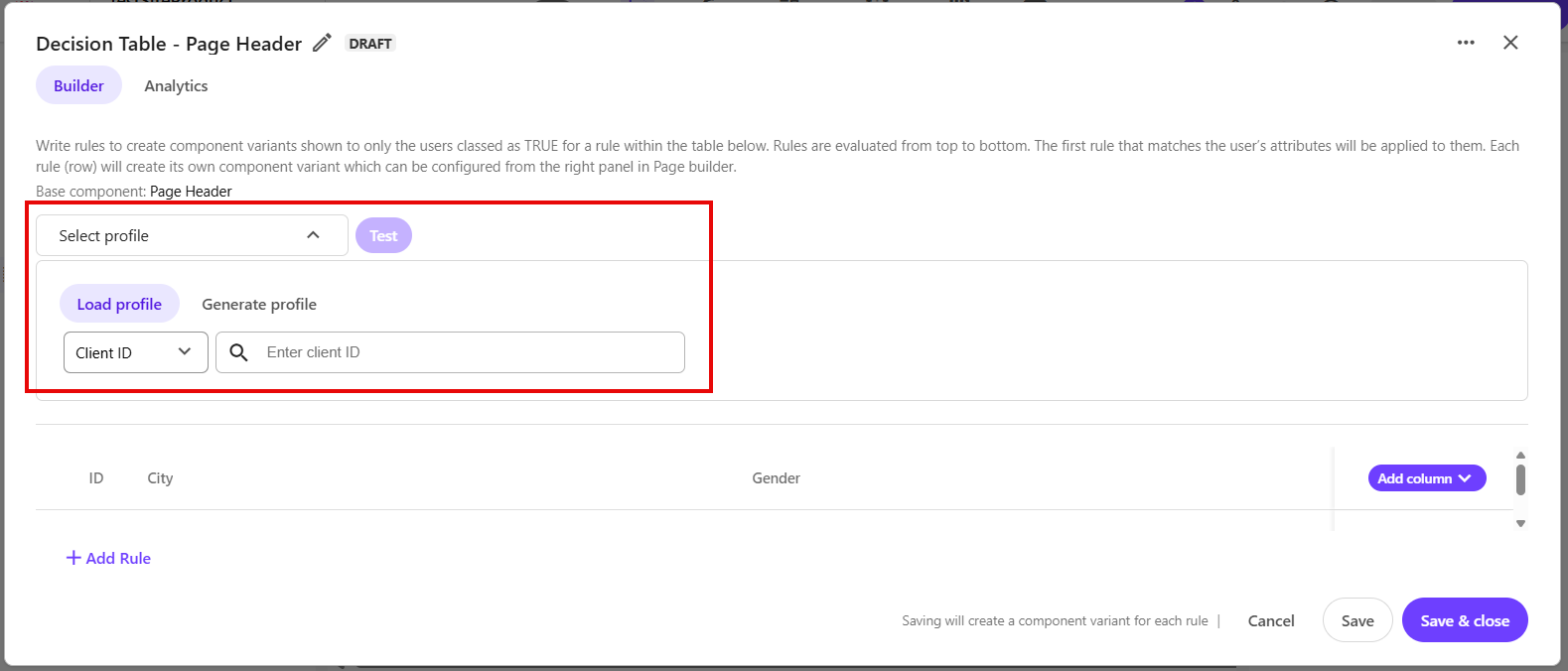
Select a profile to use for testing:
- Load profile - enter the visitor's client ID or profile ID. To retrieve these IDs, use inspect mode.
- Generate profile - use AI to generate a visitor profile from a natural language prompt.
-
If you selected Generate profile:
-
Enter a prompt describing the profile you want to test against.
Example: A female visitor from Copenhagen
-
Click Generate.
-
-
After the profile is successfully loaded, the test runs.
-
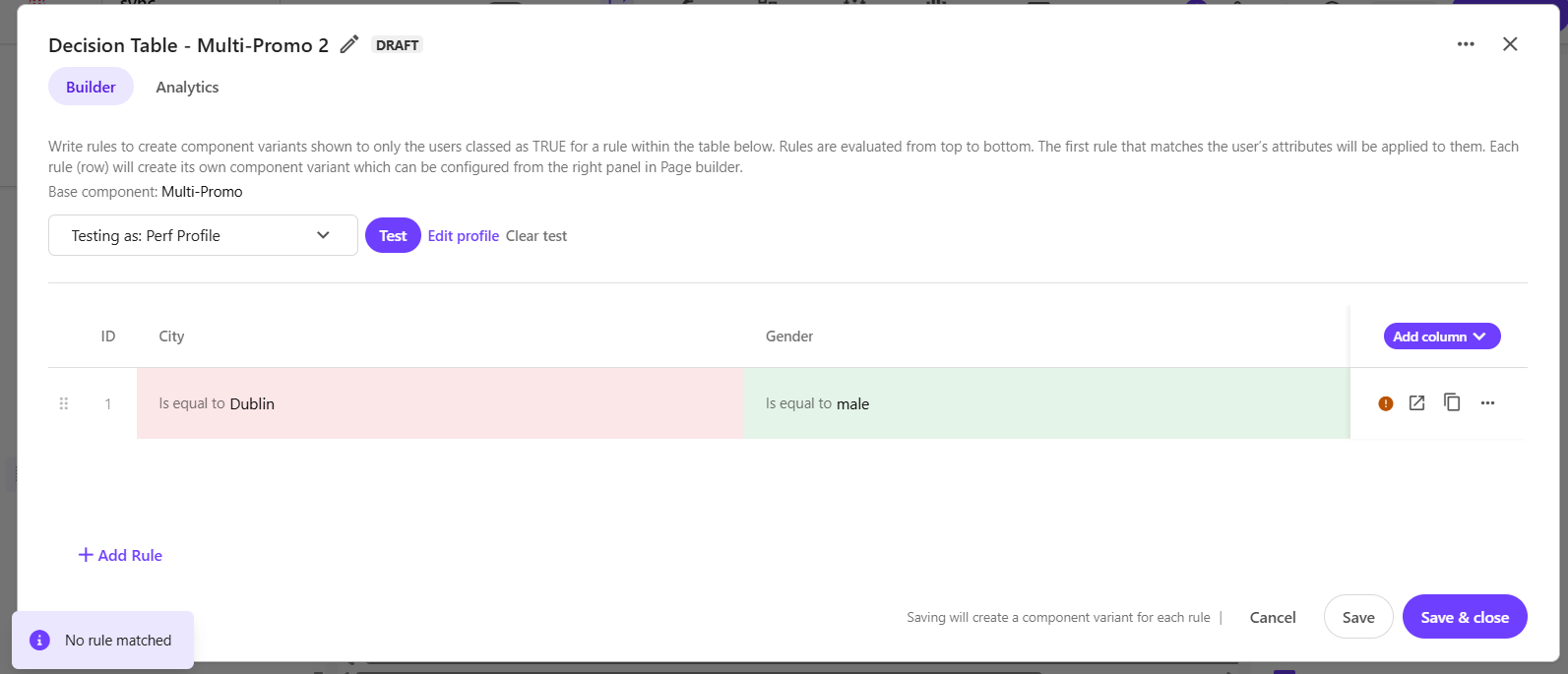
Review the test results to see whether the profile matched a rule. Each rule is evaluated against the conditions defined in the input columns shown in the table.
Color indicators show the result for each condition:
- Green means the profile matched the condition in that input column.
- Red means the profile did not match the condition in that input column.
A rule matches only when all required conditions in the row are met.
If any condition in the row does not match, the rule does not match. If no rule fully matches, the test result shows No rule matched.
 Tip
TipTest results depend on the profile data available for the selected visitor. Missing, incomplete, or differently formatted profile attributes can affect rule matching.
-
Optionally, use the following options to update or rerun the test.
- Edit profile - lets you manually update the selected profile’s attributes before testing again.
- Clear test - resets the current test results and removes the color indicators.
After using either option, click Test to rerun the rules against the selected profile.