The search filters
When you build a search query in Sitecore, you can select the following search filters from the drop-down menu in the Search field.
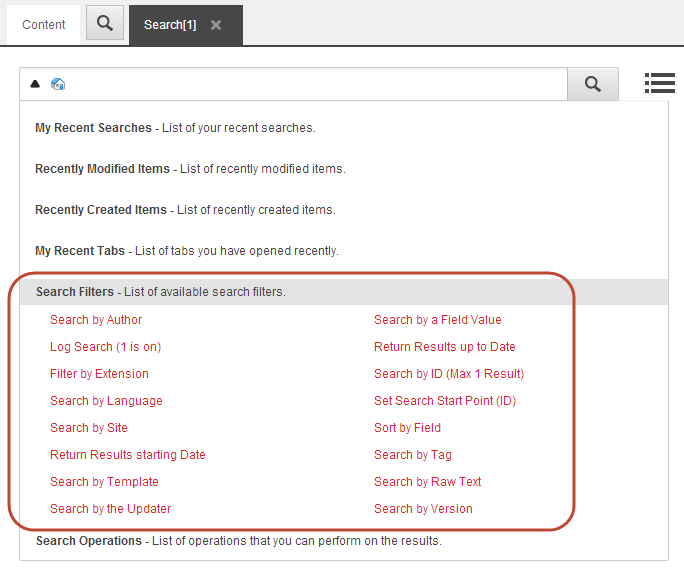
When you select a filter, it is inserted into the Search field and your search results will be filtered accordingly:
-
Search by author - Search for the items created by a specific author.
-
Log search (1 is on) - Turn on logging for a single search query (1 is on, 0 is off.) Only developers and administrators should use this filter.
-
Filter by extension - Search for items with a specific extension. This is useful when searching for files in the Media Library.
-
Search by language - Search for items in a specific language.
-
Search by site - Search for items on a specific site. This is useful when you have multiple sites on the same Sitecore installation.
-
Return results starting date - Search for items that were created on or after a specific date.
-
Search by template - Search for items based on a specific template.
-
Search by version - Search for items with a specific version number.
-
Search by a field value - Search for items with a specific value in a specific field. For example, to search for all the items that have the word design in the Title field, enter custom:title|design.
-
Return results up to date - Search for items that were created on or before a specific date.
-
Search by ID (max 1 result) - Search for an item with a specific Item ID. You must enter the whole ID.
-
Set search start point (ID) - Search for items from a specific location. Enter the specific content item ID where you want to start the search.
-
Sort by field - Sort the items based on the text in the field specified after the colon. The selected field must be either non-tokenized (has no Analyzer) or use an Analyzer that only produces a single Term, such as the KeywordTokenizer.
-
Search by tag - Search for items that have a specific tag.
-
Search by raw text - Search for items that contain a specific word.