Translate a page with AI
You can translate individual pages (and their related content items) into multiple languages in SitecoreAI. This allows for fast, automated translation of each page into supported languages, helping you scale localization with precision and control.
Write and Language write access rights are needed for the translation of the page to be available.
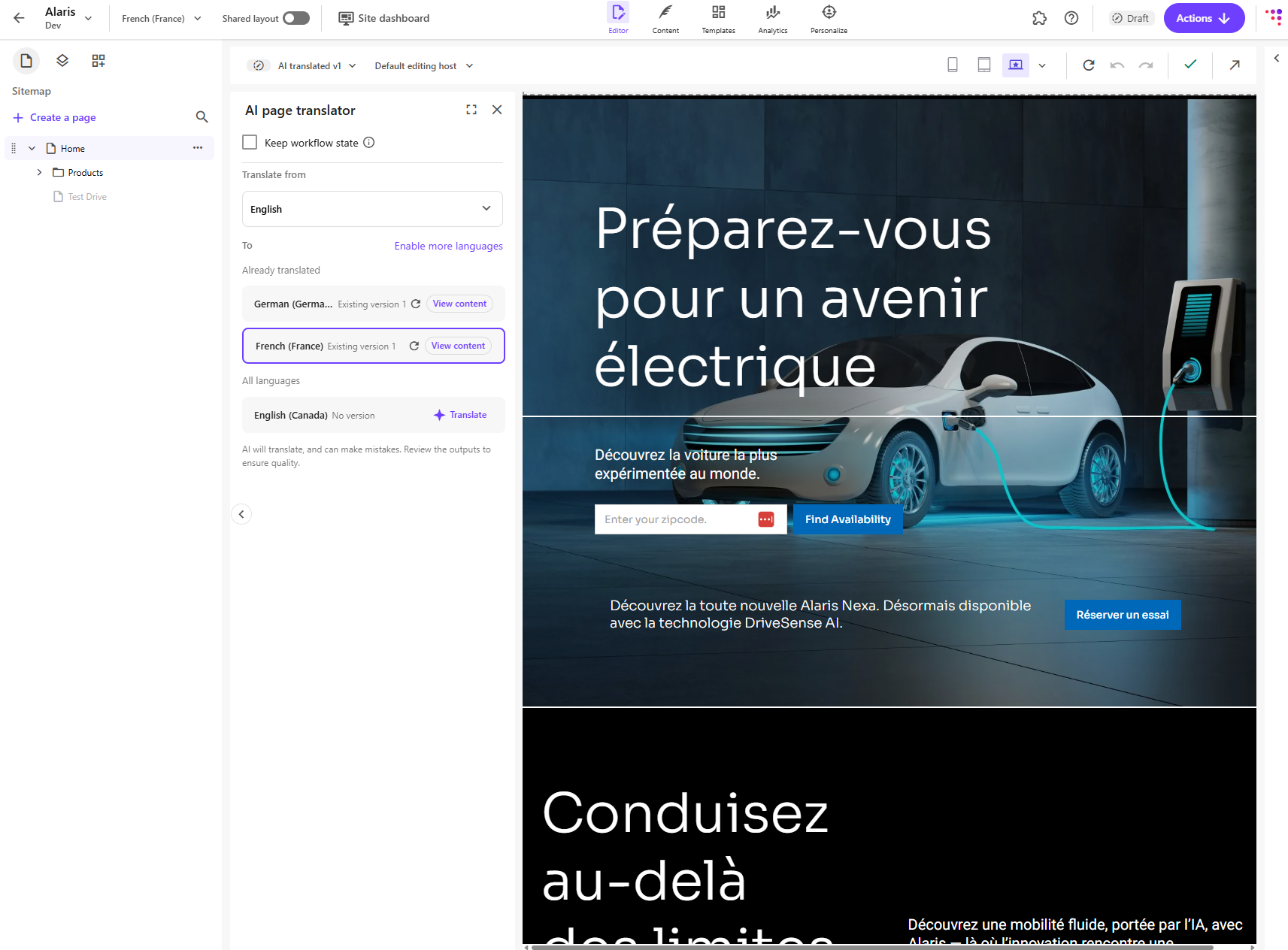
To translate a page, you must choose the page’s source language and one or more target languages. When you translate a page, SitecoreAI creates language versions for the selected page and each of its associated data sources in the target language. Each new version contains the original content translated into the target language. You can run the translation every time something is modified or added to a page, and new language versions of the page and associated data sources will be created automatically.
When translating a site, Shared fields and some system fields are excluded from translation. Versioned and Unversioned fields of the following types are translated:
- Single-line text
- Multi-line text
- Rich text
- General Link (link title, link text)
- General Link with Search (link title, link text)
- Image (alt text)
Before you start translating a page with AI, make sure you have completed the recommended setup steps for brand consistency and accurate translations.
We strongly recommend completing the following tasks in order:
- Create a brand kit to define tone, terminology, and language preferences used during translation.
- Assign it to your site so that the AI can apply your brand rules when translating pages.
The brand kit provides guidance to the AI during translation, helping ensure that translated content stays consistent with your brand voice and terminology across all pages.
To translate a page:
-
In the Page builder, open the site where the page you want to translate exists.
-
In the left-hand panel Sitemap , for the page you want to translate, click Actions > Translate .
Alternatively, in the language drop-down menu, click Translate .
-
In the Page translator context panel, you can enable the Keep workflow state option if you want translated items to inherit the workflow state of the source item:
- with the option unchecked (recommended), the translated item starts in the initial workflow state, typically Draft. This ensures that translated content goes through the required review and approval process before it can be published.
- with the option checked, the translated item keeps the same workflow state as the source item. For example, if the source item is in the Approved state, the translated item will also be Approved and may become publishable immediately.
-
Use the drop down menu to select the source language. When possible, choose a source language that is close to the target language to increase the chances of a higher-quality AI translation.
-
For the target language, click Translate for the languages that you want a new translation for. For languages that already have a language version (previously AI-generated or manually created), click Retranslate .
-
If the language you want to translate the page is not in the list, click Enable more languages, and use the drop down menu to add languages to your site. Back in the Page builder, click Reload to see the newly added languages in the list of the Page translator context panel.
-
When the translation is done, click View content to open the translated page in the canvas.
The list of translatable field types is defined in /sitecore/experienceAccelerator/siteManagement/translatableFieldTypes: