Translate an entire site with AI
You can translate an entire site (content items and pages) in just a few clicks from the site Dashboard accessible in Channels. SitecoreAI enables fast, automated translation of your site’s content into supported languages, helping you scale localization with minimal effort.
The full site translation functionality is available for Admin or Sitecore Client Site Managing roles.
If a Sitecore Client Site Manager doesn't have Write and Language write access rights to some items, the translation of these items be skipped.
To do so, you choose the site's target language and a source language (for example the language in which you have the most content items and pages).
When you translate a site using AI, you first choose the site's source language, for example, the language in which you have the most content. SitecoreAI then creates a language version for each site item in the target language. Each new version contains the original content translated in the target language.
By default, SitecoreAI only translates items that are missing a language version. For example, if your site is already 20% localized, SitecoreAI will only create language versions for the remaining 80% of the site items. However, you can request for all items to be translated, in which case additional language versions will be created for all items, even those that already had one.
When translating a site, Shared fields and some system fields are excluded from translation. Versioned and Unversioned fields of the following types are translated:
- Single-line text
- Multi-line text
- Rich text
- General Link (link title, link text)
- General Link with Search (link title, link text)
- Image (alt text)
To translate a site:
-
In Channels, for the site of your choice, click Dashboard .
-
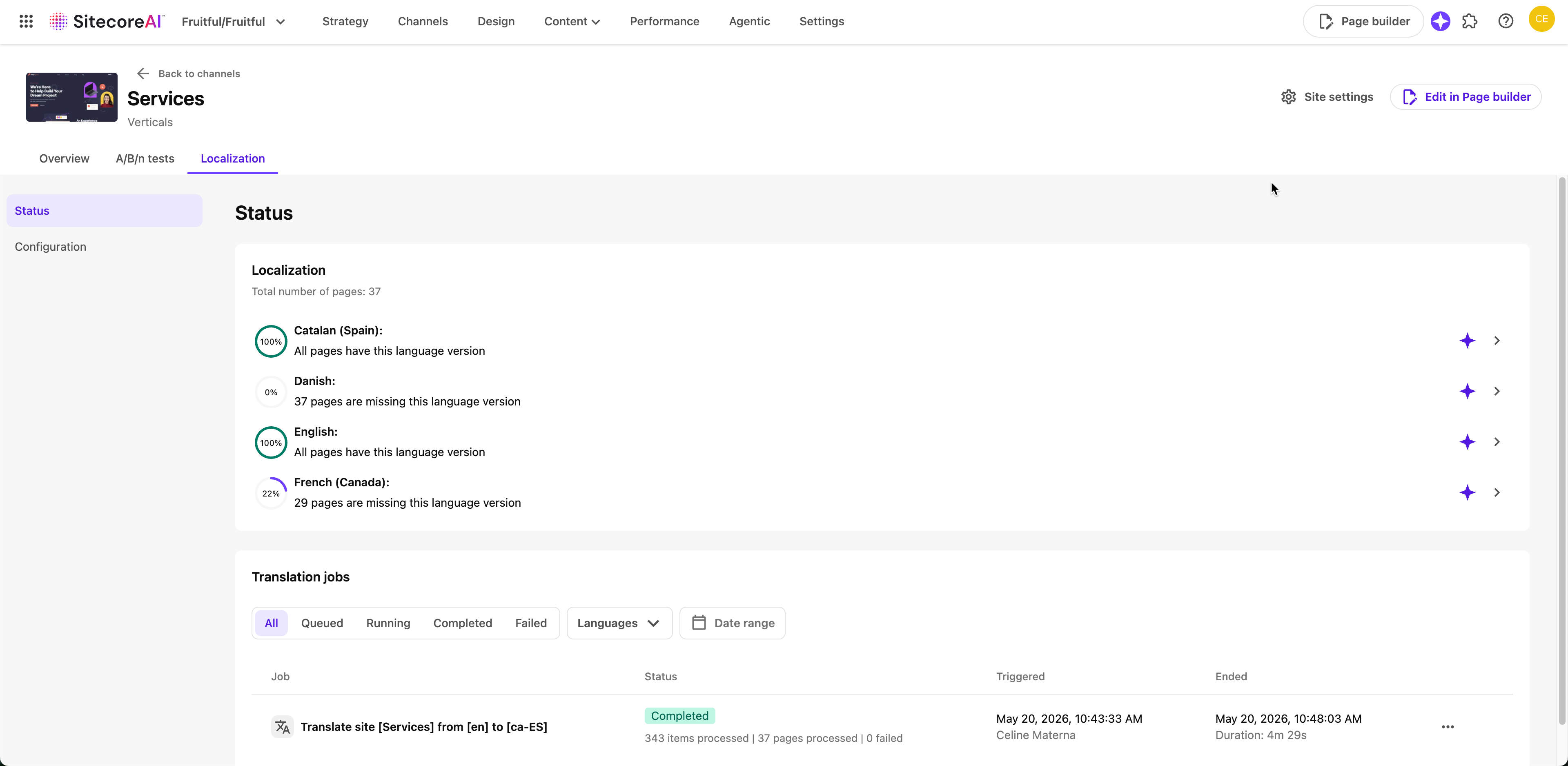
You can start a site translation from the Localization widget if it is included in the Overview tab. Otherwise, in the Localization tab, click Status.
-
Click Translate with AI for the language you want the site to be translated to.
NoteIn the Localization section, you can see:
-
what languages the site supports
-
how much of the site has been translated in each language
-
how many pages/items still need to be translated
-
-
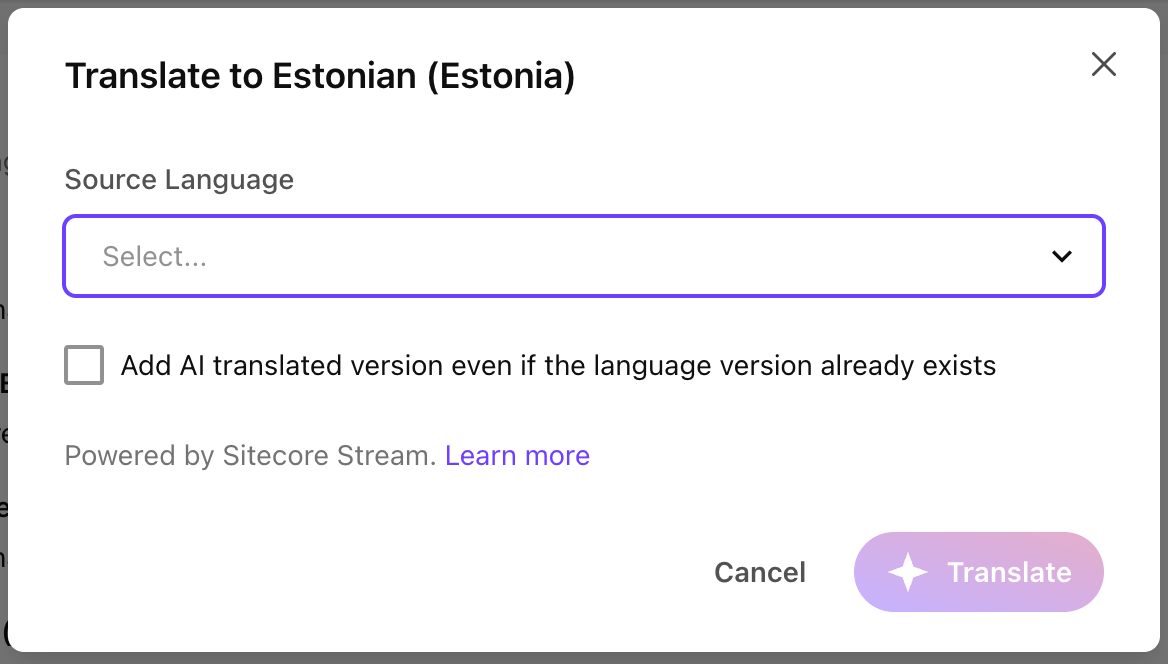
In the dialog, in the Source Language drop down menu, click the language you want to use as original version. We usually recommend using the language in which you have the most items available, but you can also choose a source language because it is close to the target language and will lead to an AI translation of higher quality, for example.
-
To also translate items that might already have a language version, select the checkbox for Add AI translated version even if a language version already exists.
-
Click Translate.
While the translation is processing, you can browse away from the Localization widget, or even close your browser window. However, we do not recommend making changes to the site items that exist in the original language until after the translation has ended.
After the translation is done, you can see in the Localization section that the site is now translated at 100%. We recommend reviewing all the new versions created before publishing them.
The list of translatable field types is defined in /sitecore/experienceAccelerator/siteManagement/translatableFieldTypes: