Open a space
Each space lets you track progress, review outputs, and follow the full history of agent-driven work. You can explore detailed information for runs across agents and flows at any time, regardless of their status. You can open a space at any time to review artifacts, inspect progress, or continue working.
When you open a space, it is organized into two main areas:
- The main pane, where generated artifacts and results are displayed. Switch between Classic (default), Chat, and Canvas views.
- The right pane, which includes the Agents and Instructions tabs.
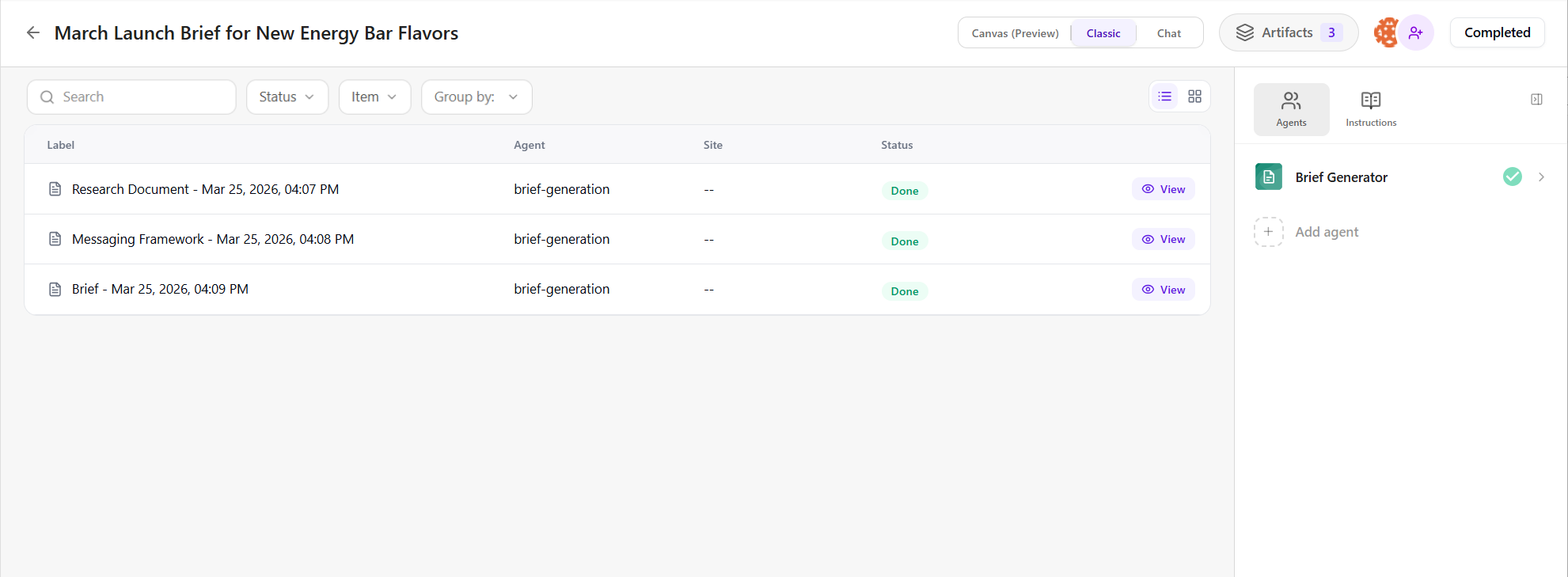
The main pane offers multiple views for working with generated artifacts. You can switch between Chat, Classic, and Canvas views depending on how you want to interact with the artifact.
-
In the Classic (default) view, artifacts are displayed as a list. Each artifact shows its label, creation date and time, the agent that generated it, any SitecoreAI site selected, and its status. You can track, filter, and group artifacts using these properties.
To open an artifact, click View. You can then continue editing or refining it as needed. See Manage an artifact for details.
-
In the Chat view, artifacts appear in a chat interface where you can continue working using the same options available in the Chat interface. All artifacts remain in a single thread, so you can build on previous outputs without losing context. See Start a chat within a space for details.
-
In the Canvas view, you can preview artifact content in a visual, whiteboard-style format, making it easier to collaborate and iterate on ideas.
The right pane lets you manage agents and instructions within the space.
- On the Agents tab, you can view existing agents and add more by clicking Add agent, allowing you to extend workflows and build on previous results. See Run additional agents within a space for details.
- On the Instructions tab, you define how agents operate using two types of context:
- Space context - sets persistent, system-level instructions that apply to all agents in the space, such as objectives, constraints, or brand guidance.
- Agent context - add temporary instructions for the next agent run only, useful for refining a specific step without changing the overall setup.
To open a space:
-
In the navigation menu, click Agentic and, in the left sidebar, click Spaces.
-
On the Spaces page, locate the space you want to view.
You can use filters or search by title, agent name, or flow.
-
Click the space to open it.
Next steps
Within a space, you can:
- Add collaborators to the space.
- Manage artifacts generated during the run. You can view, review, and refine them as needed.
- Chat within the space to continue working with AI.
- Run additional agents to perform further tasks.
- Convert a generated artifact into a SitecoreAI item.
- Change the status of a space to reflect the current stage of work.