Using validation rules with AI features
Sitecore includes validation rules that define constraints for field values. They help verify basic data formats and system requirements, such as required fields, maximum length limits, email or integer formats, link integrity, and system checks like image alt text or GUID format.
In the Experience Platform, validation rules can also guide AI-powered features. The following AI capabilities support validation rules:
- Content generation, when using Content Assistant to generate or improve content in item fields.
- Media metadata extraction, when generating titles, descriptions, alt text, and other metadata for image fields.
When validation rules are enabled, the rules assigned to a field definition item are included in the AI prompt. This allows generated content to reflect the defined field constraints from the start.
Validation rules guide AI generation but do not enforce validation after generation. You can review and modify generated content as needed. The same validation rule can be used across both Content Assistant and Media Metadata Extraction if the constraint applies in both contexts.
The following sections describe how validation rules are applied in content generation and media metadata extraction.
Using validation rules in content generation
How it works
When using Content Assistant, you can select the Apply validation rules option if validation rules are defined for the field. The option is disabled when no validation rules are configured.
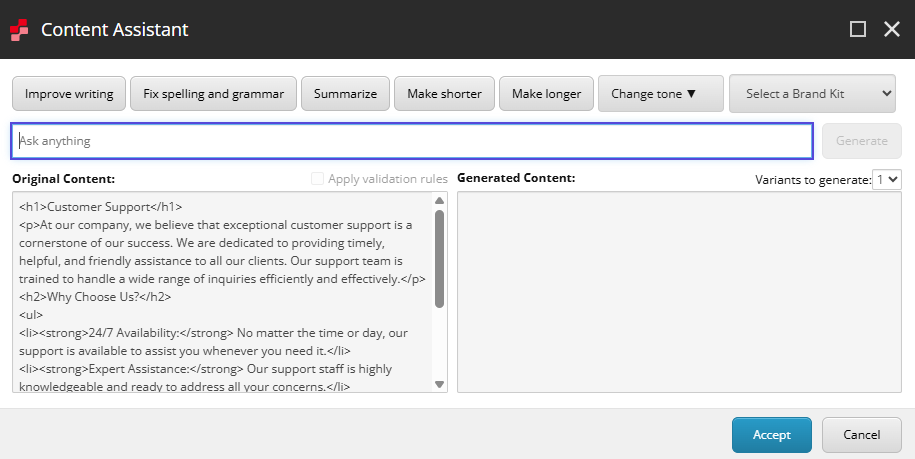
If selected, the system checks the field definition item for validation rules assigned under the following validation options:
- Quick Action Bar
- Validate Button
- Validator Bar
- Workflow
If rules are found under these validation options, Content Assistant extracts the rule description and includes it in the AI prompt.
This provides the AI with additional context about what is required in that field. For example, a rule might require that:
- The field must not be empty.
- The value must not exceed a certain length.
- The value must follow a specific format.
If multiple validation rules are assigned to a field, all rule descriptions are combined and included in the AI prompt.
Validation rules are applied per field definition item. A rule assigned to one field does not affect other fields.
Adding a validation rule for Content Assistant
You can create validation rules that AI will respect during content generation.
To create and assign a validation rule:
-
In the Content Editor, navigate to
/sitecore/system/Settings/Validation Rules/Field Rules. -
Create a new Validation Rule item or duplicate an existing one.
-
Enter a clear description in the Description or Title field.
For example, The summary must be concise and under 20 words.
ImportantContent Assistant prioritizes the Description field. If it is empty, the Title field i used. If both are empty, the item's Name is used.
-
Open the template in Template Manager or navigate to the template definition.
-
Select the relevant field definition item (for example, the Title field of your Article template).
-
In the Validation Rules section, assign the rule under one or more validation options (for example, Quick Action Bar or Validate Button).
-
Save the item.
Example scenario
The following example demonstrates how validation rules influence AI-generated content.
Ensuring the Teaser field is always catchy
-
Create the rule - in the Content Editor, create a validation rule with the following details:
- Title - Short Teaser Rule
- Description - Keep the text under 150 characters and use an engaging tone.
-
Assign the rule to a field - assign the rule to the Teaser field definition item in your News Article template under one of the validation options.
-
Generate content using the rule - do the following:
- Open the relevant news article item.
- Go to the Teaser field and click the AI icon
 to start Content Assistant.
 - In the Content Assistant dialog, select the Apply validation rules option.
- Enter a prompt such as: Write a teaser for this article and click Generate.
Content Assistant evaluates both the user prompt and assigned validation rule. The generated output aligns with the defined requirement.
Using validation rules in media metadata extraction
How it works
When using Media Metadata Extraction, you can select the Validation Rules option if validation rules are defined for the media metadata fields. The option is disabled when no validation rules are configured.
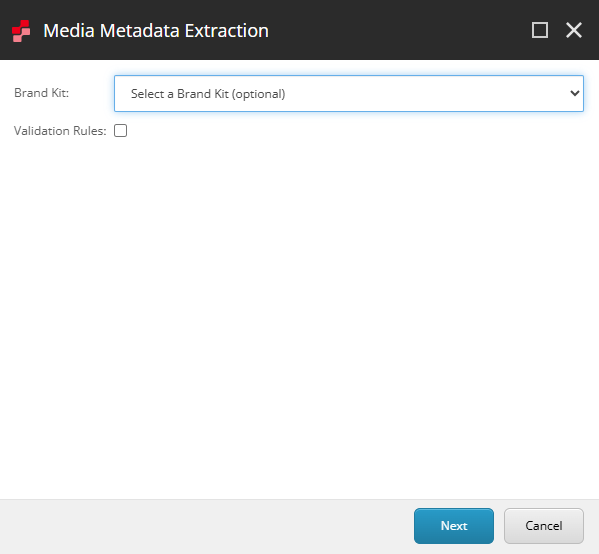
If selected, the system checks the relevant field definition items in the standard Image template for validation rules assigned under the following validation options:
- Quick Action Bar
- Validate Button
- Validator Bar
- Workflow
If rules are found. Media Metadata Extraction extracts the rule descriptions and includes them in the AI prompt for the following standard media fields:
- Title
- Description
- Alt
- Keywords
This provides the AI with guidance about what is required for each field. For example:
- The title must be under 60 characters and use title case.
- The alt field must describe the image for screen readers.
- The description must include key visual elements and context, maximum 300 characters.
- Keywords must use 3–7 relevant terms, including product name if applicable.
If multiple validation rules are assigned to a field, all rule descriptions are combined and included in the AI prompt.
Rules are applied individually to each media field definition item. A rule assigned to Title does not affect Description.
Validation rules assigned to these fields apply to all items that use the standard Image template.
Adding a validation rule for Media Metadata Extraction
You can create validation rules that AI will respect during media metadata extraction.
To create and assign a validation rule:
-
In the Content Editor, navigate to
/sitecore/system/Settings/Validation Rules/Field Rules. -
Create a new Validation Rule item or duplicate an existing one.
-
Enter a clear description in the Description or Title field.
For example, Alt text should focus on image content and context, not decorative elements.
ImportantContent Assistant prioritizes the Description field. If it is empty, the Title field i used. If both are empty, the item's Name is used.
-
Open the template in Template Manager or navigate to the template definition.
-
Navigate to /sitecore/templates/System/Media/Unversioned/Image.
-
Select the relevant field definition item (for example, the Alt, Title, Description, or Keywords).
-
In the Validation Rules section, assign the rule under one or more validation options (for example, Quick Action Bar or Validate Button).
-
Save the item.
Example scenarios
The following examples demonstrate how validation rules influence AI-generated metadata.
Example 1: Enforcing SEO-friendly titles
-
Create the rule - in the Content Editor, create a new validation rule with the following details:
- Title - SEO Media Title
- Description - Title must be under 60 characters, include relevant keywords, and use title case.
-
Assign the rule to a field - assign the rule to the Title field definition item in the Image template under one of the validation options.
-
Extract metadata using the rule - do the following:
- Open the relevant media item.
- On the Media tab, click Extract to start Media Metadata Extraction.
- In the Media Metadata Extraction dialog, select the Validation Rules option.
- Click Next to start extraction.
When metadata is extracted, the AI generates a concise, keyword-rich title that follows the defined requirement.
Example 2: Ensuring accessible alt text
-
Create the rule - in the Content Editor, create a new validation rule with the following details:
- Title - Accessible Alt Text
- Description - Alt text must describe the image content clearly for screen readers. Focus on what is shown, not decorative elements. Keep under 125 characters..
-
Assign the rule to a field - assign the validation rule to the Alt field definition item in the Image template under one of the validation options.
-
Extract metadata using the rule - do the following:
- Open the relevant media item.
- On the Media tab, click Extract to start Media Metadata Extraction.
- In the Media Metadata Extraction dialog, select the Validation Rules option.
- Click Next to start extraction.
When metadata is extracted, the AI generates a descriptive alt text that aligns with accessibility expectations.
Example 3: Maintaining a consistent keyword strategy
-
Create the rule - in the Content Editor, create a new validation rule with the following details:
- Title - Keyword Guidelines
- Description - Use 3–7 relevant keywords. Include product category, brand name if visible, and primary subject. Keywords should be lowercase and SEO-friendly..
-
Assign the rule to a field - assign the validation rule to the Keywords field definition item in the Image template under one of the validation options.
-
Extract metadata using the rule - do the following:
- Open the relevant media item.
- On the Media tab, click Extract to start Media Metadata Extraction.
- In the Media Metadata Extraction dialog, select the Validation Rules option.
- Click Next to start extraction.
When metadata is extracted, the AI generates a focused and consistent set of keywords that aligns with the rule.
Example 4: Assigning multiple rules per field
You can assign multiple validation rules to a single field definition item. If multiple rules are present, all rule descriptions are combined in the AI prompt.
For example, the Description field might include rules such as:
- Maximum 300 characters.
- Include primary subject, setting, and any visible text or branding.
- Use a formal, professional tone.
When metadata is extracted, the AI generates a description that aligns with all three rules.