AI-assisted page translation
Page translation is available only with Stream Premium. To learn more, contact your Account Manager.
The AI-assisted page translation feature in the Experience Platform lets you translate an entire page with one operation. It automatically identifies all items referenced on the page and translates them together, helping you localize faster and minimize manual work. The Page Translation Assistant uses smart translation, excluding items that are already translated for the selected target language, so they are not translated again.
You can initiate a page translation directly from the Experience Editor or Content Editor. All translated items are saved as new versions.
For best results, ensure your page uses supported content sources before translating. See Content source guidelines for page translation.
You must have the sitecore\Sitecore AiClient Page Translation Assistant role and write access to the content.
If you do not have write permission on an item, or on a parent whose descendants you include, you cannot use Stream Translate for that content. If you need access, ask an administrator to assign the required role and permissions. See Add or remove AI roles for a user.
Content source guidelines for page translation
The Page Translation Assistant automatically discovers and translates a page item along with any Sitecore items it references. Translation occurs when referenced content exists in the Sitecore database and is stored in a way the translation engine can access and interpret.
Supported content sources
AI-assisted page translation works best with content stored in Sitecore-managed fields and item relationships, including:
- Direct content field types such as single-line text, multi-line text, rich text, general link, image.
- Referenced items selected through content field values such as multilist fields.
- Data source items referenced through template fields.
- Data source items assigned through rendering control properties, including those defined in Layout Details.
These sources make content fully discoverable by the translation engine, allowing it to follow item references and produce a more complete translation.
Content sources that require manual or alternative translation methods
Some content sources are not automatically picked up by the Page Translation Assistant because they originate outside Sitecore content fields, are code-driven, or are dynamically assembled. These can still be translated manually, through alternate processes, or by adjusting how the content is stored or referenced.
In this release, the following content sources are not translated automatically:
- Hardcoded text in front-end code (HTML, JavaScript, ASPX, Razor) or custom rendering layer (ASP.NET, Node.js framework).
- Hardcoded item references in front-end code (HTML, JavaScript, ASPX, Razor) or custom rendering layer (ASP.NET, Node.js framework).
- Non-text Field types such as File, DateTime, or Custom.
- Transitive references or item references (data source) more than one item level deep (Example: Item A → Item B → Item C).
- (SXA-specific) Items coming from SXA composing mechanism, including as Page Designs, Partial Designs, Rendering Variants, and items that should be translated but located in the Presentation Tree.
- (SXA-specific) Navigation items (pages) which are set by Navigation section parameters.
Translate a page in the Content Editor
Follow these steps to create a new language version and translate it using AI.
Before translating, review Content source guidelines for page translation to ensure your page uses supported content sources.
To translate a page:
-
Open the page you want to translate in the Content Editor.
-
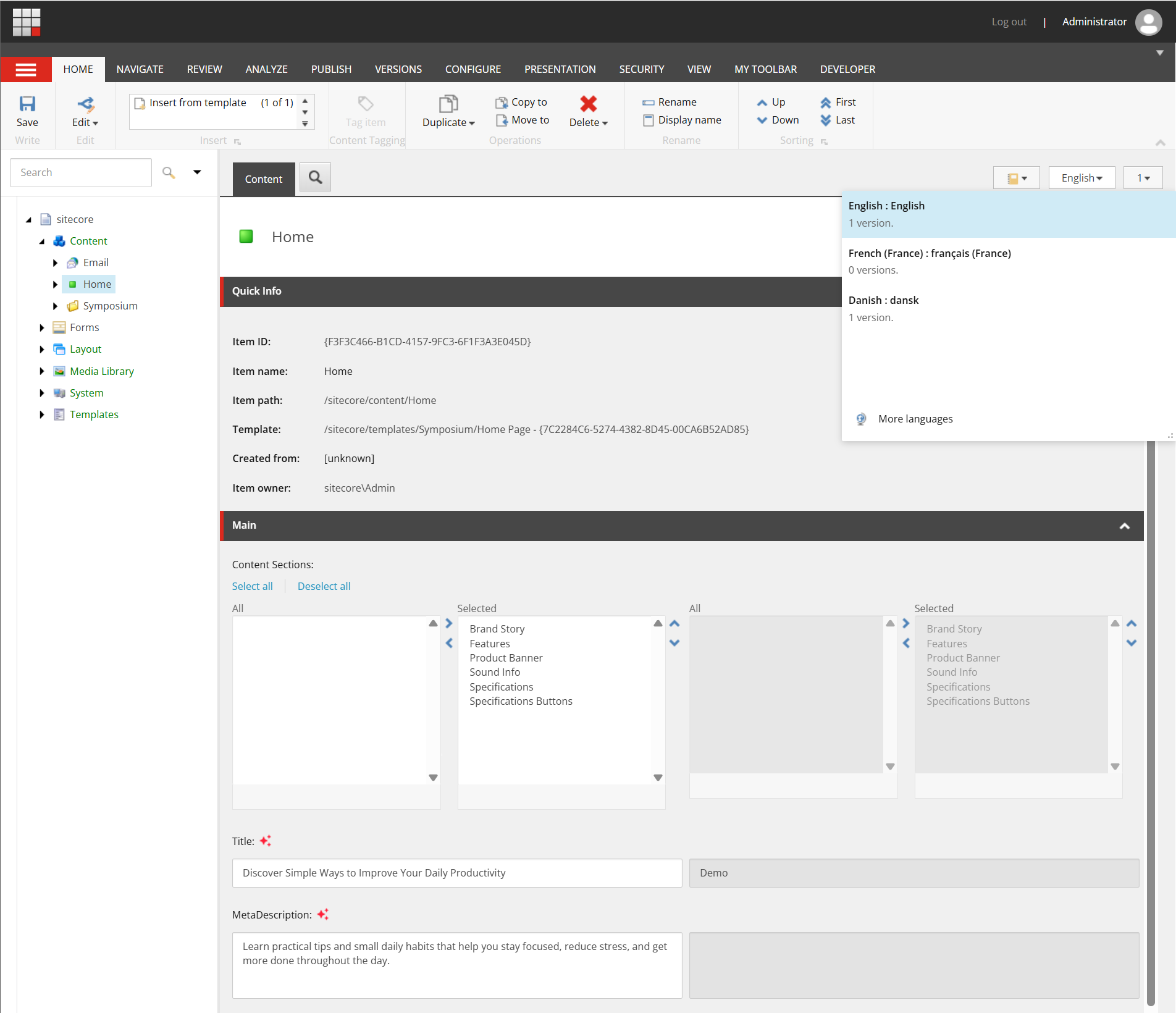
In the top-right corner of the content area, select the target language (for example, French).
 Note
NoteIf the language you need isn't listed, click More languages. In the Select Language dialog, choose your language and click OK.
You can also add a new language manually if required.
-
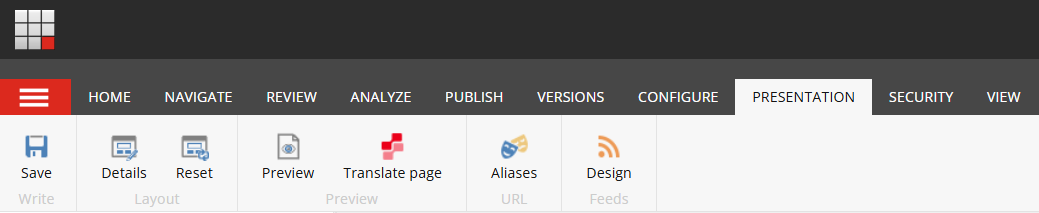
Go to the Presentation tab and, in the Preview group, click Translate page.
-
In the Page Translation Assistant dialog, you can optionally:
-
Select a brand kit (only for Sitecore Premium users) to apply your brand rules and guidelines and protect specific terms during translation.
-
In Items Found, click View Details to review all translatable items in the selected content tree. This includes:
- Items within the selected page.
- Items that require translation for the target language, such as new items or items with updated content.
Items that are already translated into the target language are excluded by smart translation.

-
-
Click Translate to begin translation. The process runs in the background and might take a few minutes to complete.
-
When the translation is complete, the dialog confirms that the page and all detected items have been translated. The translated page and items are saved automatically.
-
Optionally, click View Details to review the translated page and items, including their paths and version numbers.
-
Click Close to exit the dialog.
-
Review the translated content and compare it with the original. Make manual adjustments if needed.
ImportantAI-generated translations might not always be accurate. Review all translated text before using or publishing it. AI outputs can vary between attempts, so translating the same thing more than once can produce different results.
Translate a page in the Experience Editor
Follow these steps to create a new language version and translate it using AI.
Before translating, review Content source guidelines for page translation to ensure your page uses supported content sources.
To translate a page:
-
Open the page you want to translate in the Experience Editor.
-
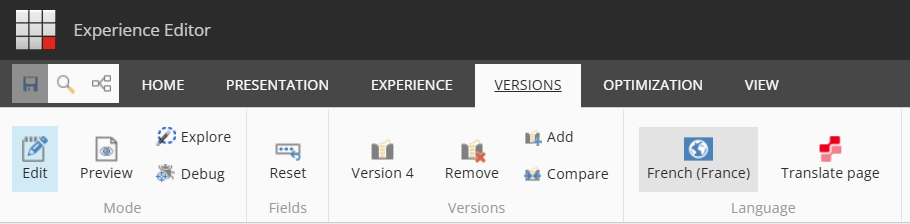
Go to the Versions tab and, in the Language group, click Change the current language
 .
. -
Select the target language (for example, French).
NoteIf the language you need isn't listed, click More languages. In the Select Language dialog, choose your language and click OK.
You can also add a new language manually if required.
-
Click Translate page.
-
In the Page Translation Assistant dialog, you can optionally:
-
Select a brand kit (only for Sitecore Premium users) to apply your brand rules and guidelines and protect specific terms during translation.
-
In Items Found, click View Details to review all translatable items in the selected content tree. This includes:
- Items within the selected page.
- Items that require translation for the target language, such as new items or items with updated content.
Items that are already translated into the target language are excluded by smart translation.
-
-
Click Translate to begin translation. The process runs in the background and might take a few minutes to complete.
-
When the translation is complete, the dialog confirms that the page and all detected items have been translated. The translated page and items are saved automatically.
-
Optionally, click View Details to review the translated page and items, including their paths and version numbers.
-
Click Close to exit the dialog.
-
Review the translated content and compare it with the original. Make manual adjustments if needed.
ImportantAI-generated translations might not always be accurate. Review all translated text before using or publishing it. AI outputs can vary between attempts, so translating the same thing more than once can produce different results.
Using brand kits for translation
When you select a brand kit, the Page Translation Assistant applies your brand’s rules and guidelines to help maintain brand voice and protect key terminology.
To prevent product names, trademarks, or other protected terms from being translated, add rules in the brand kit’s Do's and Don'ts section.
Example rule for protected terms Term1 and Term2:
“When translating, if you encounter the following quoted phrases or words: "Term1", " Term2" do not translate them but translate the rest of the text.”
Best practices for brand kit rules:
- Be specific - write clear, detailed rules for better execution.
- Use quoted phrases - identify protected terms with quotation marks.
- Test your rules - validate them with sample content before large-scale use.
- Maintain consistency - align rules with brand guidelines.
- Update regularly - refresh rules as new products or terms are introduced.
Manually added term protection rules in a brand kit’s Do's and Dont's section might be overwritten or lost when knowledge sources are reprocessed unless the section is marked as Non AI-editable. See also using terminology rules for additional guidance.