AI-assisted content generation
AI-assisted content generation helps jump-start your content creation process in the Experience Platform. Using the Content Assistant, you can create high-quality content directly in the Content Editor and the Experience Editor.
AI-assisted content generation works in single-line, multiple-line, and rich-text fields. For example, in the Content Editor, supported fields display the AI icon  .
.
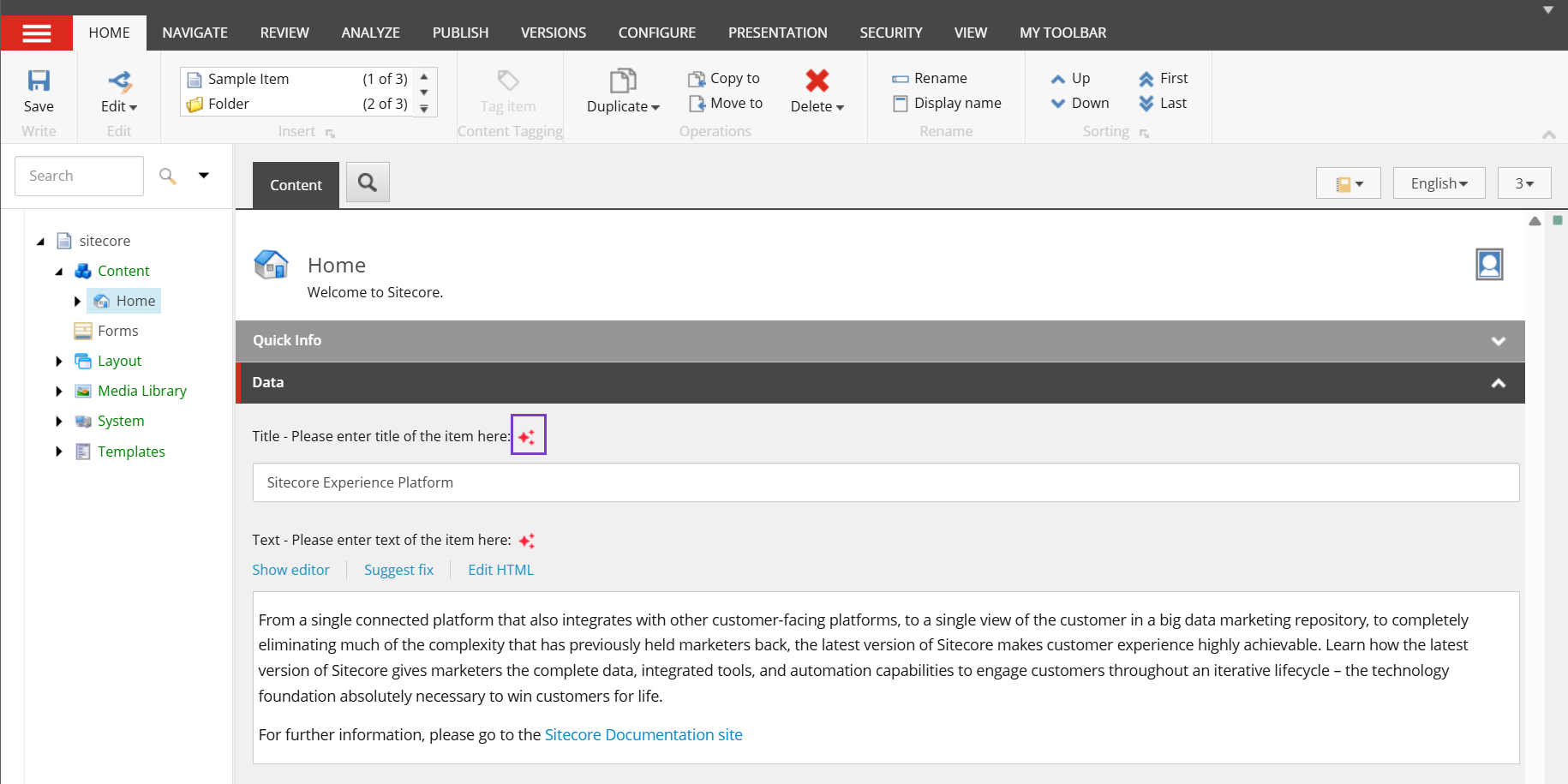
Clicking the AI icon opens the Content Assistant dialog, where you can use the AI features to:
- Generate new content
- Refine existing content
- Generate multiple content variants
- Apply a brand kit for creating on-brand content
You must have the sitecore\Sitecore AiClient Field Content Assistant role to use this feature. If you don't have this role, ask an administrator to assign it. See Add or remove AI roles for a user.
Generate new content
You can generate content for empty fields by entering a clear, detailed prompt. The more context you provide, the better the result.
To generate new content:
-
Click the AI icon
next to the empty field you want to edit. -
In the Content Assistant dialog, enter a prompt describing the content you want the AI to create.
 Tip
TipYou can enter prompts in any supported language for the best results.
-
Optionally, select the Apply validation rules option to include validation rules in the generated content. The option is disabled when no validation rules are configured for the field. See Using validation rules with AI features.
-
Click Generate.
-
Review the result in the Generate Content field.
-
When you are satisfied with the output, click Accept to insert the text into the field.
WarningThis action does not save the item automatically.
-
Click Save to apply your changes to the item.
Refine existing content
You can improve existing content by entering a custom prompt or selecting a predefined prompt.
Enter a prompt
To refine existing content with a custom prompt:
-
Click the AI icon
next to the field you want to edit. -
In the Content Assistant dialog, enter a prompt describing how you want to refine the existing content.
TipYou can enter prompts in any supported language for the best results.

-
Optionally, select the Apply validation rules option to include validation rules in the generated content. The option is disabled when no validation rules are configured for the field. See Using validation rules with AI features.
-
Click Generate.
-
Review the result in the Generate Content field.
-
When you are satisfied with the updated content, click Accept to insert the text into the field.
WarningThis action does not save the item automatically.
-
Click Save to apply your changes to the item.
Select a predefined prompt
To refine existing content by selecting a predefined prompt:
-
Click the AI icon
next to the field you want to edit. -
Optionally, select the Apply validation rules option to include validation rules in the generated content. The option is disabled when no validation rules are configured for the field. See Using validation rules with AI features.
-
Select one of the following predefined prompts to refine the existing content:

-
Improve writing
-
Fix spelling and grammar
-
Summarize
-
Make shorter
-
Make longer
-
Change tone to Formal, Casual, Bold, Informative, or Friendly.
NoteIf the existing content includes formatting such as URLs, or images, the AI will preserve its original markup in the refined version.
-
-
Review the result in the Generate Content field.
-
When you are satisfied with the output, click Accept to insert the text into the field.
WarningThis action does not save the item automatically.
-
Click Save to apply your changes to the item.
Generate multiple content variants
You can generate up to five content variations (or variants) by entering a custom prompt or selecting a predefined prompt. By default, only one variant is generated.
Enter a prompt
To generate multiple variants with a custom prompt:
-
Click the AI icon
next to the field you want to edit. -
In the Content Assistant dialog, from the Variants to generate drop-down menu, choose one to five variants.
NoteYour selected value is retained for the duration of the browser session.

-
Enter a prompt describing how you want to create or refine the content.
TipYou can enter prompts in any supported language for the best results.
-
Optionally, select the Apply validation rules option to include validation rules in the generated content. The option is disabled when no validation rules are configured for the field. See Using validation rules with AI features.
-
Click Generate. Stream will create the selected number of variants.
After generation, you can:
- Review and switch between variants using the numbered buttons 1, 2, 3, and so on.
- Edit any variant manually. Your changes are saved automatically.
- Change the number of variants at any time. To regenerate the variants, click Generate.
-
When you've chosen the variant you want, click Accept to insert the text into the field.
WarningThis action does not save the item automatically.
-
Click Save to apply your changes to the item.
Select a predefined prompt
To generate multiple variants by selecting a predefined prompt:
-
Click the AI icon
next to the field you want to edit. -
In the Content Assistant dialog, from the Variants to generate drop-down menu, choose one to five variants.
NoteYour selected value is retained for the duration of the browser session.
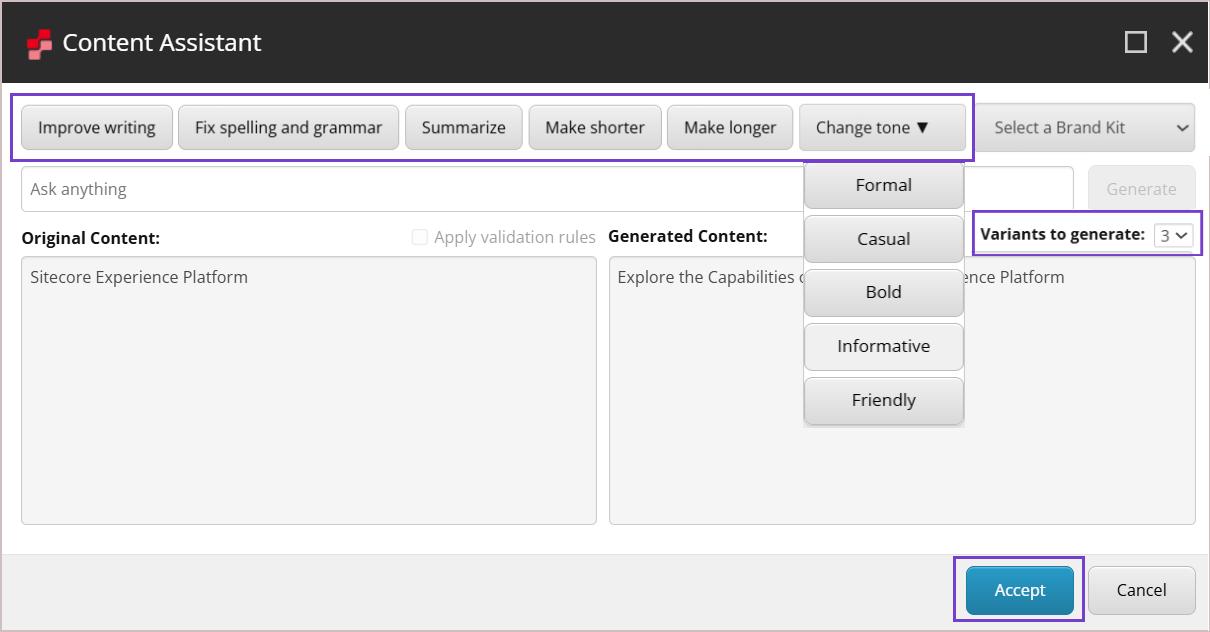
-
Optionally, select the Apply validation rules option to include validation rules in the generated content. The option is disabled when no validation rules are configured for the field. See Using validation rules with AI features.
-
Select one of the following predefined prompts to refine the existing content:
-
Improve writing
-
Fix spelling and grammar
-
Summarize
-
Make shorter
-
Make longer
-
Change tone to Formal, Casual, Bold, Informative, or Friendly.
NoteThe Fix spelling and grammar option will not generate multiple variants, as all responses will be the same.
-
-
Stream will create the selected number of variants.
After generation, you can:
- Review and switch between variants using the numbered buttons 1, 2, 3, and so on.
- Edit any variant manually. Your changes are saved automatically.
- Change the number of variants at any time. To regenerate the variants, select a predefined prompt.
-
When you've chosen the variant you want, click Accept to insert the text into the field.
WarningThis action does not save the item automatically.
-
Click Save to apply your changes to the item.
Apply a brand kit for creating on-brand content
Brand kits are available only with Stream Premium. To learn more, contact your Account Manager.
Before you can use a brand kit in Experience Platform, your organization must first create one in Sitecore Stream. Stream references the brand kit and draws on the information in the Brand Context, Do's and Don'ts, and Tone of Voice sections to guide content generation that reflects your brand.
To apply a brand kit in Experience Platform:
- If you're using Stream DXP module version 1.0, use the procedure to configure a brand kit using your
organization IDandbrand kit ID. - For later versions, follow the instructions below to apply a brand kit directly from the Content Assistant dialog.
After applying a brand kit, you can either enter a custom prompt or select a predefined one to generate on-brand content.
Enter a prompt
To apply a brand kit and enter a custom prompt:
-
Click the AI icon
next to the field you want to edit. -
In the Content Assistant dialog, from the Select a brand kit drop-down menu, choose the appropriate brand kit.
 Note
NoteBy default, no brand kit is selected, so the AI generates content without brand-specific guidelines.
If you select a brand kit, your selection is retained for the duration of the browser session.
-
Enter a prompt describing how you want to create or refine the content.
TipYou can enter prompts in any supported language for the best results.
-
Optionally, select the Apply validation rules option to include validation rules in the generated content. The option is disabled when no validation rules are configured for the field. See Using validation rules with AI features.
-
Click Generate.
-
Review the result in the Generate Content field.
-
When you are satisfied with the output, click Accept to insert the text into the field.
WarningThis action does not save the item automatically.
-
Click Save to apply your changes to the item.
Select a predefined prompt
To apply a brand kit and select a predefined prompt:
-
Click the AI icon
next to the field you want to edit. -
In the Content Assistant dialog, from the Select a brand kit drop-down menu, choose the appropriate brand kit.
 Note
NoteBy default, no brand kit is selected, so the AI generates content without brand-specific guidelines.
If you select a brand kit, your selection is retained for the duration of the browser session.
-
Optionally, select the Apply validation rules option to include validation rules in the generated content. The option is disabled when no validation rules are configured for the field. See Using validation rules with AI features.
-
Select one of the following predefined prompts to refine the existing content:
- Improve writing
- Fix spelling and grammar
- Summarize
- Make shorter
- Make longer
- Change tone to Formal, Casual, Bold, Informative, or Friendly.
-
Review the result in the Generate Content field.
-
When you are satisfied with the output, click Accept to insert the text into the field.
WarningThis action does not save the item automatically.
-
Click Save to apply your changes to the item.
For AI-generated content in Experience Platform, make sure to:
-
Always review the AI-generated output in the Generated Content field.
-
The AI might occasionally generate incorrect or off-brand responses, so it's important to verify the output.
-
If the output isn't what you expected, try rephrasing your prompt or manually editing the generated content.