AI-assisted content extraction
The AI-assisted content extraction feature in Experience Platform lets you extract text from various input sources, including files, URLs, and typed text. It then transforms the extracted content into a fully structured item based on your chosen template and optional brand kit. The new item is created automatically, with content mapped into the appropriate fields.
You can access this feature from the context menu in the Content Editor, without needing to manually format or create the item yourself.
You must have a sitecore\Sitecore AiClient Item Create Content Extraction role assigned to use this feature. If you are not an administrator, ask one to assign the role for you. See Add or remove AI roles for a user.
To extract content and create a new item:
-
In the Content Editor, select the item under which you want to create the new item.
-
Right-click the item and click Insert >
 Insert from extraction.
-
In the Content Extraction dialog, optionally, in the Brand Kit field, select a brand kit. You can only select a brand kit if your organization uses Stream Premium and has already set up a brand kit.

-
In the Template field, select a template you want to apply to the new item. You can only select a template that's defined in your XM/XP instance.
-
Provide your source content using one of the following tabs:
-
File - upload a file with one of the following extensions: .jpg, .jpeg, .png, .webp, .txt, .pdf, or .json.
-
URL - paste a link to file with one of the following extensions: .jpg, .jpeg, .png, .webp, .txt, .pdf, or .json.
ImportantIf the PDF contains an embedded image with text, AI might not extract it accurately. If you can highlight and copy the text in the PDF, extraction should work as expected.
-
Text - enter or paste typed content.
-
-
Click Insert. Stream processes your input, extracts its content, and structures it using your selected template and brand kit.
When processing is complete:
-
A new item is created under the selected parent.
-
The item is saved automatically, and its file name is automatically generated.
If a file with the same name already exists, the system will append the name with
-1,-2, and so on to avoid duplicates. -
Extracted content is mapped into editable fields.
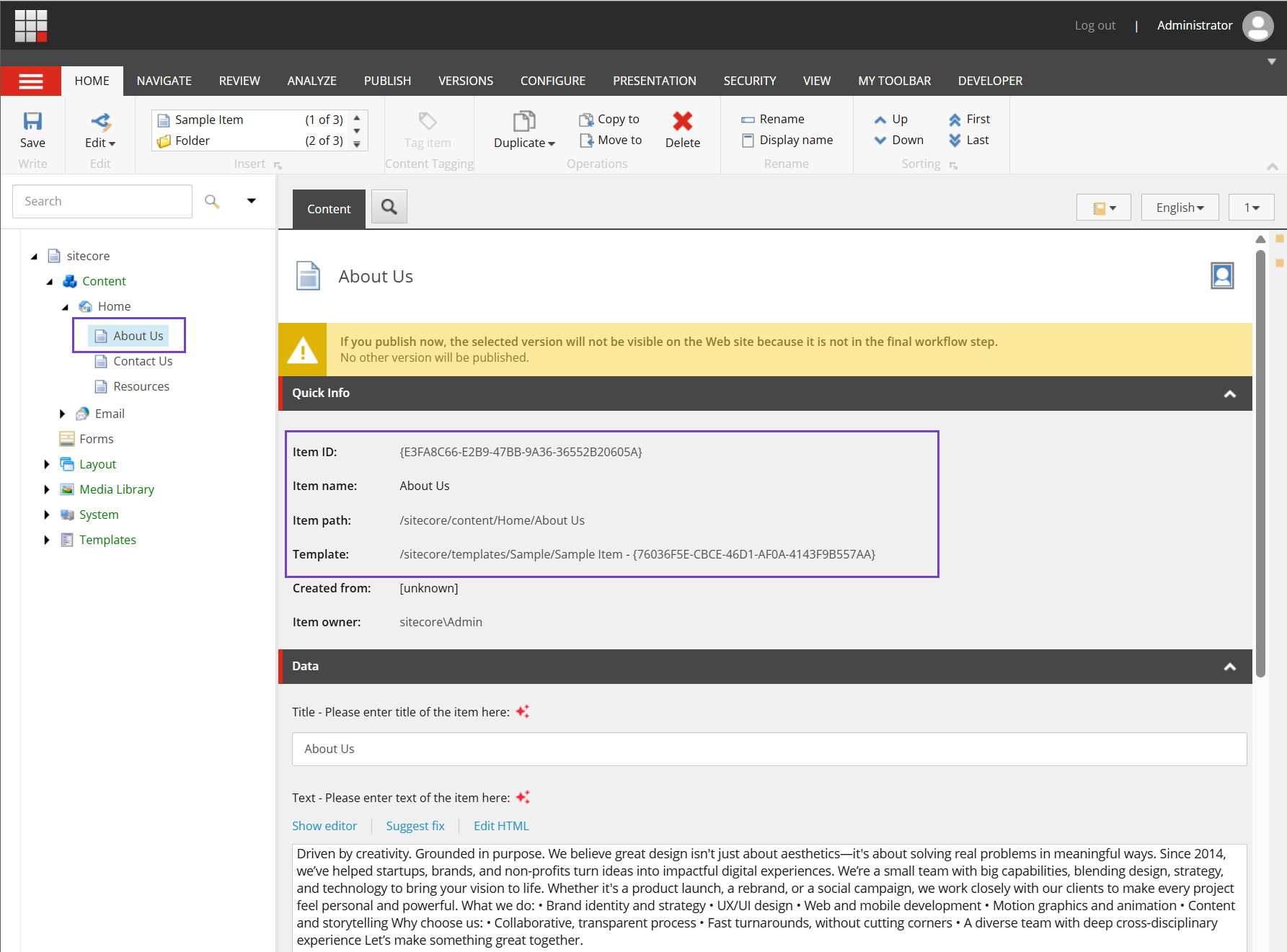
-
-
You can continue refining the new item in the Content Editor using any of these options:
- Manually edit the item as needed.
- Use Content generation to rewrite the content of any field or generate variants of it.
- Creating language versions of your item with Item translation