AI-assisted item translation
The AI-assisted translation feature in the Experience Platform helps you localize content more efficiently by guiding you through translating text defined within a Sitecore item into different languages.
With the Translation Assistant, you can create or update language versions of items directly in the Content Editor without manual setup in your environment.
This feature supports translation of text in single-line, multiple-line, rich-text fields, general link, and image fields. It does not support shared or standard fields.
You can use AI to translate an item in two ways:
You must have a sitecore\Sitecore AiClient Item Translation Assistant role to use this feature. If you don't have this role, ask an administrator to assign it. See Add or remove AI roles for a user.
Add and translate a new language version
Use this procedure to create a new language version of an item and translate it with AI.
To add and translate a new language version:
-
In the Content Editor, open the item you want to add a language version to.
-
Go to the Versions tab and in the Language group, click Change the current language
 .
. -
Select the target language (for example, Danish).
NoteIf your preferred language isn't listed, click More languages, and in the Select Language dialog, choose the language you want, then click OK.
You can also add a new language manually from the content tree or by other methods.
-
In the notification, click Add a new version with Stream Translate.

Alternatively, on the Versions tab ribbon, click Stream Translate, and then select Translate item.

-
In the Translation Assistant dialog, by default, all supported fields are shown under Available Fields.

-
Select a brand kit (only for Sitecore Premium users) to apply your brand rules and guidelines and protect specific terms.
-
To translate all fields, click Select all.
-
To translate specific fields only, double-click the fields (or use the arrow
 ) to move them to Selected Fields.
ImportantOnly the fields you move under Selected Fields will be translated.
-
-
Click Translate to begin translation. Stream might take a few minutes to complete the process.
When finished, the translated content is saved as a new version, with the selected fields translated into the target language.
NoteThe item is saved automatically after translation is completed.
-
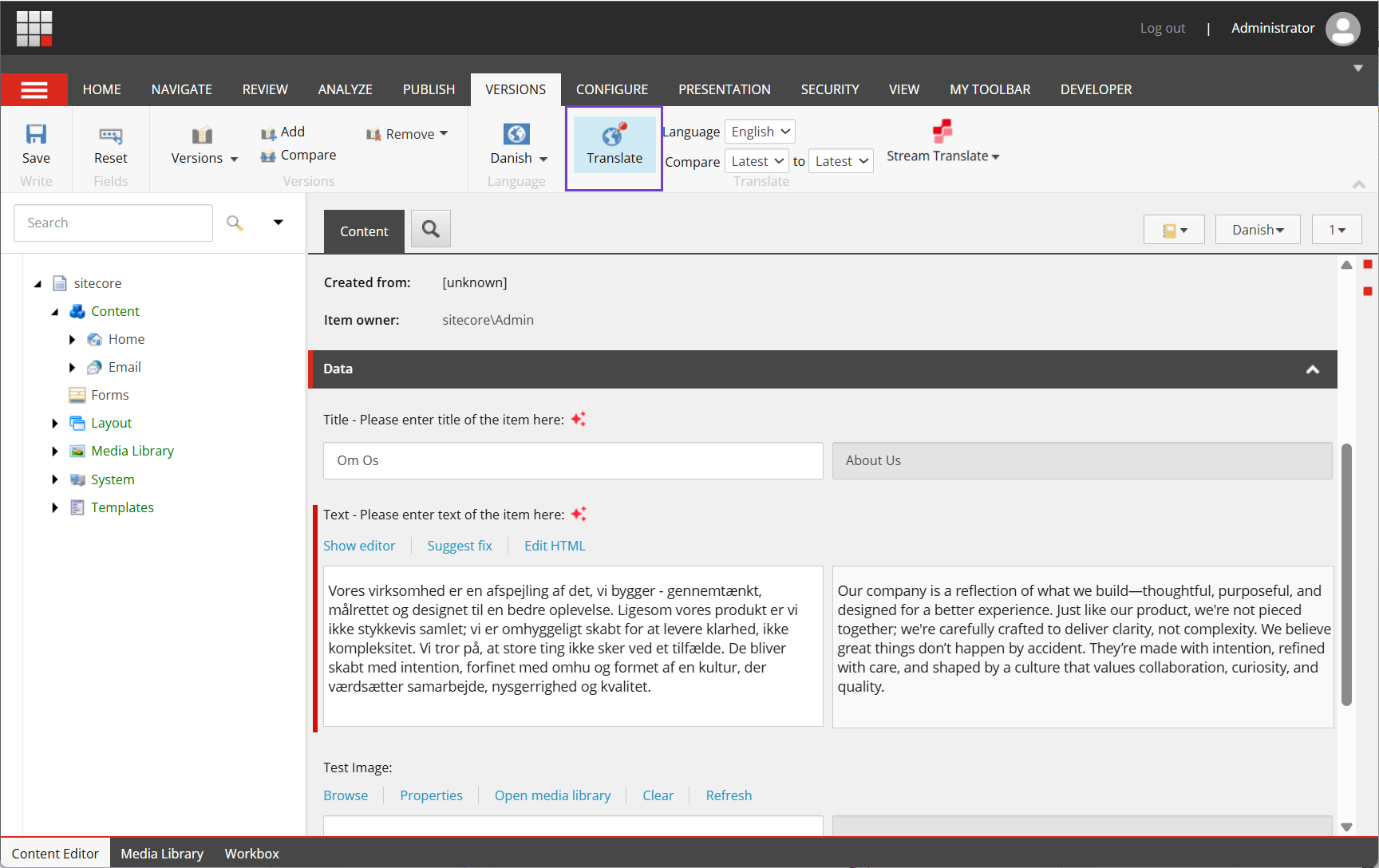
Review the new language version and compare it with the original item or other versions.
ImportantAI-generated translations might not always be accurate. Review all translated text before using or publishing it. AI outputs can vary between attempts, so translating the same thing more than once can produce different results.
On the Versions tab, in the Translate group, click Translate. You can compare versions side by side and make changes as needed.
Translate an existing language version
Use this procedure to update or improve content in an existing language version by translating it into the same language.
To translate an existing language version:
-
In the Content Editor, open the language version of the item you want to translate.
-
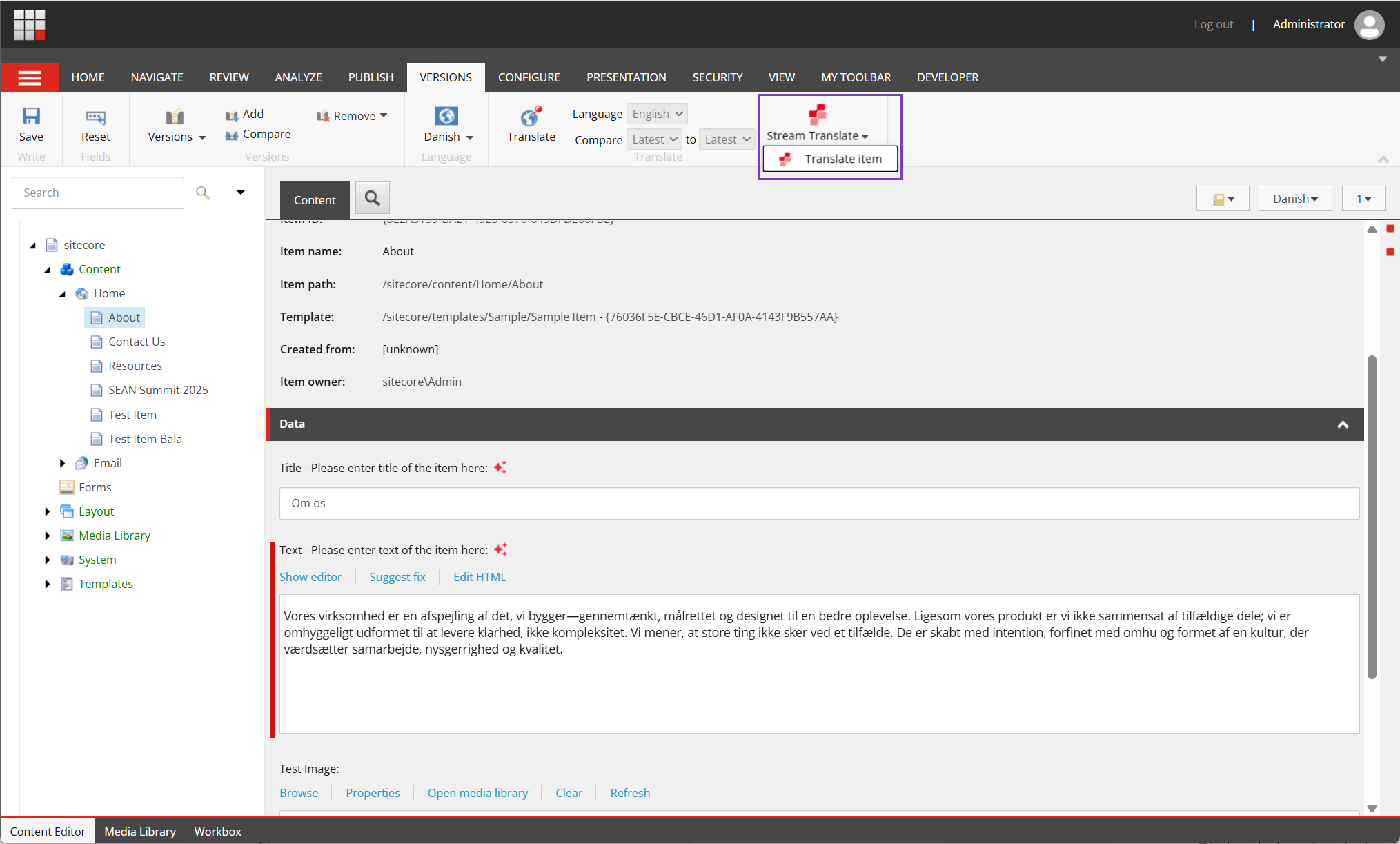
Go to the Versions tab, click Stream Translate, and then select Translate item.
-
In the Translation Assistant dialog, by default, only empty, supported fields are shown under Available Fields.
-
Select a brand kit (only for Sitecore Premium users) to apply your brand rules and guidelines and protect specific terms.
-
To include supported fields that already have values, select the Include fields with values check box. Fields with values are marked with an asterisk (*).
-
To translate all fields, click Select all.
-
To translate specific fields only, double-click the fields (or use the arrow
) to move them to Selected Fields.
ImportantOnly the fields you move under Selected Fields will be translated.

-
-
Click Translate to begin translation. If the selected fields have existing values, a warning appears. If you click OK, Stream will overwrite those values with the translated content in the same language version.
Translation might take a few minutes. When finished, the translated content is saved to the selected fields in the same language version.
NoteThe item is saved automatically after translation is completed.
-
Review the updated language version and compare it with other versions.
ImportantAI-generated translations might not always be accurate. Review all translated text before using or publishing it. AI outputs can vary between attempts, so translating the same thing more than once can produce different results.
On the Versions tab, in the Translate group, click Translate. You can compare versions side by side and make changes as needed.
Using brand kits for translation
When you select a brand kit, the Translation Assistant applies your brand’s rules and guidelines to help maintain brand voice and protect key terminology during translation.
To prevent product names, trademarks, or other terms from being translated, add protection rules in the brand kit’s Do's and Don'ts section.
Example rule for protected terms Term1 and Term2:
“When translating, if you encounter the following quoted phrases or words: "Term1", "Term2" do not translate them but translate the rest of the text.”
Best practices for brand kit rules:
- Be specific - write clear, detailed rules for better execution.
- Use quoted phrases - identify protected terms with quotation marks.
- Test your rules - validate them with sample content before bulk use.
- Maintain consistency - align rules with brand guidelines.
- Update regularly - refresh rules as new products or terms are introduced.
Manually added term protection rules in a brand kit’s Do's and Dont's section might be overwritten or lost when knowledge sources are reprocessed unless the section is marked as Non AI-editable. See also using terminology rules for additional guidance.
Troubleshooting
This section helps you identify and fix common issues when using the Translation Assistant.
Stream Translate option not visible
If the Stream Translate button does not appear on the Versions tab ribbon:
- Verify that the Translation group is visible on the Versions tab. If it is not, you do not have the required
Sitecore Client Translatingstandard role.