AI-assisted tree translation
Tree translation is available only with Stream Premium. To learn more, contact your Account Manager.
The AI-assisted tree translation feature in Sitecore Experience Platform lets you translate an entire content tree (a parent item and all its descendants) into a target language in a single operation. This helps you localize large content structures more efficiently.
Tree translation uses Sitecore Stream to process the selected content tree. During translation:
- New language versions are automatically created for all translatable items in the tree.
- Only items with translatable fields are included in the item count and processed.
- The Tree Translation Assistant uses smart translation, excluding items that are already translated for the selected target language, so they are not translated again.
- The translation runs as a background job with progress tracking.
- The job can be canceled if necessary.
- If selected, a brand kit is applied to help maintain brand voice and protect specific terminology.
- You must have the
sitecore\Sitecore AiClient Tree Translation Assistantrole and write access to the content.
If you do not have write permission on an item, or on a parent whose descendants you include, you cannot use Stream Translate for that content. If you need access, ask an administrator to assign the required role and permissions. See Add or remove AI roles for a user.
- Ensure the target language is available in your Sitecore instance. If not, add it in system settings. See Add a new language to system settings.
Translate a content tree
Use this procedure to translate a content tree and all its descendants to a target language.
For best performance, you can translate up to 200 items per operation. Only items with translatable fields count toward this limit. Items that are already translated for the target language are excluded and not reprocessed.
If your selection exceeds this limit, select a smaller section of the content tree. For larger batches, an administrator can adjust the limit using the Sitecore.AiClient.Stream.Translate.TreeMaxItems setting.
To translate a content tree:
-
Open the Content Editor and navigate to the parent item whose tree you want to translate.
-
In the top-right corner of the content area, select the target language (for example, French).
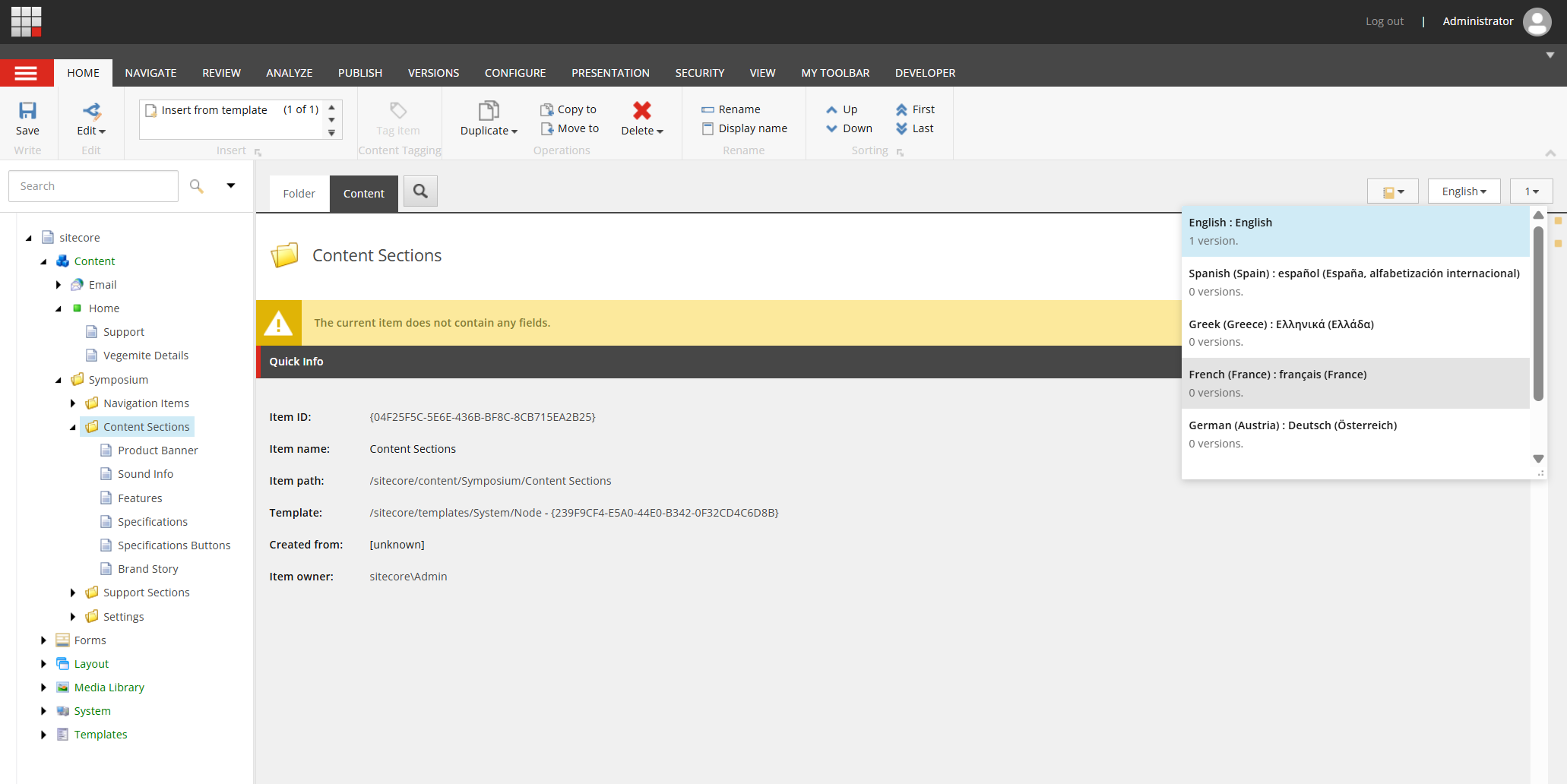
-
On the Versions tab ribbon, click Stream Translate, and then select Translate tree.

-
In the Tree Translation Assistant dialog, you can optionally:
-
Select a brand kit (only for Sitecore Premium users) to apply your brand rules and guidelines and protect specific terms during translation.
-
In Items Found, click View Details to review all translatable items in the selected content tree. This includes:
- Items within the selected tree.
- Items that require translation for the target language, such as new items or items with updated content.
Items that are already translated into the target language are excluded by smart translation.

-
-
Click Translate to begin translation. The process runs in the background and might take a few minutes to complete.
-
When the translation is complete, the dialog confirms that all detected items have been translated. The translated items are saved automatically.
-
Optionally, click View Details to review the translated items, including their paths and version numbers.
-
Click Close to exit the dialog.
-
Review the translated content and compare it with the original. Make manual adjustments if needed.
ImportantAI-generated translations might not always be accurate. Review all translated text before using or publishing it. AI outputs can vary between attempts, so translating the same thing more than once can produce different results.
Using brand kits for translation
When you select a brand kit during translation., the Tree Translation Assistant applies your brand’s rules and guidelines to help maintain brand voice and protect key terminology.
To prevent product names, trademarks, or other protected terms from being translated, add rules in the brand kit’s Do's and Don'ts section.
Example rule for protected terms Term1 and Term2:
“When translating, if you encounter the following quoted phrases or words: "Term1", "Term2" do not translate them but translate the rest of the text.”
Best practices for brand kit rules:
- Be specific - write clear, detailed rules for better execution.
- Use quoted phrases - identify protected terms with quotation marks.
- Test your rules - validate them with sample content before large-scale use.
- Maintain consistency - align rules with brand guidelines.
- Update regularly - refresh rules as new products or terms are introduced.
Manually added term protection rules in a brand kit’s Do's and Dont's section might be overwritten or lost when knowledge sources are reprocessed unless the section is marked as Non AI-editable. See also using terminology rules for additional guidance.
Troubleshooting
This section helps you identify and fix common issues when using the Tree Translation Assistant.
Some items are not translated due to permissions
If you see a message that some items do not have write permission and will not be translated:
- You do not have write access to one or more items in the selected tree
- Items without write permission are skipped and not translated, but you can proceed and translate the items you have access to.
- To include all items, request write access from your administrator
You do not have permission to create or update items
If you see a message indicating that you do not have permission to create or update items:
- You do not have sufficient write access to perform tree translation.
- Tree translation requires write permission on the selected item and its descendants.
- Request write access from your administrator.
Tree translation button not visible
If the Translate tree option under Stream Translate does not appear on the Versions tab ribbon, check the following:
- Verify that the selected item has child items. The Translate tree option appears only for items that have descendants.
- Ensure the item is not under a blacklisted root. Items under
/sitecore/system,/sitecore/templates, and/sitecore/layoutare blacklisted by default. Select an item outside these roots. - Confirm that you have the required role. You must have the
sitecore\Sitecore AiClient Tree Translation Assistantrole. - Verify your Sitecore Stream subscription. Tree Translation is available only with the Premium edition of Sitecore Stream.
- Check the Sitecore Stream configuration. Ensure the required authentication credentials for Sitecore Stream are correctly configured.
Stream Translate option not visible
If the Stream Translate button does not appear on the Versions tab ribbon:
- Verify that the Translation group is visible on the Versions tab. If it is not, you do not have the required
Sitecore Client Translatingstandard role.
Tree contains too many translatable items
If you receive an error indicating that the tree contains too many translatable items, check the following:
- Review the item limit. By default, a single tree translation operation can process up to 200 translatable items.
- Translate a smaller section of the tree. Select a descendant node instead of the root item and run the translation again.
- Check which items count toward the limit. Only items that contain translatable fields are included in the item count.
- Contact your administrator if the limit must be increased. An administrator can adjust the limit in the
Sitecore.AiClient.Stream.Translate.TreeMaxItemsconfiguration setting. - Translate items individually if needed. Use AI-assisted item translation for specific items instead of translating the entire tree.