Deploy a project and environment
This is part one of the getting started walkthrough series. After you complete this step, move on to create a site and page.
When you create a new project in the Deploy app, it automatically creates an environment and runs an initial deployment. In this topic, we'll create a project in the Deploy app. You can also create a project using the Sitecore CLI or the Deploy API.
The number of environments you can create is based on your SitecoreAI subscription.
The steps described here differ, depending on whether you are using Next.js with the Content SDK or the ASP.NET Core SDK.
This walkthrough describes how to:
- Open the Deploy app
- Deploy a project and environment
-
You must join the Sitecore Cloud Portal organization and have an Organization Admin or Organization Owner role in the organization where you want to create a project.
-
If you are using the Content SDK, prepare a GitHub or Azure DevOps service account and its authentication details.
-
If you are using the ASP.Net Core SDK, open the ASP.Net starter repository in GitHub, log in, click Use this template > Create a new repository, and follow the steps to create your own repo based on the starter kit.
Open the Deploy app
You start creating your first project in the Deploy app which you can access directly at https://deploy.sitecorecloud.io/.
To open the Deploy app in the Cloud Portal:
- On the Sitecore Cloud Portal home page, in the QUICK LINKS section, click SitecoreAI Deploy.
If you belong to multiple organizations, you might need to switch to the desired organization.
Deploy a project with the decoupled deployments architecture (default)
Projects built before January 2026 were deployed using the legacy coupled deployment architecture. We recommend you to convert these projects to use the decoupled deployments architecture.
The Decoupled Deployment feature lets you:
- Create and manage editing hosts from the Deploy app.
- Build and deploy the authoring environment and editing host separately, resulting in faster deployments and independent logging.
- Use the source code from different repositories when adding additional authoring environments and editing hosts to a project.
- Add custom environment variables during project or environment creation.
To create a project in the Deploy app using the foundation template with decoupled deployment:
-
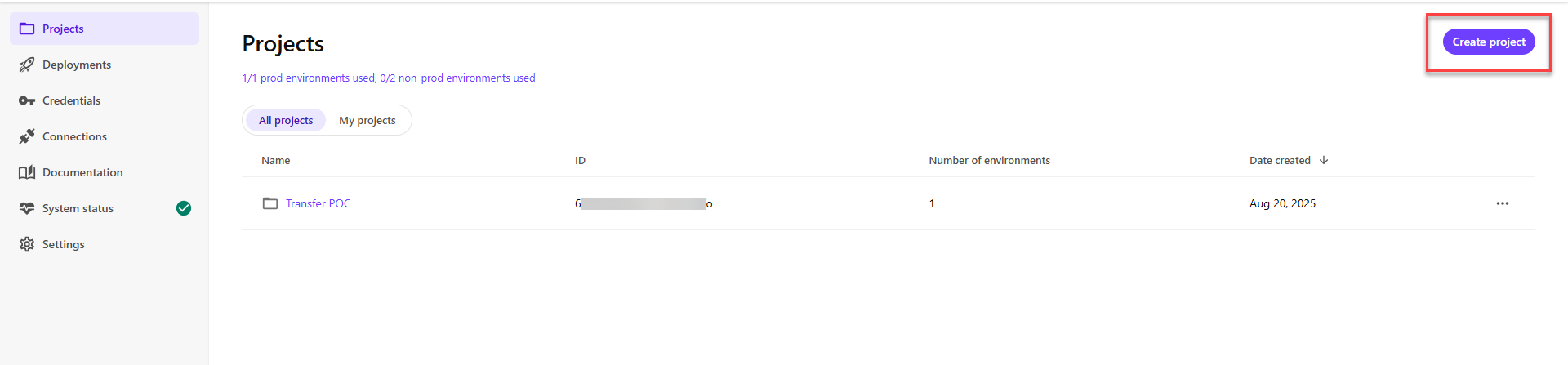
In the Deploy app, on the Projects page, click Create project.
-
Name the project Getting Started, make sure Use starter kit is selected, then click Continue.
-
In the Set up authoring environment window, name the authoring environment Getting Started.
-
Select the source control provider you want to use for your project. Assuming there is no existing connection, click Add GitHub account or Add Azure DevOps account, and follow the steps to authorize the Deploy app in your account. You can manage the connection for the source control provider later.
-
After authorizing the Deploy app in your source control provider account, enter a name for the repository the Deploy app will create to store your environment code, such as Getting-Started.
NoteYour repository name can only contain alphanumeric characters, underscores, periods, or hyphens, and a maximum of 100 characters. It must also follow the repository naming convention of your source control provider.
-
Select the Auto deploy on push to repository checkbox and make sure the Production SaaS SLA checkbox is clear.
ImportantA production environment is optimized for production traffic and is covered by the Sitecore SaaS Service Level Agreement. This setting cannot be changed later.
At this point, you can add environment variables to your authoring environment, however, it is not needed for this getting started guide, so click Continue.
-
In the Set up editing host window, select the Auto deploy on push to repository checkbox. Since you are using the starter kit, the Editing host name is preselected for you.
Setting up an editing host is optional, but it is needed for this getting started guide.
NoteIf you bring your own code and want to set up an editing host:
- To select the editing host source code, in the Editing host name field, enter the name of the rendering host defined in the
xmcloud.build.jsonfile of the editing host code repository.
Some code examples, images, and UI labels may still use XM Cloud while engineering assets are being updated.
- Choose the source control account and repository that contains the editing host code.
For more information, see manage an editing host.
At this point, you can add environment variables to your editing host, however, it is not needed for this getting started guide, so click Continue.
- To select the editing host source code, in the Editing host name field, enter the name of the rendering host defined in the
-
Review the configuration and click Start deployment.
-
The deployment runs for a few minutes, and you are redirected to the deployment log screen to see the progress (this might take a few seconds). After it completes, you can go to SitecoreAI and create a new site.
If your deployment fails, you can access the deployment log to investigate what happened and attempt to rerun the deployment.
The deployment process:
- Creates a new repository in the connected source control account and copies the source code from the foundation template to the new repository.
- Provisions the infrastructure and SaaS tenants to host the Content Management (CM) instance in the environment you defined.
- Pulls the source code from the repository to a hosted SitecoreAI build server and builds the solution.
- Deploys the build artifacts on the provisioned CM instance.
Now that you've provisioned the project and environment, the environment appears as an app in the Sitecore Cloud Portal.
The next thing you'll do is create a site and page.
Deploy a project with the legacy coupled deployment architecture
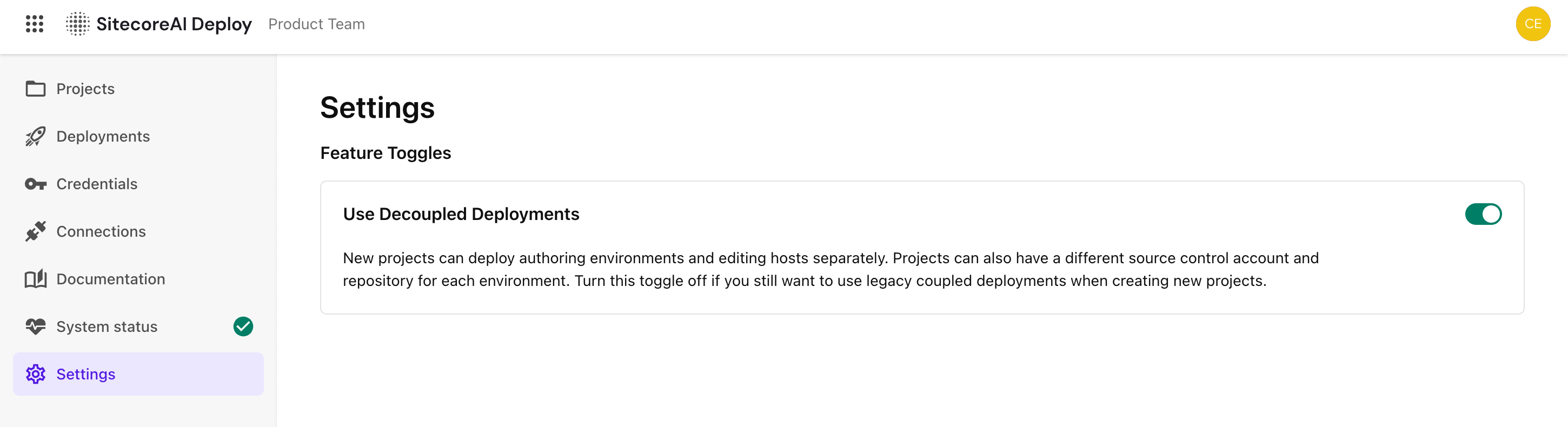
Withe the legacy architecture, when you create a new project in the Deploy app, it automatically creates an environment and runs an initial deployment there. Because the Decoupled Deployments architecture is the default deployment, follow these instructions to enable the legacy coupled deployment architecture:
- Go to Settings.
- Disabled the Use the Decoupled Deployments toggle.
Content SDK (Next.js)
If you are creating a Content SDK app, in this walkthrough, you create a project using the Content SDK starter kit in a ready-made flow in the Deploy app.
To deploy a Content SDK project in the Deploy app:
-
In the Deploy app, on the Projects page, click Create project.
-
Name the project, for example, Getting Started, then click Continue.
-
To choose the source control provider you want to use for your project click Connect, then Continue. The Deploy app will create a new repository there to store your environment code.
-
In the Set up repository step, make sure Use XM Cloud template is selected.
XM Cloud is now SitecoreAISome code examples, images, and UI labels may still use XM Cloud while engineering assets are being updated.
-
Assuming there is no existing connection, click Connect to a new account, and follow the steps to authorize the Deploy app in your account. You can later manage the connection for the source control provider.
-
Enter a name for the repository, such as Getting-Started, then click Continue.
NoteYour repository name can only contain alphanumeric characters, underscores, periods, or hyphens, and a maximum of 100 characters. It must also follow the repository naming convention of your source control provider.
-
Name the environment, for example, Getting Started.
-
In the Production SaaS SLA field, select No.
ImportantA production environment is optimized for production traffic and is covered by the Sitecore SaaS Service Level Agreement. This setting cannot be changed later.
-
In the Auto deploy on push to repository field, select Yes.
-
Review the configuration and click Start deployment.
-
The deployment runs for a few minutes, and you are redirected to the deployment log screen to see the progress (this might take a few seconds). After it completes, you can go to SitecoreAI and create a new site. The deployment creates a new repository in the connected source control account and copies the source code from the foundation template to the new repository.
ASP.NET Core SDK
If you are creating a ASP.NET Core app, in this walkthrough, you create a project using the .NET Core starter kit in a bring-your-own code flow in the Deploy app.
To deploy a .NET Core project in the Deploy app:
-
In the Deploy app, on the Projects page, click Create project.
XM Cloud is now SitecoreAISome code examples, images, and UI labels may still use XM Cloud while engineering assets are being updated.
-
Name the project, for example, Getting Started, then click Continue.
-
To choose the source control provider you want to use for your project click Connect, then Continue. The Deploy app will create a new repository there to store your environment code.
-
In the Set up repository window, click Use your own code.
-
Assuming there is no existing connection, click Connect to a new account, and follow the steps to authorize the Deploy app in your account. You can later manage the connection for the source control provider.
-
Choose the GitHub account and repository to which you cloned the .Net Core starter kit (the default branch should be auto-selected), then click Continue.
NoteYour repository name can only contain alphanumeric characters, underscores, periods, or hyphens, and a maximum of 100 characters. It must also follow the repository naming convention of your source control provider.
-
Name the authoring environment Getting Started.
-
In the Production SaaS SLA field, select No.
ImportantA production environment is optimized for production traffic and is covered by the Sitecore SaaS Service Level Agreement. This setting cannot be changed later.
-
In the Auto deploy on push to repository field, select Yes.
-
Review the configuration and click Start deployment.
-
The deployment runs for a few minutes, and you are redirected to the deployment log screen to see the progress (this might take a few seconds). After it completes, you can go to SitecoreAI and create a new site.
If your deployment fails, you can access the deployment log to investigate what happened and attempt to rerun the deployment.
The deployment process:
- Creates a new repository in the connected source control account.
- Provisions the infrastructure and SaaS tenants to host the Content Management (CM) instance in the environment you defined.
- Pulls the source code from the repository to a hosted SitecoreAI build server and builds the solution.
- Deploys the build artifacts on the provisioned CM instance.
Now that you've provisioned the project and environment, the environment appears as an app in the Sitecore Cloud Portal.
The next thing you'll do is create a site and page.