A/B/n tests performance dashboard
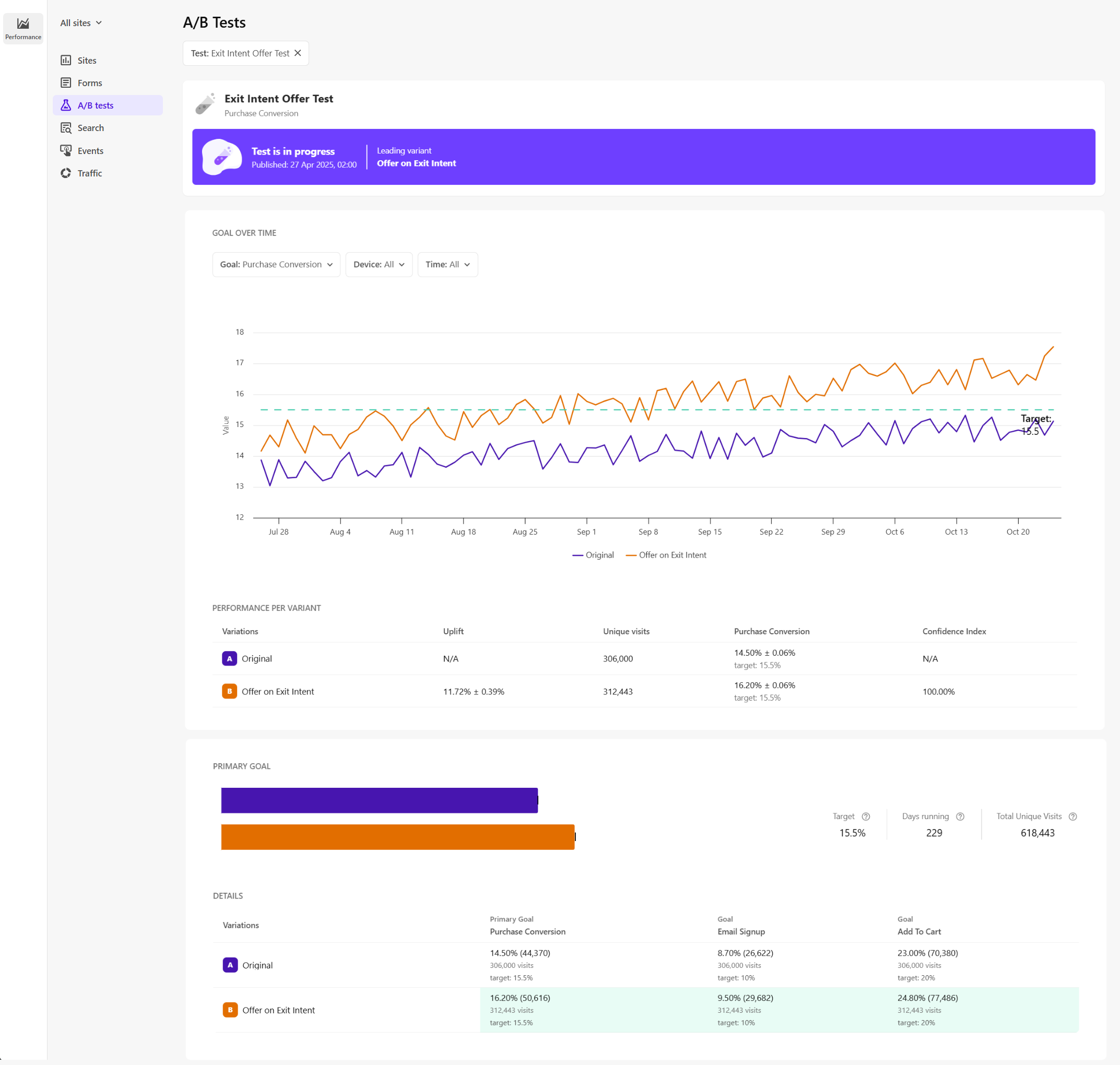
The A/B tests performance dashboard displays the full performance data for each test variant against your defined goals.
The dashboard helps you identify which variant performs best, whether the test has reached statistical significance, and how confident you can be in the results.
How test analytics are generated
The A/B tests dashboard displays data when the A/B/n test is live and the page containing the test has been republished. There should also be traffic across at least two variants.
Make sure you’ve set a goal and started the A/B/n test to ensure data is available.
Open the dashboard
To open the A/B tests dashboard, in the navigation menu, click Performance. Then, select A/B tests.
Filter A/B/n test data
Use filters to narrow down the data displayed on the A/B tests dashboard:
- Site - select a specific site from the All sites drop-down list to view tests running on that site.
- Test - choose the A/B/n test to analyze on the selected site.
A/B/n test metrics
The A/B tests performance dashboard provides key metrics and insights for each A/B/n test variant. These metrics help you evaluate variant performance based on your selected goals, confidence levels, and target values.
-
Status banner - indicates the current test status, name, and goal.

- In progress - the test is running and shows which variant is currently leading.
- Completed with a winner - the test has reached statistical significance and declared a winning variant based on the primary goal.
- Ended but inconclusive - test ended without a statistically significant result.
-
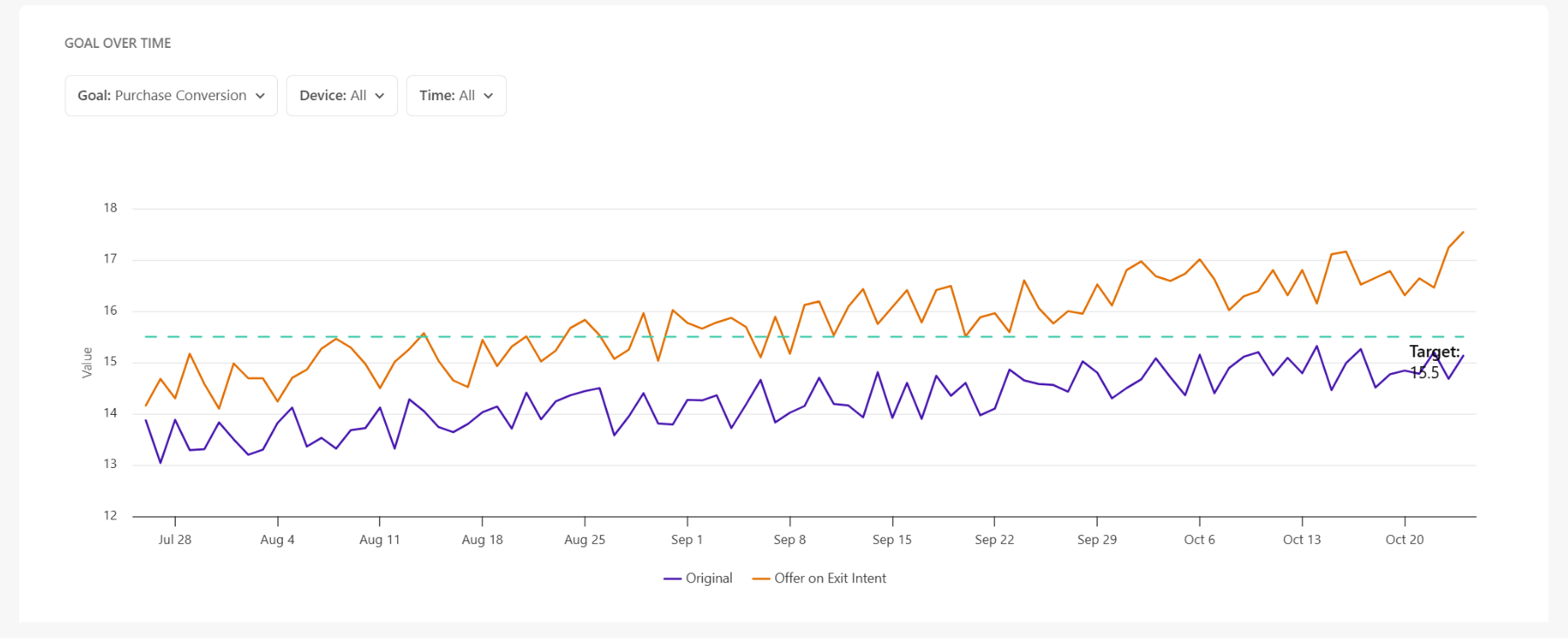
Goal over time (graph) - shows how all variants perform against the target value for the selected goal.
- Use filters to adjust what is displayed in both the Goal over time graph and the Performance per variant table:
- Goal - select a goal (for example, Purchase Conversion) to display performance data for that goal.
- Device - Select the device type: Mobile or Web. The default view shows All.
- Time - choose a time frame such as such as 1 hour, 1 day, 1 week, 1 month, or specify a custom date range up to the previous two months. The default view shows All available data.
- The y-axis shows goal performance values and the x-axis shows the time period based on the selected Time filter.
- Hover over a data point to view exact values for each variant and the target line.
- Use filters to adjust what is displayed in both the Goal over time graph and the Performance per variant table:
-
Performance per variant (table) - summarizes performance of each variant against the selected goal and target value.

It includes the following columns:
- Variant name - the name of each test variant.
- Uplift - shows the percentage difference (uplift) in the goal metric between the control and the variant, based on the selected goal. Each value includes a margin of error (± value) representing a 95% confidence level.
- Unique visits - the number of unique visits for the variant.
- Selected goal - displays the metric for the selected goal (for example, Purchase Conversion) with reference to the target goal. Each value includes a margin of error (± value) representing a 95% confidence level.
- Confidence index - indicates the statistical reliability of the results. Higher values mean greater reliability. This estimate is only valid when the minimum sample size has been reached.
-
Primary goal (bar chart) - displays how each variant performs against the selected primary goal (for example, Purchase Conversion). Hover over a bar to view goal values for each variant.

It includes the following metrics:
- Target - the target value set for the selected goal, such as 15.5%.
- Days running - the number of days since the test started. This counter resets if the test is paused and restarted.
- Total unique visits - the number of unique visits tracked toward the test goal.
-
Details (table) - compares how all variants perform across primary and any secondary goals.

Each column represents a goal (with the primary goal listed first) and shows the goal value, the number of unique visits for each variant, the total visits, and the goal target value.
Additionally, to view a snapshot of analytics for a specific A/B/n test:
-
In Page builder, click on a relevant page in the site tree. This opens a pane listing the tests running on that page, and for each test, you can access variant performance and applied configuration.
-
On the Sites dashboard, view the list of all the A/B/n tests ever created on the site.