Act on signals
After finding a signal that needs your attention, review the detected change. If contributing pages are available, you can review them and, where recommendations are available, apply content updates.
Not every contributing page can be updated in SitecoreAI. For causes and next steps, see Pages that can't be updated.
Review contributing pages
If contributing pages are available for a signal, the signal detail page lists them. A contributing page doesn't necessarily have AEO opportunities or recommendations for content updates.
For pages authored in the SitecoreAI Page Builder, you can review each content update recommendation and apply or reject it.
To review the pages that contributed to a signal:
-
In SitecoreAI > Strategy > Signals, click Optimize page(s) for a signal with contributing pages that you want to investigate.
To navigate to a different signal without going back to the Signals page, click it in the left panel. In the left panel, you can change the signal order and filter signals.
-
On the signal detail page, review the detected change.
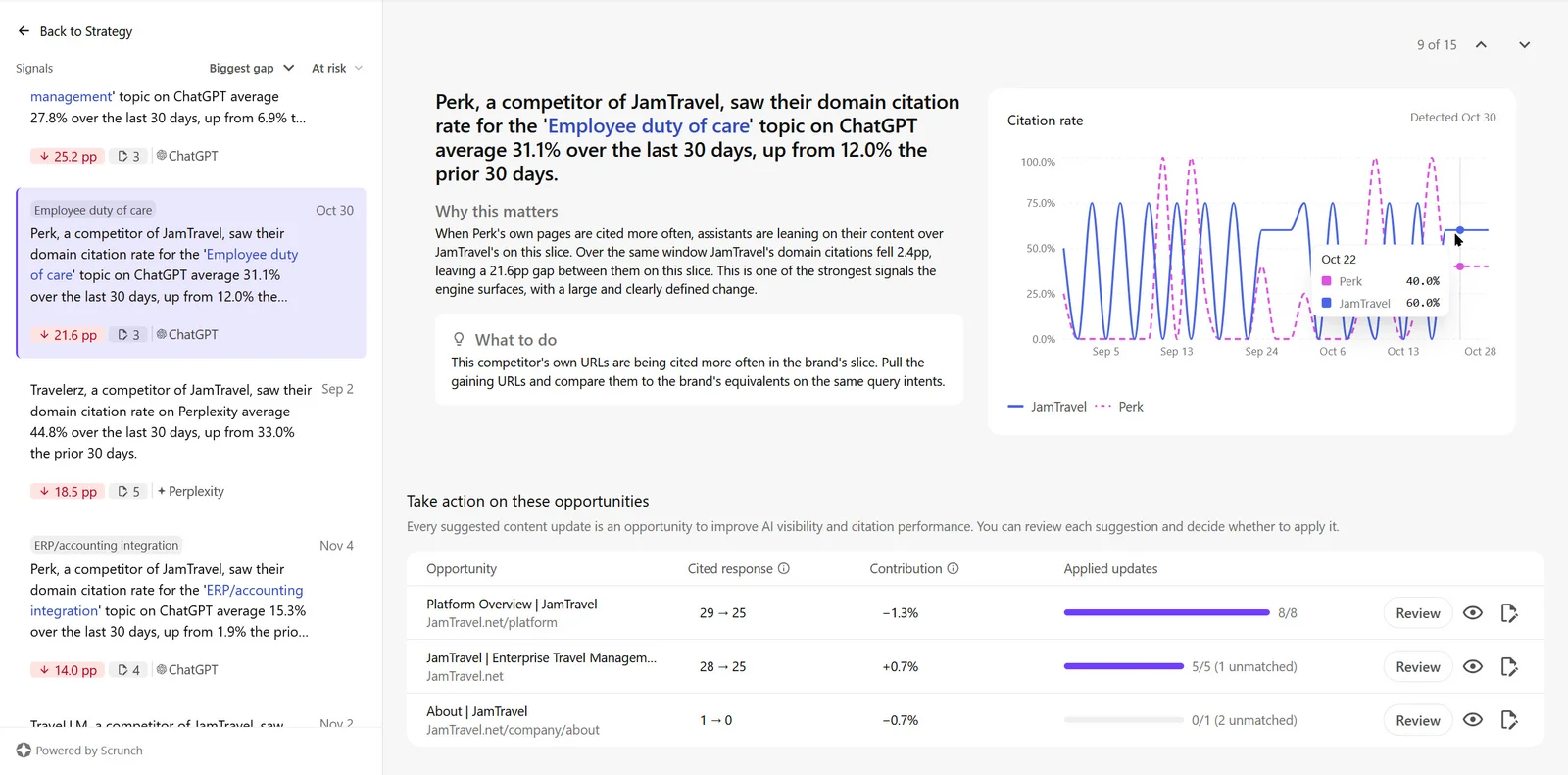 The upper part of the page includes:
- Signal summary - what changed, including the competitor, topic, AI platform, metric change, and comparison period.
- Why this matters - how the change affects your brand's AI visibility.
- What to do - a recommended direction for action.
- Trend chart - shows how the relevant metric, such as mention rate or citation rate, changed over time for your brand and competitors. Hover over the chart to see values for a specific date.
-
In the Take action on these pages section, review the pages that contributed to the signal. Each row represents a contributing page and shows the following details:
- Page - the page that contributed to the detected change.
- Cited response - how many AI answers cited this page before the signal's window, and how many cite it now.
- Contribution - how much of the signal's overall metric change this page accounts for. Contribution is not calculated for every page.
- Applied recommendations - the recommendations already applied to the page. If a recommendation is marked Unmatched, see Unmatched recommendations.
If a page can't be updated, a status message appears below its name. For causes and next steps, see Pages that can't be updated.
-
If content recommendations are available for a page, click Review to examine them. You can also open the page in the Page Builder by clicking , or open the currently published page on the web by clicking .
The review page
Clicking Review opens the review page for the selected webpage. Here, you can compare the page content with the suggested changes and decide which updates to apply.
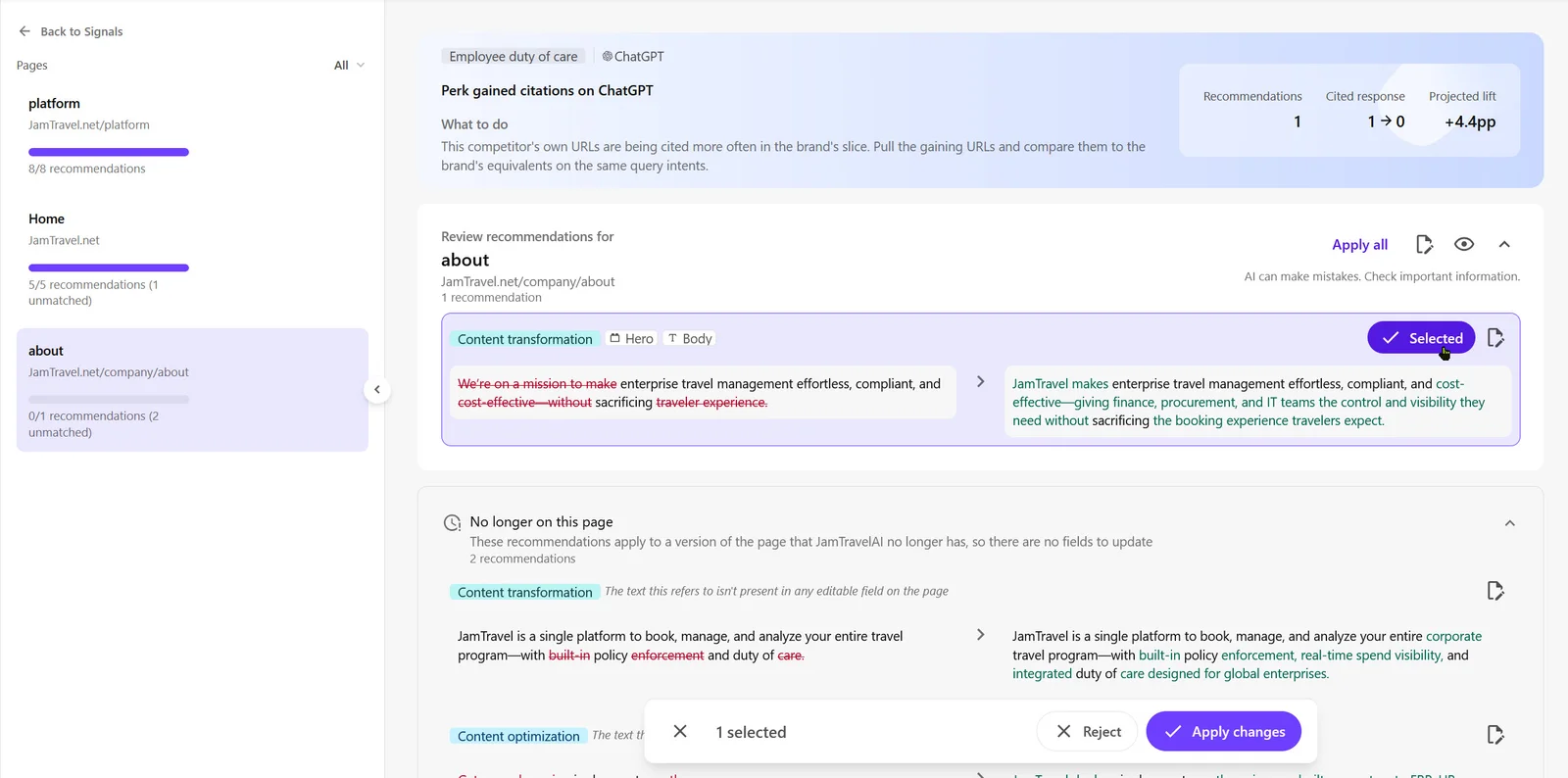
The upper part of the review page summarizes the signal and shows:
- Recommendations - the number of content update recommendations for the page.
- Cited response - the current number of AI responses citing the page and the projected number after applying the recommendations.
- Projected lift - the estimated improvement in citation rates from the recommended updates, in percentage points.
The review page can also include these sections:
- Review recommendations - suggested changes that SitecoreAI matched to editable content on the page and can apply.
- Previously applied content changes - recommendations that were already applied to the page.
- Previously rejected content changes - recommendations that were declined.
- Unmatched - recommendations that SitecoreAI can't currently apply. For causes and next steps, see Unmatched recommendations.
- On this page - needs a manual edit - suggested changes that you need to apply manually.
- No longer on this page - suggested changes for a previous version of the page. The content isn't in the current version, so there is nothing to change.
You can do the following on the review page:
- Open the specific content block a recommendation applies to in the Page Builder by clicking Open in Page Builder next to the recommendation. This deep-links directly to the affected component.
- Open the page in the Page Builder by clicking next to Apply all. This opens the page in the Page Builder without deep-linking to a specific component.
- Preview the live page by clicking Preview live page .
- To navigate to a different page in this signal without going back, click the page name in the left panel.
Apply recommended content updates
To apply recommended content updates:
-
On the review page, compare the original and suggested content side by side. Then, for each content block, Select the changes you want to apply.
CautionAI-generated recommendations can contain inaccuracies. Review each recommendation carefully before applying it.
-
Click Apply changes to Page to apply your current selections, or click Apply all:
- If you opened the review page via Review all, Apply all applies all updates across every page in the signal.
- If you opened the review page via Review for a specific page, Apply all applies all updates on the current page.
The selected content block receives the Content item updated label. SitecoreAI creates a new content version for the page. In the Page Builder, you can continue editing the page, or approve and publish the page and related items. No changes go live until you publish.
Any updates you did not select remain listed on the review page and can still be applied.
For information about expected results after publishing, see No immediate change in AI visibility.
Reject recommended content updates
To reject recommended content updates:
-
On the review page, compare the original and suggested content side by side. Then, for each content block, Select the changes you want to reject.
-
Click Reject to apply your current selection. The selected content block receives the Rejected label.
NoteIf you change your mind, you can click the Rejected label and then click Apply this change.
Unmatched recommendations
For causes of unmatched recommendations and options for manual updates, see Unmatched recommendations.