Create a site
In Channels, you create a SitecoreAI Managed Web site from an existing site template by using the Create site flow or by duplicating an existing site, and adapting its content as needed.
To create and manage sites and site collections, you must have the Admin or the Sitecore Client Site Managing role. Contact your system administrator to request the access rights as needed.
When you create a SitecoreAI Managed Web site, an analytics identifier is assigned to it. This gives you access to analytics about how website visitors interact with your pages, and it lets you to personalize site pages.
SitecoreAI comes with the following SitecoreAI Managed Web site templates:
- An empty site, where you can start from scratch with a template that includes a Home page containing three empty placeholders.
- A basic site, where the template includes a Home and About page with a set of components, a page design, and partial designs for a header and footer.
- A selection of prebuilt site templates with different branding, styles, and preconfigured components.
All templates are preconfigured to help you get analytics data and personalize the site (an analytics identifier is automatically generated based on the site's name).
The supporting files for the prebuilt templates are located in a folder called click-click-launch in the Sitecore AI content tree. Avoid modifying, moving, or deleting these system-provided items unless you are customizing the corresponding site templates and understand the dependencies involved.
You can create additional site templates in Content Editor.
Create a site
To create a new SitecoreAI Managed Web site from a template:
-
In Channels, in the upper-right corner, click Create channel.
NoteIf the current view is filtered by a collection, the site is created inside that collection.
Alternatively, in a specific collection, click Plus.
-
In the Create a channel dialog, click Web.
-
In the Choose a web type section, click SitecoreAI Managed Web.
-
Click Next.
-
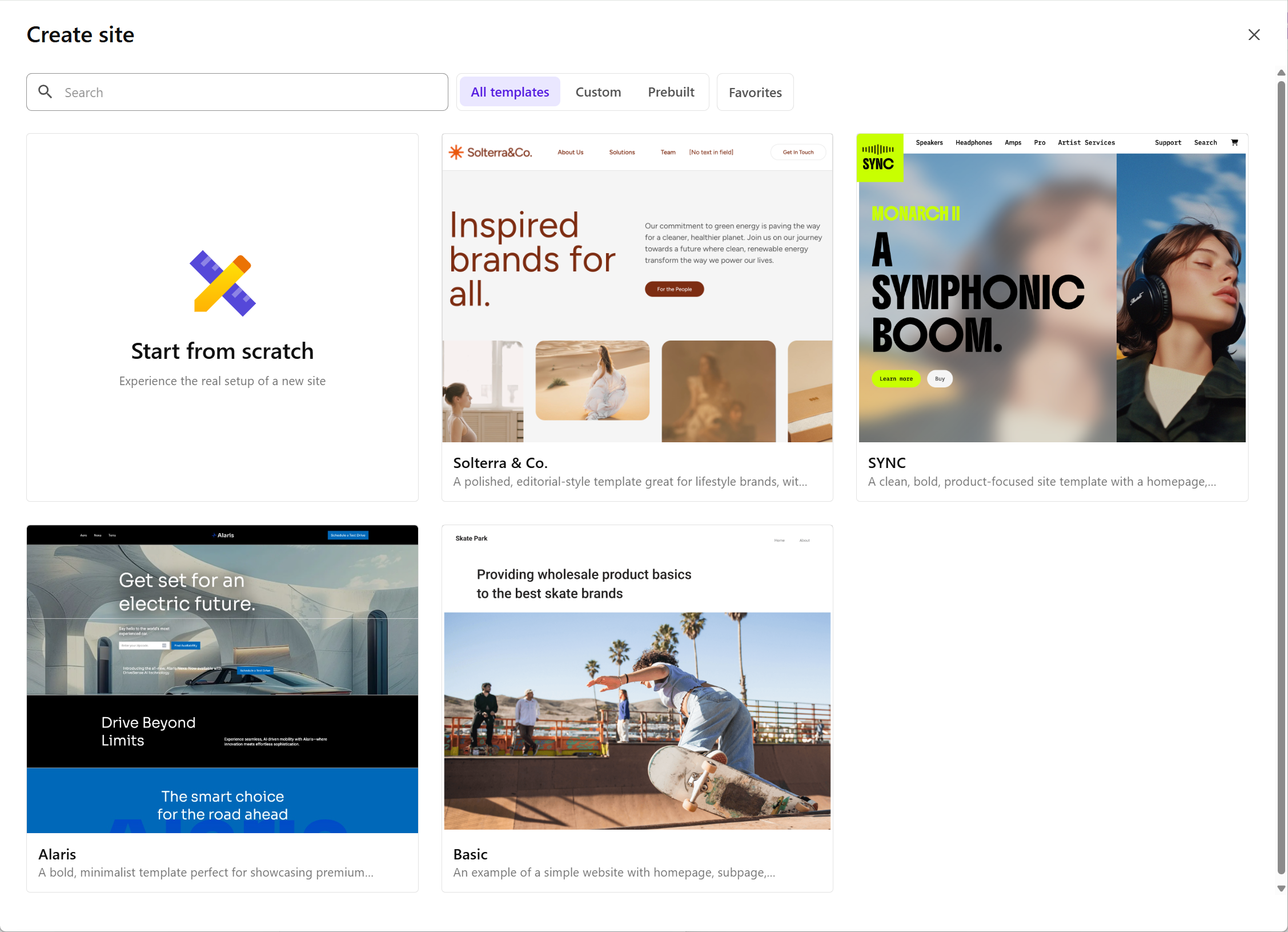
When building a SitecoreAI managed website, the Create site dialog shows all the templates available to you to create a site.
-
To show the templates build by your team, click Custom.
-
To show the templates included out of the box with your environment, click Prebuilt .
-
To show your favorites, click Favorites.
NoteTo include a template in your Favorites list, hover with the mouse on the template, and click Add to favorites .
-
To search for a specific site template, in the Search field, enter at least two characters. You need to have five or more templates to do this.
Select one of the available templates.
-
-
Enter a name, and optionally a description for the website.
-
If you're creating a site from within an existing collection, ignore this step.
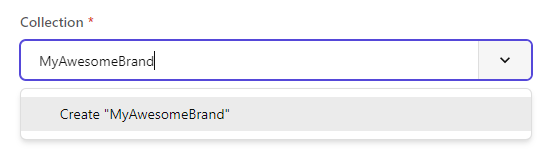
In the Collection field, do one of the following:
- Use the drop-down list to select an existing site collection. To prevent inheritance issues in Sitecore AI, all sites within a collection must use the same site template. As a consequence, the existing collection list only displays collections whose sites are based on the chosen template.
- Enter a name for a new collection and click Create [name of collection].
-
To enable languages for your website, click the Languages field, then select all the languages you want in the list of languages supported by Sitecore. If the languages you selected aren't yet enabled in the environment, they will be enabled automatically.
-
Select the default language you want to use for your website.
-
Click Create A progress indicator shows you when the process is complete. After the new site is created, it is shown in the chosen collection.
Duplicate a site
You can create a site by duplicating an existing one. When you duplicate a site, its content items - such as pages and images, folder structure, and links - are copied. Most of the settings are also copied, but you can change those later.
To duplicate a site:
- In Channels, in the tile of the site you want to duplicate, click > Duplicate.
- In the Duplicate site dialog, you can give a new name to the duplicated site, and add a description.
- Click Duplicate. A progress indicator shows you when the process is complete. After the duplicate site is created, it is shown in the chosen collection.