Create a page
In Page builder, you can create new pages for your website directly in the page editor. When a page is created, you can rename it, change its location in the content tree, or even change the page design initially used to create it.
You can also create a new page by duplicating an existing one: this copies the selected page and all its content and subitems to the same location in the content tree.
Create a page
To add a new page to your website with Page builder:
-
On the side toolbar, click the Editor tab.
-
In the Site tree panel, to add a page as a child of the Home page, click Create a page. You can move this page using the drag icon to reorganize the Site tree.
-
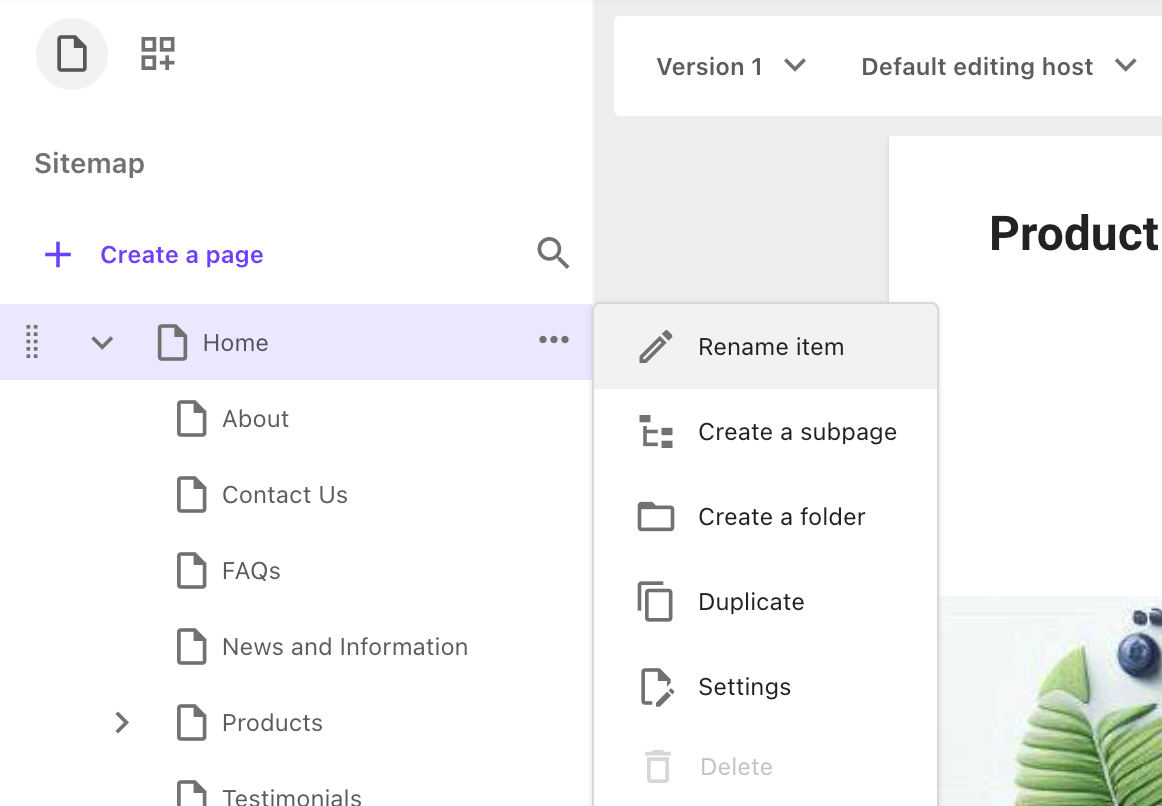
Alternatively, click the page or folder that you want to add the new page under, then click > Create a subpage.
-
In the dialog, click the template that you want to use. We recommend using a template with a page design.
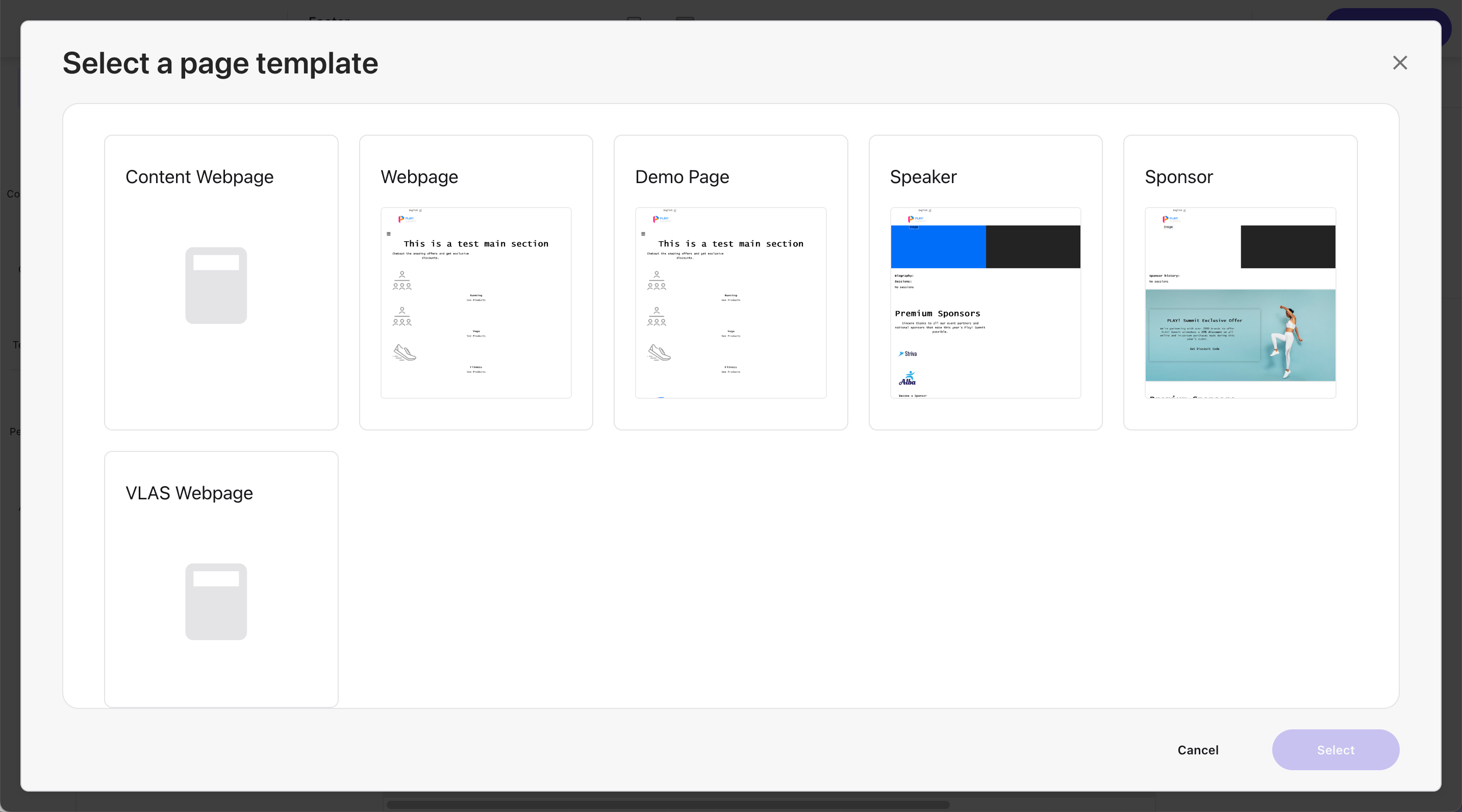
The page is created in the content tree.
-
Edit the name of the new page in the content tree.
The name you enter when you create a page is its item name. By default, the display name is the same as the item name. You cannot use special characters in the item name, but you can give each language version of the page a different display name, and you can use special characters in the display name.
You can now edit the page by adding components of text, images, and so on. To edit the page fields, you can also open a page Page builder Content mode.
You can also move pages to a different place in the content tree using drag-and-drop.
Duplicate a page
To duplicate a page:
-
On the side toolbar, click the Editor tab.
-
In the Site tree panel, locate the relevant page, then click > Duplicate.
-
You can rename the duplicated page in the sitemap, as well as move its location to reorganize the Site tree.
Change the page design of a page
When you create a page, you use a page template. Page templates are usually assigned a page design that gives the page a structured layout with header, footer, and sometimes even selected components in the main area between the header and the footer. You can change the page design of a page at any time.
To change the page design of a page after it was created:
-
In the site tree, click > Settings.
-
In the Page settings dialog, in the Page design section, clear the Use design from template check box.
-
In the drop-down menu, click the page design you want to use for this page.