Optimize content with AI
In the Page builder, you can prompt AI to improve the textual element of components. AI can generate content faster than humans, proofread text, spot mistakes, and provide corrections in real-time, enhancing the overall quality of the writing. AI can produce large volumes of content quickly, making it easier to scale your content creation efforts.
You can also use the AI powered Optimize content feature to find the most appropriate content available for link and list field types.
Optimize content for text fields
To get started, open a page with an component containing written content saved in the following field types:
- Single-Line Text
- Multi-Line Text
- Rich Text
To optimize content:
-
Open the relevant page and select a text field. In the right-hand panel, click Content > Optimize content. If the field is part of the page content, in the left-hand panel, click Optimize content.
-
Enter a free-text prompt and click Generate , or select one of the proposed actions:
- Improve writing
- Fix spelling and grammar
- Make shorter
- Make longer
- Summarize
- Change tone
- Translate in one of the languages supported by the site.
- Adhere to brand if you’ve assigned a brand kit to your site.
If you selected the full component, the optimization prompt will apply to all its text fields. If you selected a single field, the prompt will apply to that field only.
If you select an empty text field, you can ask the tool to write text for you.
-
Review and optionally edit the optimized content on the page canvas. You can also navigate from the Original to the Optimized version of the content to compare them with each other.
-
If needed, reiterate with additional prompts and intents until you are satisfied. Click History to access previous prompts and results.
-
If needed, you can reiterate the optimization with additional prompts and intents until you are satisfied. You can also edit the optimized content on the page canvas.
-
Optionally, you can also give the optimized content a thumbs up or down, to indicate whether you are satisfied with the optimized content or not.
-
You can now choose between the following options:
- To replace the original text with the optimized one, click Keep optimized.
- To create an A/B test with two variants, click Create A/B test.
- To start over, click the X in the top corner of the right-hand pane, and click Cancel to confirm that you want to discard the optimized content.
Optimize content for link and list field types
To get started, open a page with one of the following field types:
- Droplist, Droplink, Droptree
- Treelist, TreelistEx, Multiroot Treelist
- Multilist, Multilist with search
- Taglist
- Checklist
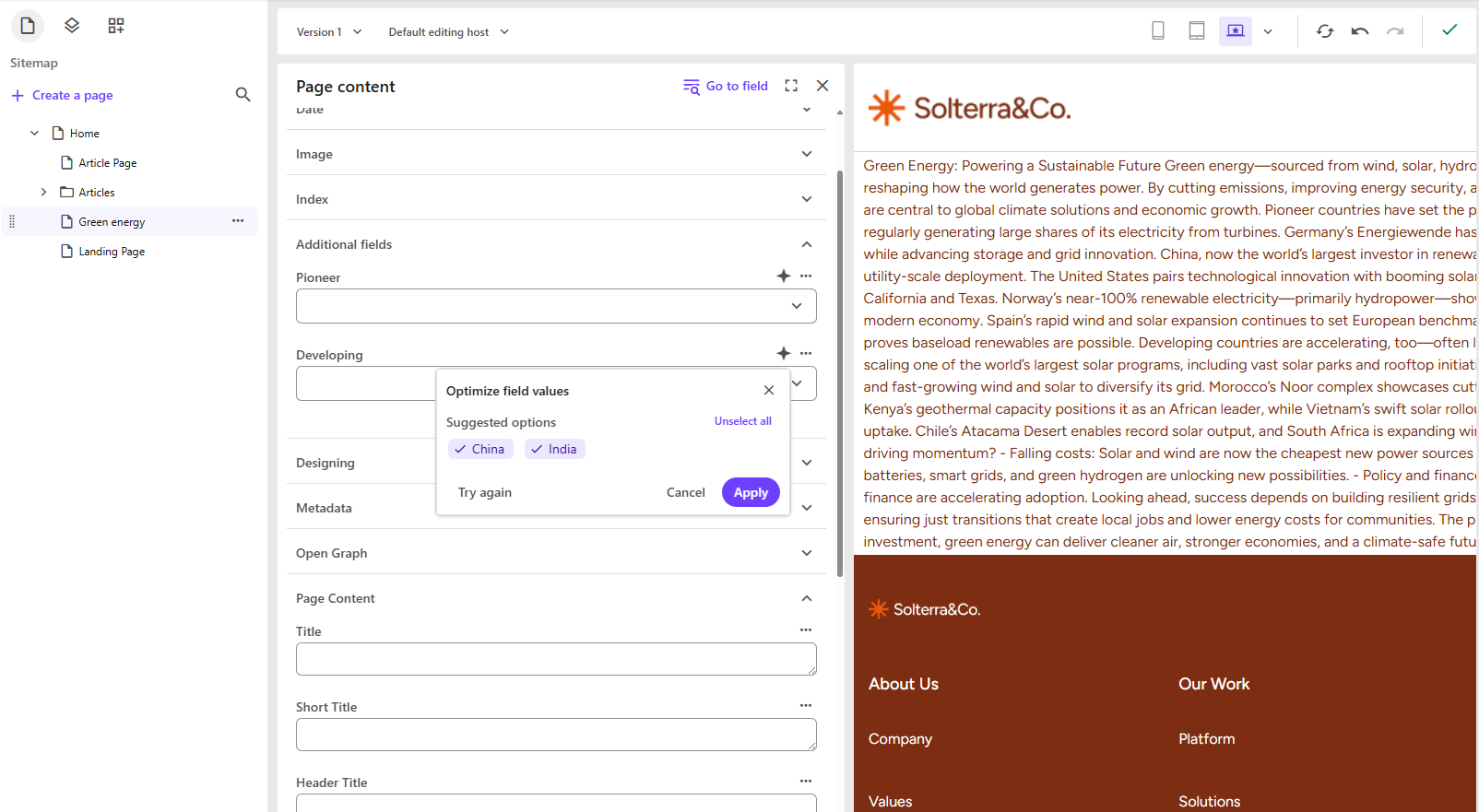
To optimize content:
- In the site tree, click the relevant page, then click Actions > Page content, and locate the field in the Page content left-side panel. Alternatively, click in the page canvas on the component where the field is located, and locate the field in the Content tab of the right-hand panel.
- For the relevant field, click Optimize content .
- Out of the list of options available for the field, AI extracts the relevant suggestions.
- To start from scratch, click Try again. To accept the suggestions, click Apply.