Edit a page variant
In Page builder Personalize mode, you can edit the page variant in the editor view by assigning a different content item to a component, by hiding a component, or in some cases by replacing a component with another component.
On Page builder Editor tab, you are always working with and previewing the default page variant. To preview the personalized variants for a specific audience, go to Personalize tab, select the variant and click the Preview button.
A component that has been personalized has its border highlighted in teal rather than purple. In addition, an icon in the top-right corner of the component also indicates that the component has been personalized. This lets you visualize at a glance how the page variant differs from the default one.
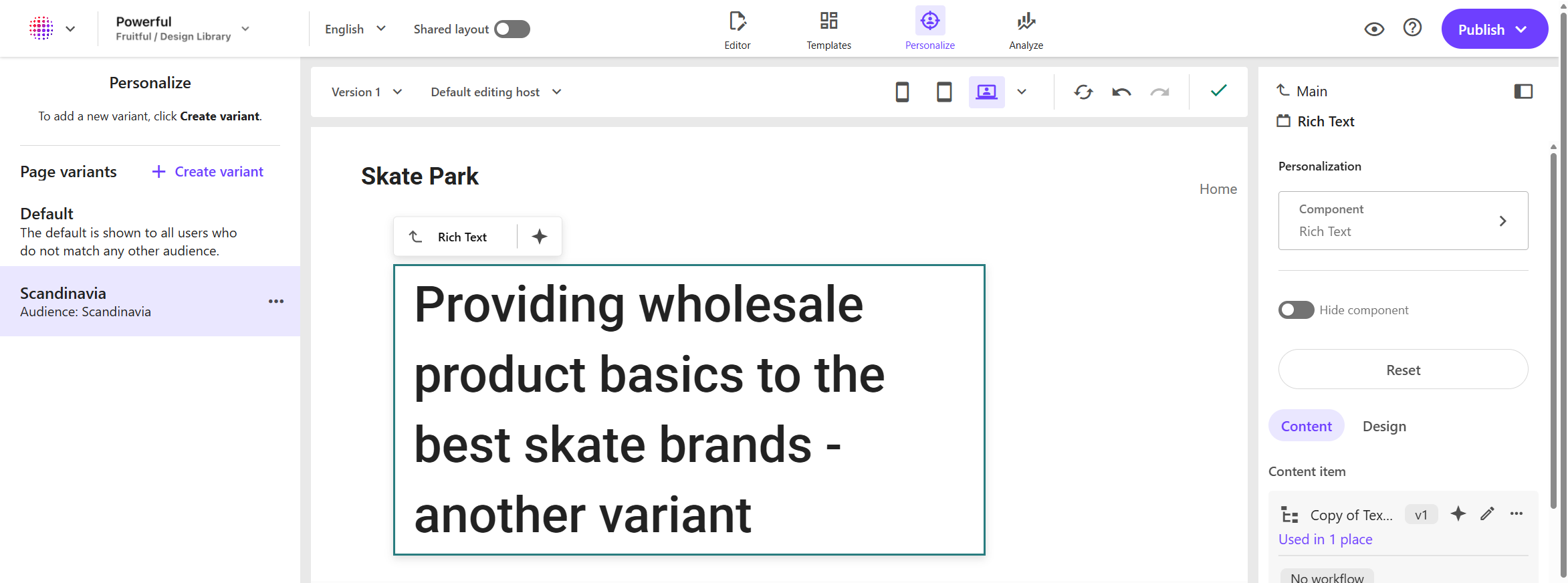
You cannot use direct inline editing to personalize a page variant, because the inline edits are carried over to the default page. If a component has been inline edited, it will not have a teal border.
To personalize a page variant by changing content, you need to assign a different content item to the component you want to edit instead of inline editing the content.
Assign a different content item to a component
When you personalize a page variant, you must assign a different content item to the component that you want to edit to avoid inline edits that would affect the default page.
To assign a different content item to a component:
- In Page builder, on the Personalize tab, click the variant you want to personalize.
- In the page variant layout, click the component you want to edit.
- In the right-hand pane, click .
- In the Assign content item dialog, select the relevant content item and click Assign.
Change the configuration of a component
When personalizing a page for a specific audience, you can modify the visual presentation of a component.
To configure a component:
- In the page builder, on the Personalize tab, click the variant you want to personalize.
- In the right-hand pane, use the Layout, Styling, and Advanced styling configuration settings to offset components, set the column span, set the text alignment, and more.
Changing the layout for a component on a variant will apply those presentation changes to the variant and specified audience only.
Hide a component
To personalize a page variant, you can hide a component.
To hide a component:
- In Page builder, on the Personalize tab, click the variant you want to personalize.
- In the page variant layout, click the component you want to edit.
- In the right-hand pane, click Hide component .
So that you can easily add a hidden component back again, the hidden component remains in the variant layout as a placeholder with teal borders.
To be able to see the page variant without the empty placeholder, click Preview.
Replace a component
To replace a component with an other one:
- In Page builder, on the Personalize tab, click the variant you want to personalize.
- In the page variant layout, click the component you want to edit.
- In the right-hand pane, click the Component field. This opens a list of available components.
- Click the component you want to replace the default component with.