Understanding the builder's interface
The Page builder Editor mode consists of three main areas: the content area in the middle, and two collapsible panes, one on each side. There is also a top toolbar with controls for navigation and other important functions.
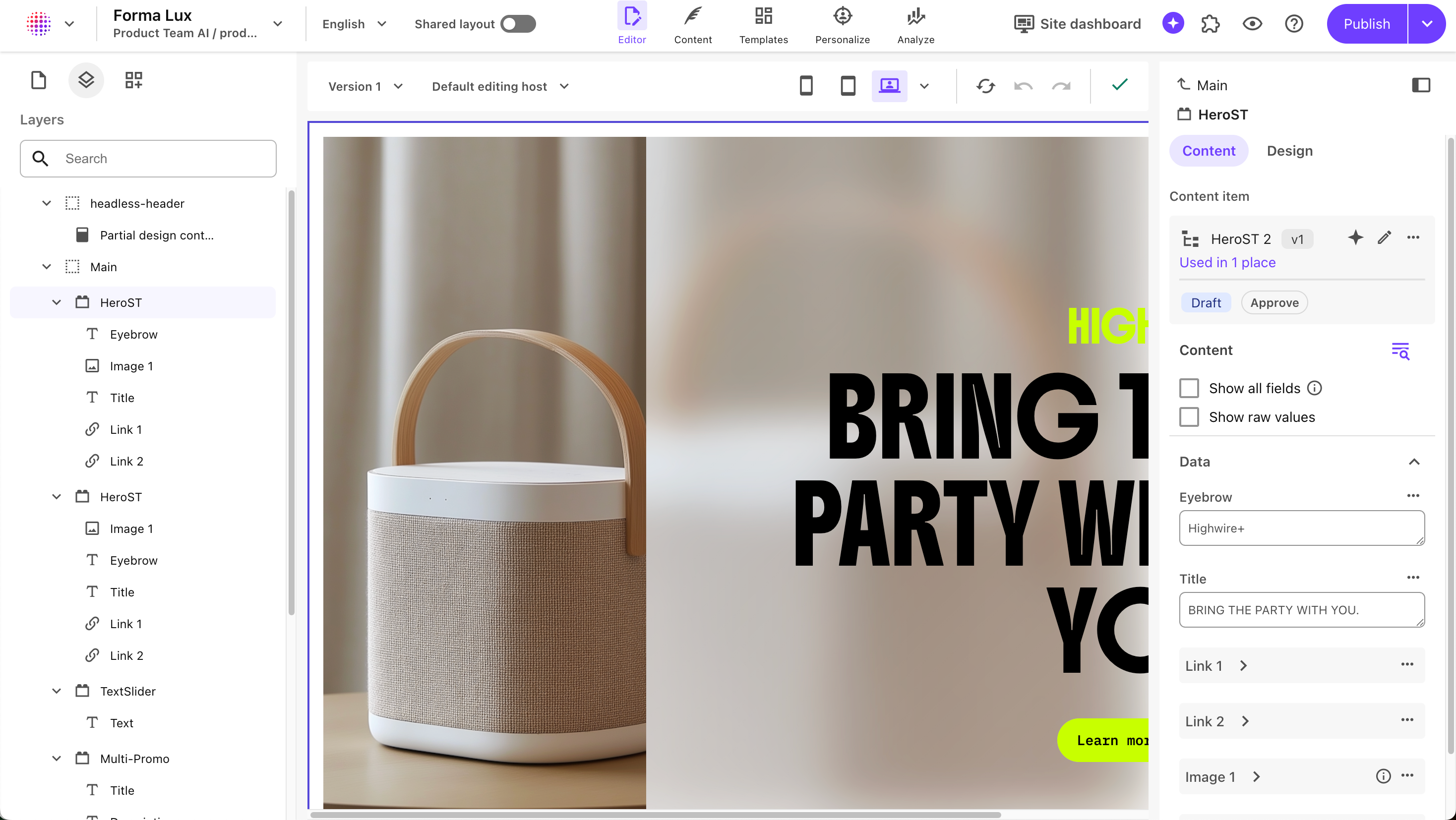
The top toolbar

With the top toolbar, you can:
- Choose which project, environment, website, and language version to work on.
- Switch on the Shared layout mode so your changes to the layout of the page are also applied to all its versions.
- Navigate between Editor, Templates, Personalize, and Analyze modes.
- Access the Agentic Studio chat interface and run contextual agents within the context of the site collection, site, or page currently open in the canvas.
- Open a preview of the page in a new tab of your browser with .
- Publish the page, and optionally its subpages and other language versions of the page.
The left-hand panel
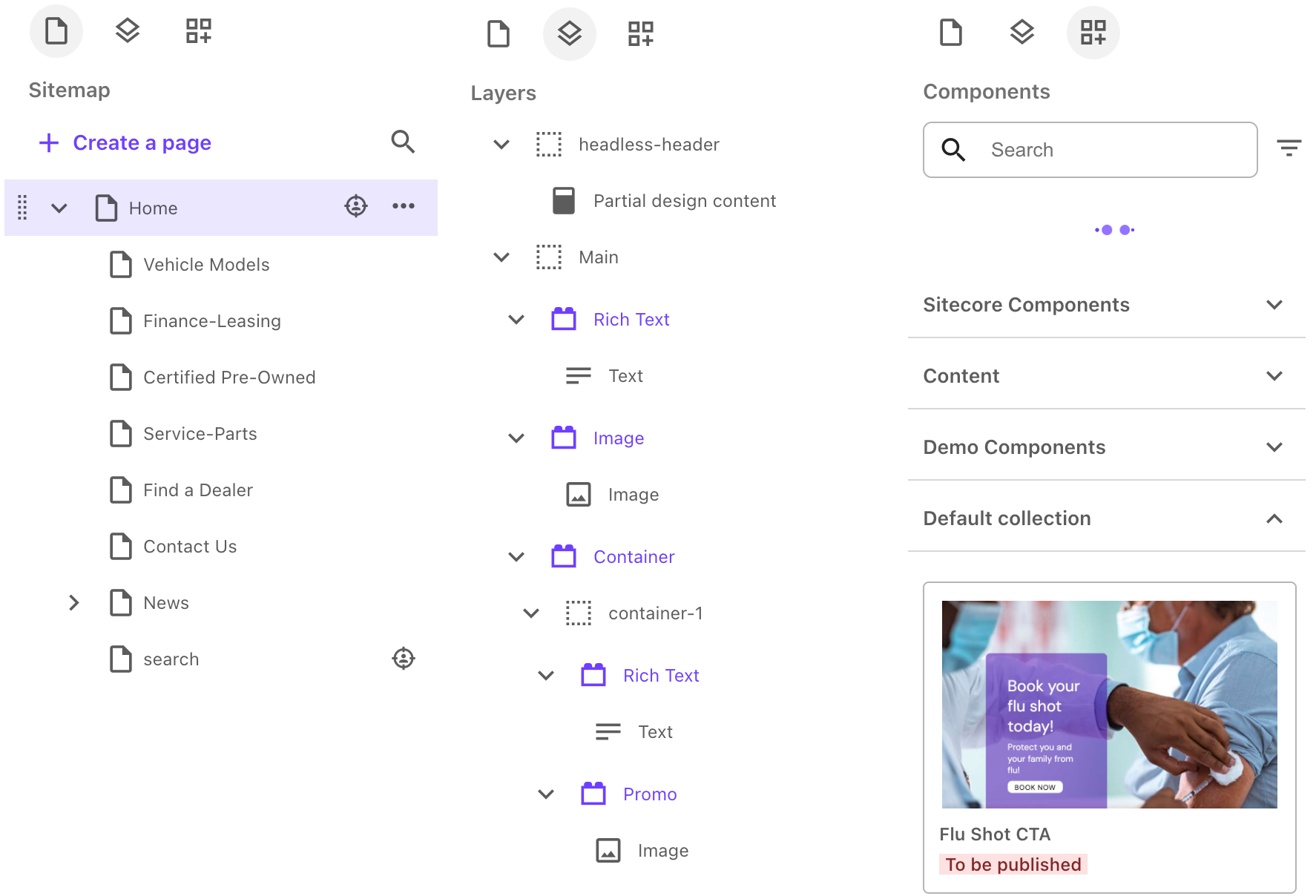
The left-hand panel changes according to the option selected in the top toolbar. In Editor mode, the left-hand pane is split into two tabs:
- The Pages tab shows the Sitemap, meaning the pages for the current site, and thus the site structure.
- The Layers tab displays the hierarchy of all the elements included in the page, such as placeholders, components and fields, making it easy to understand the page structure, and allowing you to select elements one at a time.
- The Components tab lists the different components available for the current site.
The editor view or canvas
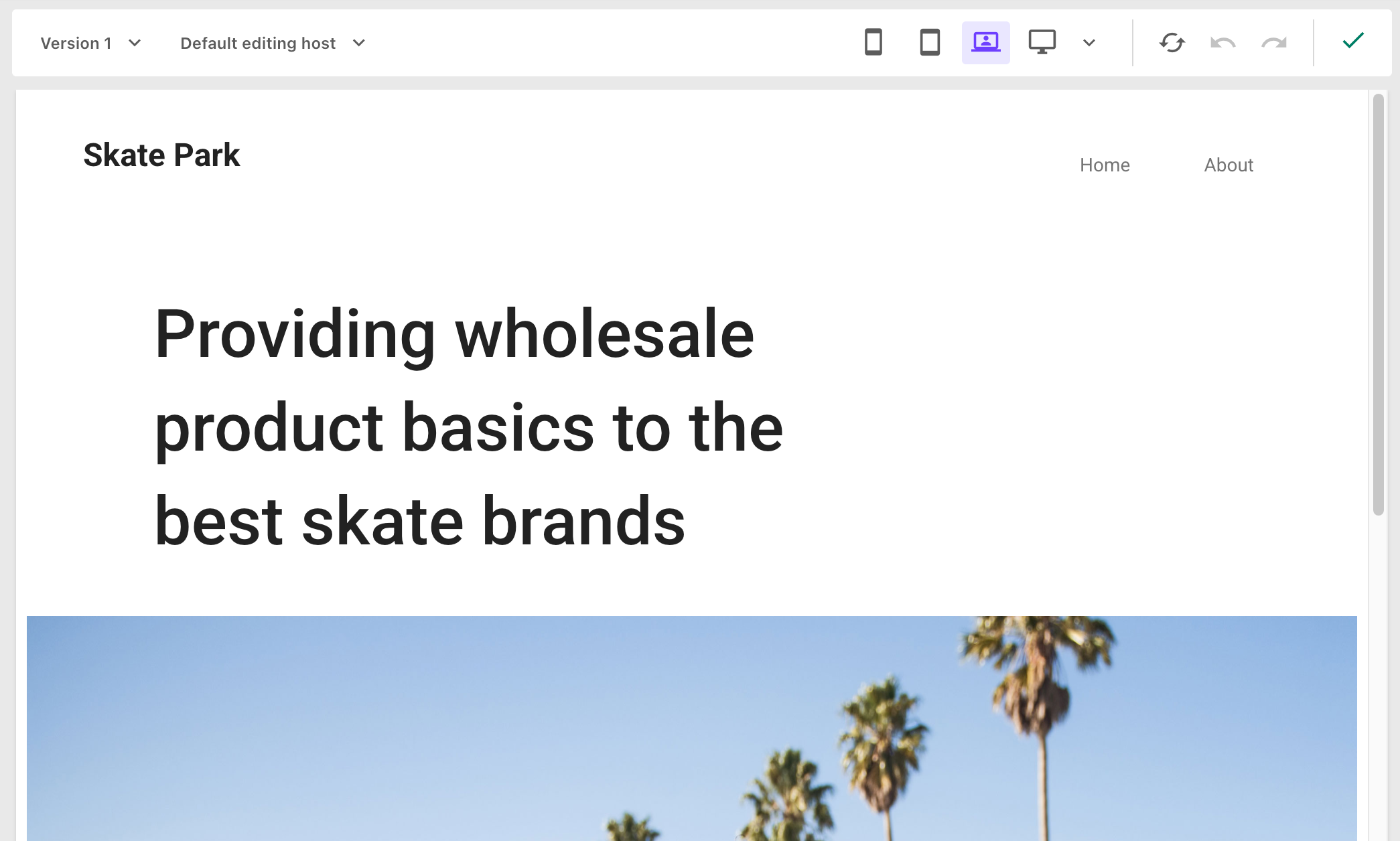
When you select a page in the site tree in the left-hand pane, it opens in the editor view in the middle of the screen. On the page top toolbar, you can:
- Choose the version of the page you are working on, or create a new version of the page.
- Choose to work on the default editing host, or a local host.
- Use device icons for viewing how the page will look on different types of devices.
- Reopen the page without restarting the entire Page builder application. It’s faster and preserves your undo/redo history and other UI configurations, for example a sitemap expanded.
- Undo or redo your recent changes.
On the page canvas, you can add, reorder, or remove the components that structure your page, as well as edit some of the content included in rich text fields.
The right-hand panel
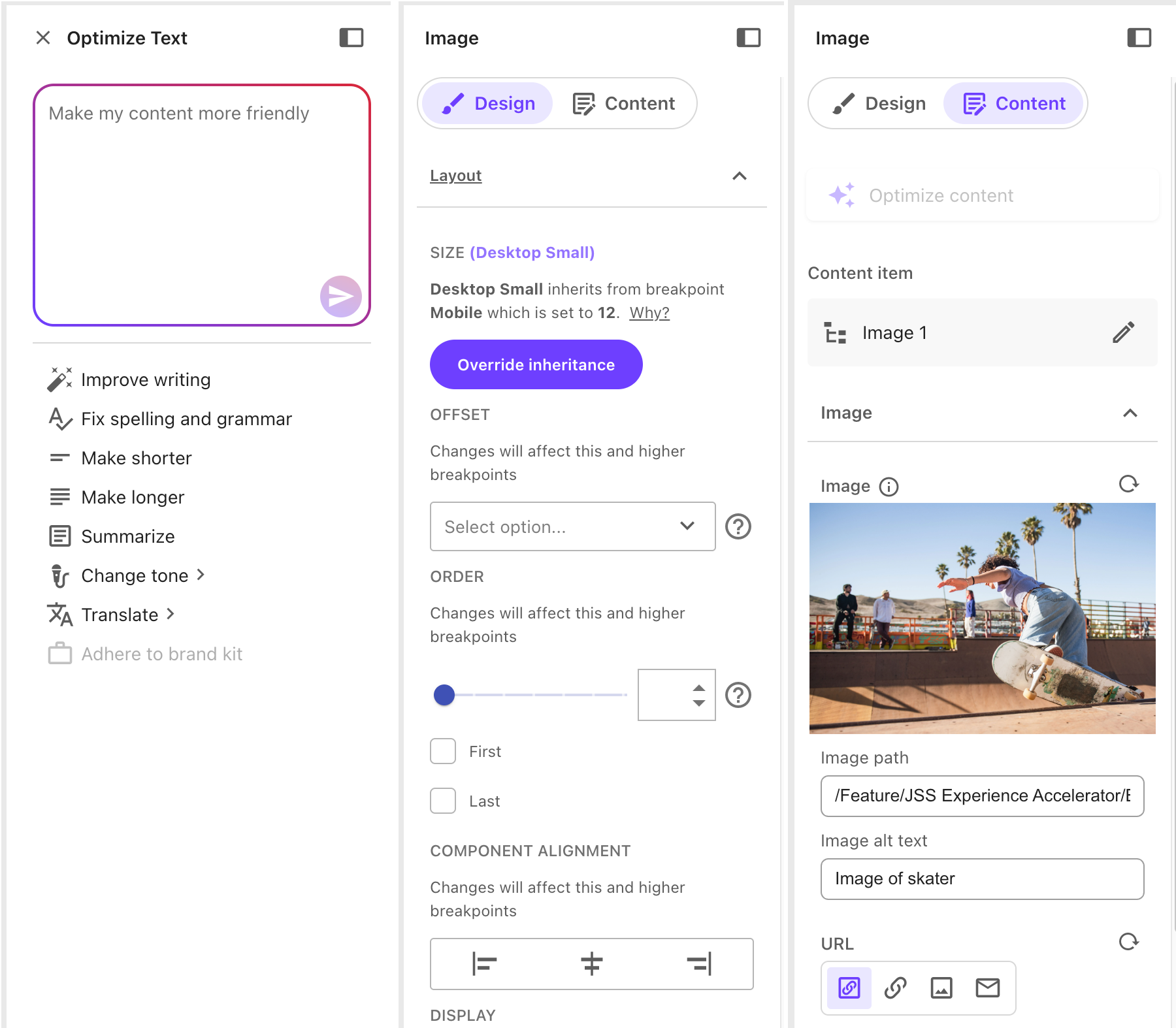
When you select an element on the page canvas, the right-hand panel displays information about and possible configurations for items selected in the editor view, for both components and placeholders. You can use the right-hand pane to configure and style components, assign content to components, or apply formatting to written content in rich text fields. This is also where you set up A/B/n tests.
The context panel
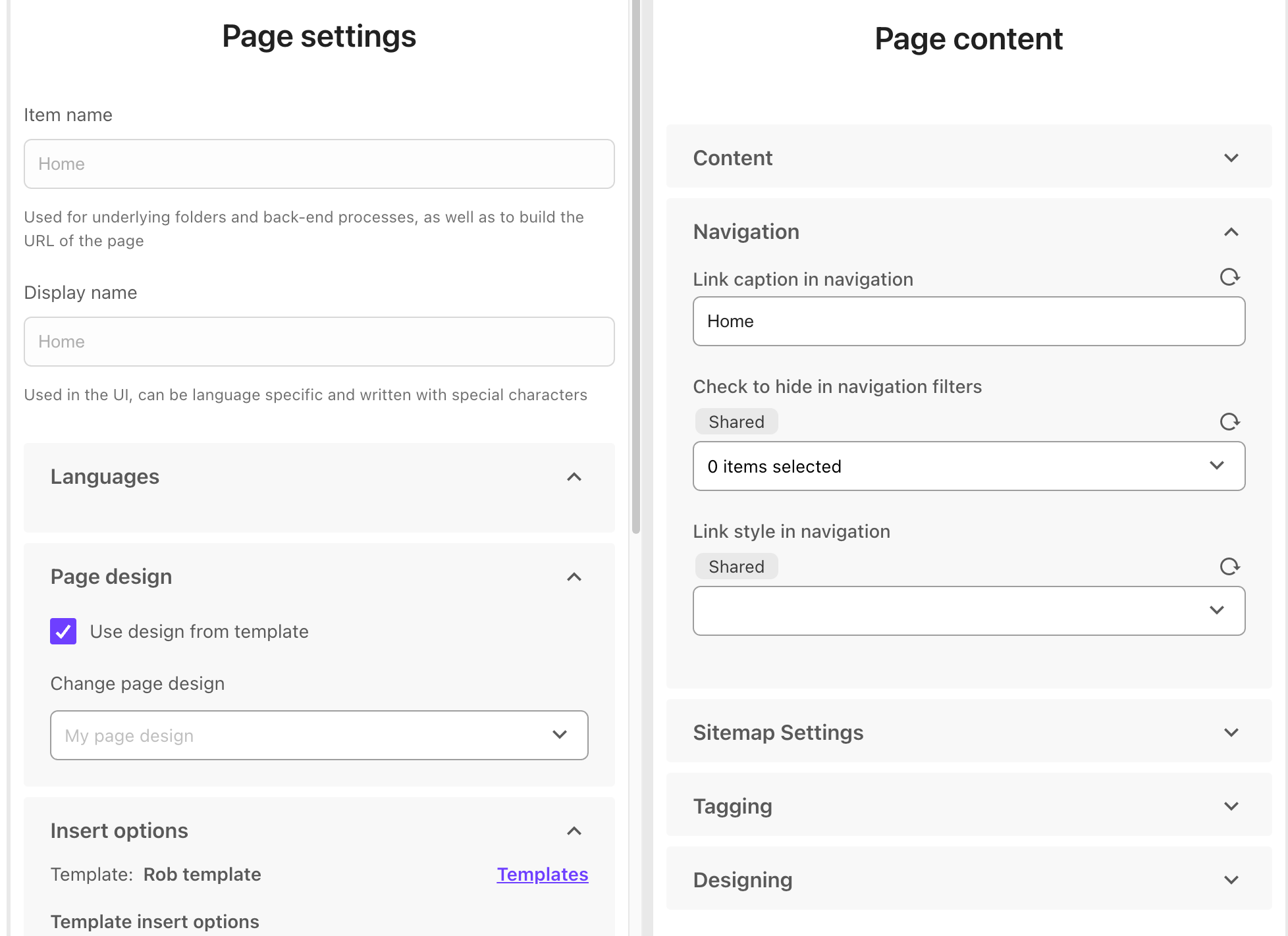
When you need to edit a page's content or settings, all the configuration options open in the Page content or Page settings context panels, to the left of the canvas.