Work with versions
To publish different versions of the same webpage over a defined time period (for example, during the holiday season or for a special promotion), it is helpful to create alternate versions of the page.
You can create, edit, and publish different versions of a page in the Editor tab of Page builder.
You can create, edit, and publish different versions of a content item in the Content mode of Page builder, as well as in the right-hand configuration panel in Editor mode.
Create an additional version of a page
To create an additional version of a page:
- In Page builder, on the Editor tab, navigate in the site tree to the page you want to create a new version for.
- In the top toolbar, click Version. You can see a list of the different versions of the page you have currently opened in the editor area.
- Click Create version. You can choose to name the new versions - otherwise, they are automatically numbered.
- Click Create.
The version list now has an additional page version that you can edit. A Live tag indicates which version is currently saved on Experience Edge to be live on your website.
Create an additional version of a content item
There are two ways to create a version of a content item in Page builder:
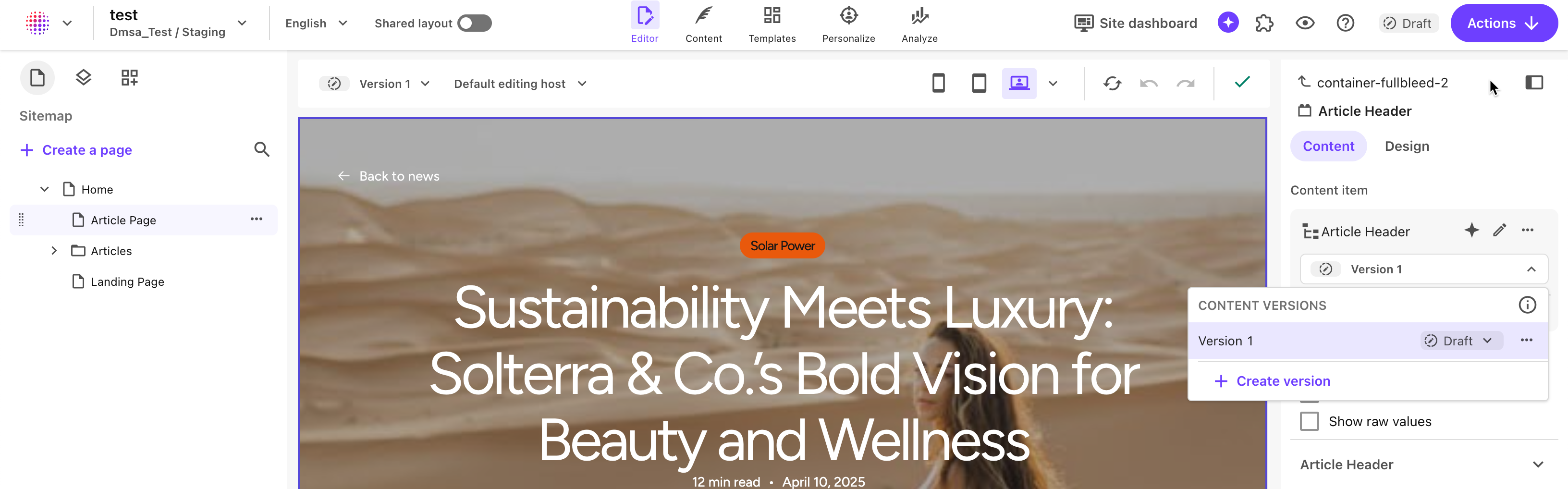
- In Editor mode, select the item, then in the right-hand configuration panel, open the version drop-down and click Create version.
- In Content mode, in the local top navigation header, open the version drop-down and click Create version.
Compare two versions
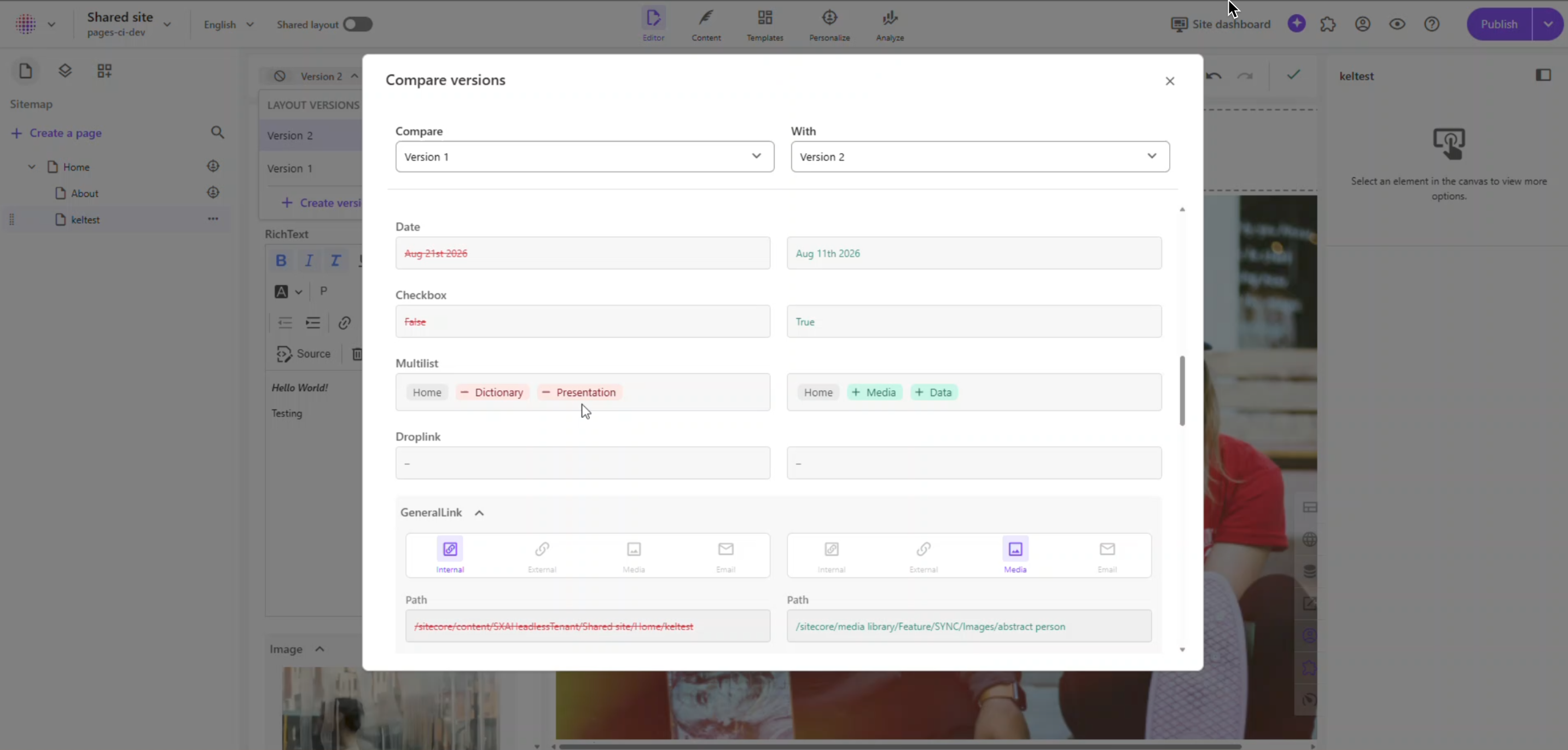
Page builder lets you compare two versions of a page or content item to quickly identify changes between them. The comparison view highlights differences across fields, making it easier to review edits, validate updates, and decide which version to publish.
To compare two versions:
- In Editor mode or Content mode, open the page or content item that contains the fields you want to review.
- In the Version drop down menu, click > Compare version.
- In the Compare versions dialog, select the two versions you want to compare from the drop-down menus.
- Review the fields with highlighted differences in the comparison view.
Move a version through a workflow
If your site has been assigned a workflow, the new page version is automatically assigned the first workflow state, for example Draft. You must then assign a different state to the version to eventually be able to publish it.
To move a page or a content item to a different state of a workflow:
- In the top navigation toolbar, click Actions , then click the relevant workflow state.
- In the right-hand configuration panel, you can also create a new version of a content item and change its workflow status
Edit and publish a page version
You can edit a page version, as well as duplicate, or delete it.
You can also set dates where the version is available for publishing. Only one version of a page can be available for publishing at once. It is usually the latest version (as long as it has been approved if it depends on a publishing workflow), but you can set the latest version to be unavailable for publishing either until you change the status, or until a defined date, or for a specific time period.
To edit a version of a page:
- In the versions list, for the version you want to edit, click and then click one of the following options:
-
Rename - change the version name.
-
Schedule publishing availability - specify the date and time when this version of the page is available for publishing. You can set a version to be unavailable for publishing until you manually change this status.
NotePublishing of a specific version is not automatic, but must be done by clicking Publish during the specified time interval.
-
Duplicate - duplicate a specific page version, for example to set different publication dates.
-
Delete - remove a page version from the version list.
-