Convert a Claude skill to an Agentic studio skill
You can convert an existing Claude skill into a custom skill in Agentic studio. This lets you reuse your skill's instructions without recreating them from scratch.
To convert a Claude skill, you need to:
- Use Claude to convert the existing skill instructions.
- Create a custom skill in Agentic studio using the converted instructions.
- Test the skill to make sure it works as expected.
Convert the skill in Claude
First, use Claude to convert your existing skill into a format supported by Agentic studio.
To convert the skill in Claude:
-
Open Claude.
-
Go to Settings.
-
In Customize, go to Skills and find the skill you want to convert.
-
Copy the skill's name. For example,
sitecoreai-page-creator.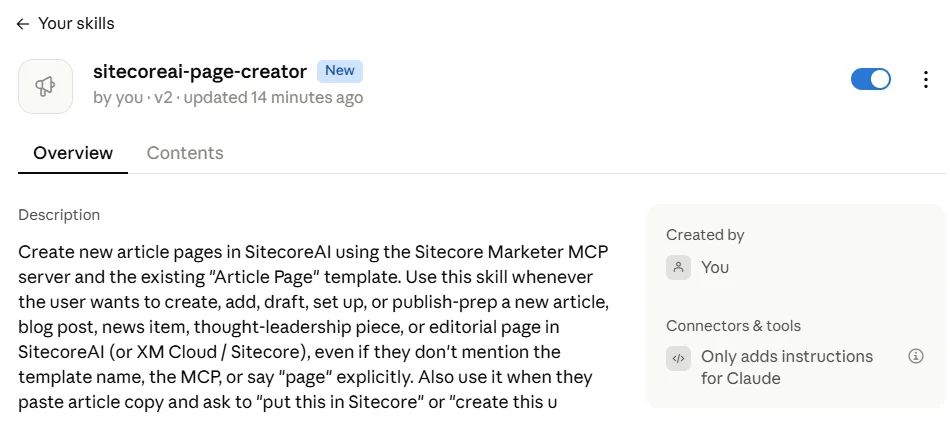
-
Copy the following prompt into Claude, replacing
{NAME-OF-YOURSKILL}with the name of your skill: -
Claude generates three sections:
- Name - the skill's title.
- Description - a short explanation of what the skill does and when to use it.
- Markdown - the converted skill instructions.
Review the generated content to make sure it preserves the original workflow, includes the required sections and reference information, and removes Claude-specific instructions.
ImportantThe conversion transfers skill instructions only. It does not transfer scripts, binary assets, or Claude-specific functionality. Make sure any required dependencies are available in Agentic studio.
Create a skill in Agentic studio
After converting the skill, use the generated content to create a custom skill in Agentic studio.
- Make sure you have a Builder License. This license is required to create skills in Agentic studio.
To create a skill:
-
In the navigation menu, click Agentic and then, in the left sidebar, click Skills.
-
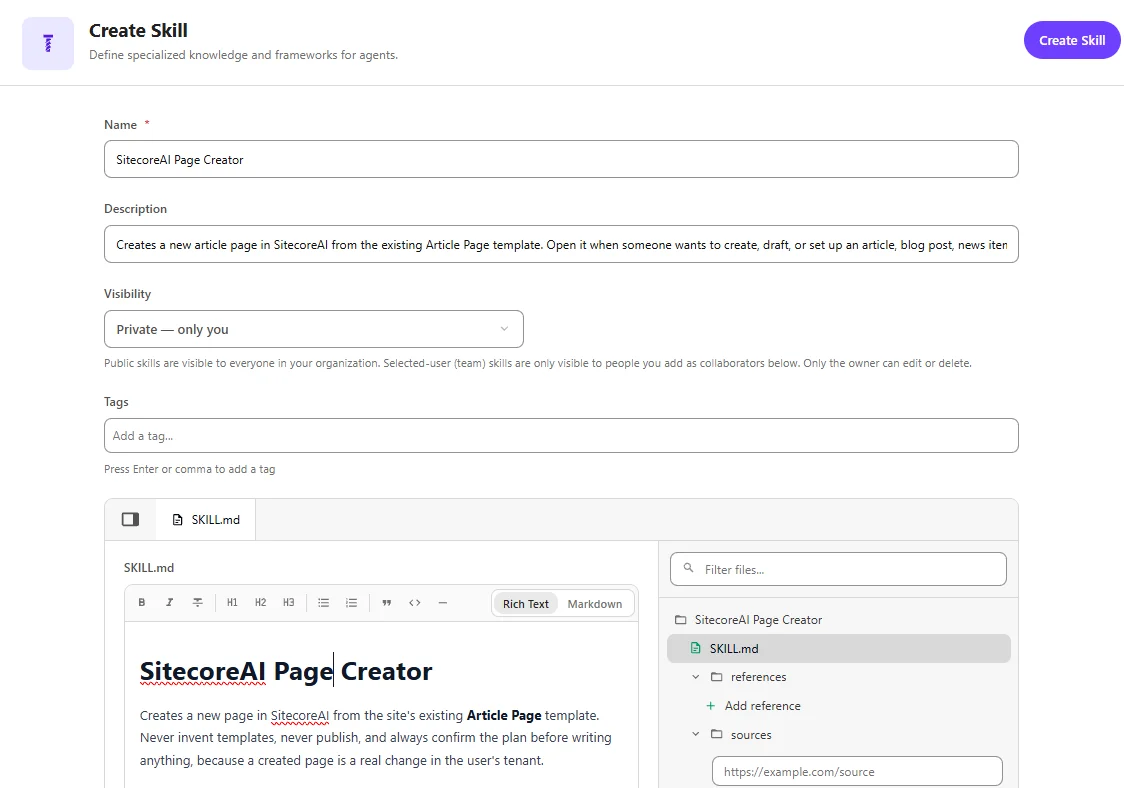
On the Skills page, click Create skill.
-
Complete the following fields:
- Name - paste the generated name from Claude, such as SitecoreAI Page Creator.
- Description - paste the generated description.
- Tags (optional) - add keywords to help organize and find the skill.
- In the SKILL.md editor, paste the generated Markdown instructions.
-
Click Create Skill.
Your converted skill is now available as a custom skill in Agentic studio.
NoteIf your original Claude skill uses additional references, data sources, or configurations, you can manually edit the converted skill in Agentic studio to add or configure them as needed.
Test the converted skill in Agentic studio
After creating the skill and making any necessary updates, test it to verify that it follows the expected instructions and produces the correct output.
-
Open the Agentic studio chat interface.
-
Start a new chat.
-
Optionally, select an agent, such as Content Generator.
-
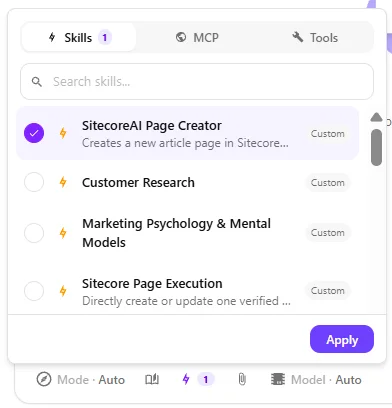
Click Skills & Tools
-
On the Skills tab, select your converted skill, such as SitecoreAI Page Creator.
-
Enter a prompt describing what you want the skill to do.
For example:
Create a new product page for my autumn sale product.
-
If you're using an agent, configure any required parameters, such as target languages or content channels.
-
Optionally, add supporting information, such as related items or uploaded files.
-
Press Cmd + Enter (macOS) or Ctrl + Enter (Windows) to submit the prompt.
-
Review the result to confirm that the skill follows the original procedure and produces the expected output. If necessary, update the skill instructions in Agentic studio and test again.