Create a brand kit in Sitecore Stream
Brand kits are only available with Stream Premium. To learn more or discuss your options, contact your Account Manager.
A brand kit guides brand-aligned content creation across Sitecore products.
To create a brand kit, brand managers simply upload key brand documents, such as brand books, playbooks, and style guides. The process is straightforward and doesn't require any technical expertise.
To create a brand kit in Stream, you must have an Admin app role in Sitecore Stream or an Organization Admin or Organization Owner role in Sitecore Cloud Portal.
To create a brand kit in Stream:
-
Log in to the Sitecore Cloud Portal and open the Stream app.
-
In the Stream navigation menu, click Brand kits.
-
On the Brand Kits page, click Create Brand Kit.

-
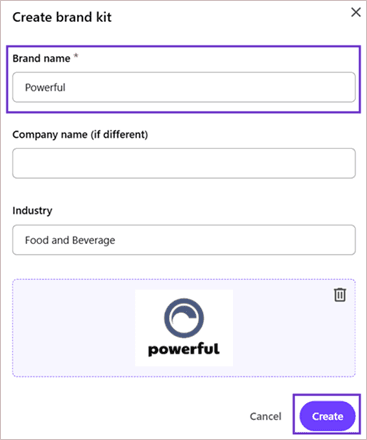
In the Create brand kit dialog, enter the following details, and click Create.
-
Brand name (Required) - the unique name of the brand kit.
-
Company name - the company name, if different from the brand name.
-
Industry - the industry associated with the brand kit. For example, Retail.
-
Logo - upload a PNG image to use as the brand kit logo. If no image is uploaded, a default logo will be applied.
-
-
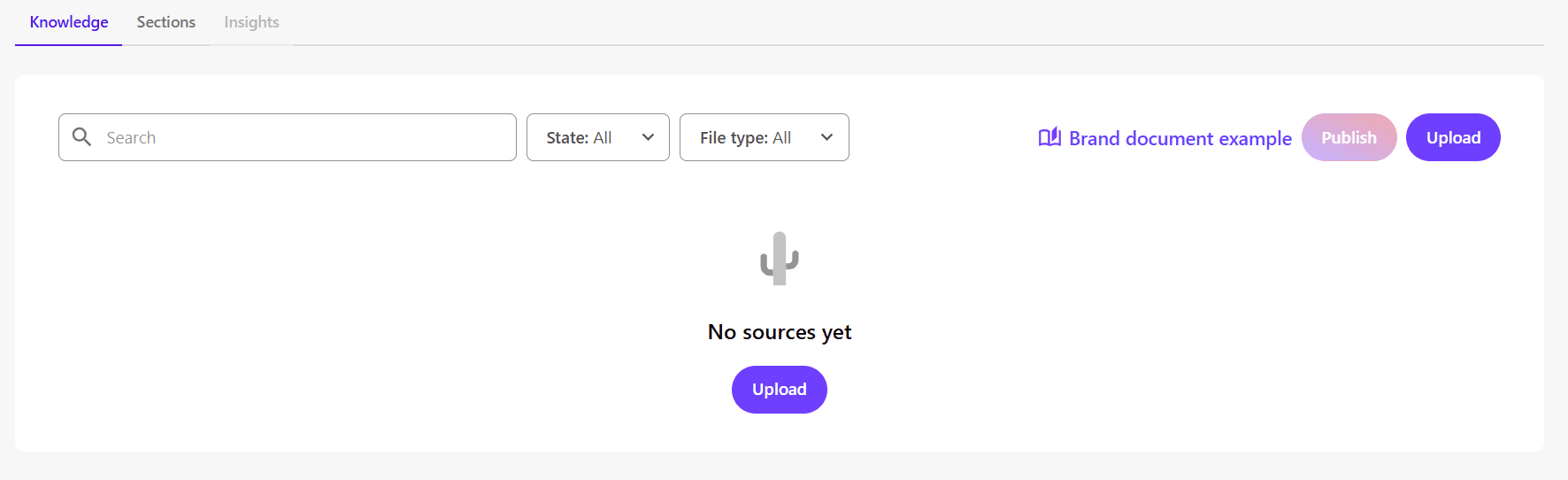
To add a document to your brand kit, on the Knowledge tab, click Upload. The documents you upload on this tab are used by Stream to extract and generate your brand knowledge.
-
In the Add source document(s) dialog, click Select PDF to choose your brand document in PDF format.
TipMake sure your files follow the recommended best practices and guidelines before uploading.
ImportantWe prioritize data security. All brand documents uploaded into the brand kit follow our data privacy and security policies.
-
To upload another document, click Select PDF again. Otherwise, click Confirm.
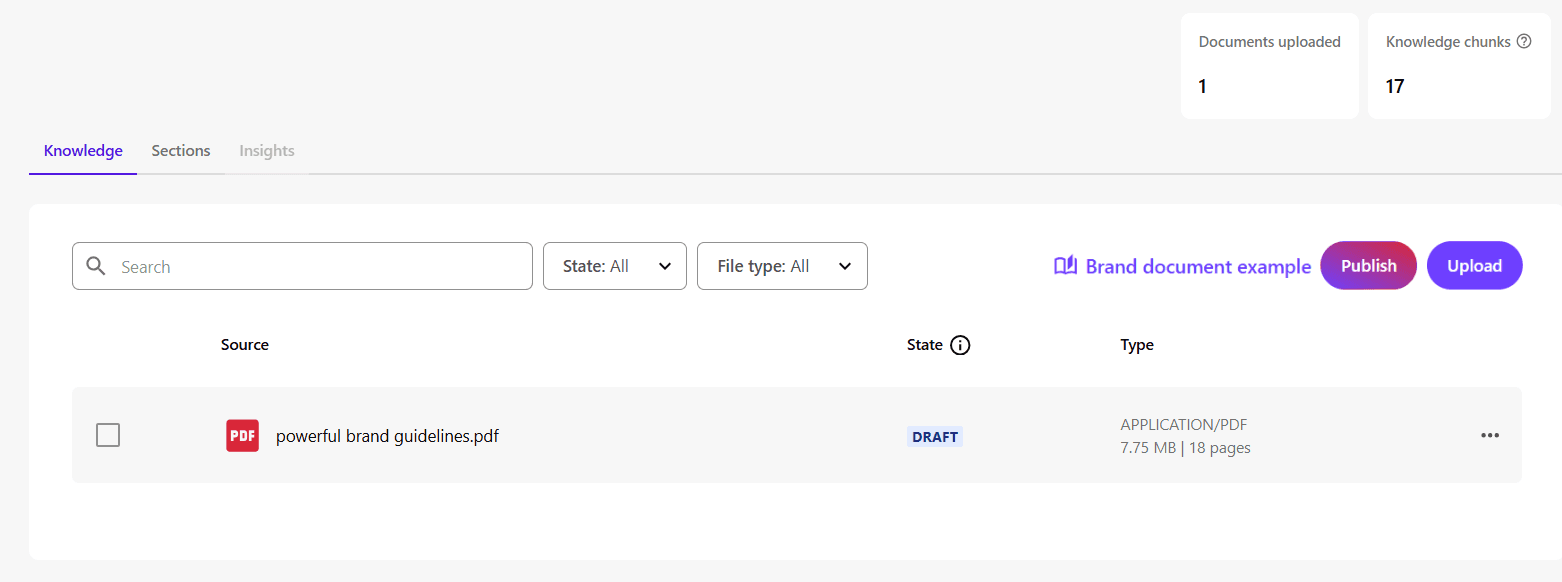
After uploading, the new document appears with a Draft status on the Knowledge tab. On the Sections tab, the default brand kit sections will appear, but they’ll be empty.
-
To process the uploaded document, on the Knowledge tab, click Publish. The system automatically selects documents that have not been processed or published.
-
In the Publish dialog, select the Yes, try to populate sections check box if you want AI to automatically fill brand kit sections based on the uploaded document.
NoteIf you don’t select the check box, the document will still be processed and added to your brand knowledge. You can populate the brand kit sections later using the Enrich from knowledge option.
-
Click Publish to start brand ingestion. Stream will analyze the document page by page, extract relevant content, and add it to your brand knowledge. This process vectorizes the document, making it available to AI tools like Stream copilots. If you chose to populate the sections, Stream will also fill the brand kit sections with content.
Publishing might take a few minutes depending on the file size. When it's finished, you'll see:
-
On the Knowledge tab, the uploaded document will show a Published status.
-
On the Sections tab, the brand kit sections will be automatically populated with relevant information from your brand knowledge.
-
On the Brand Kits page, the brand kit will also display a Published status.

-
Your brand kit is now ready to use in Sitecore. For example, you can:
-
Chat with the Brand Assistant to generate brand-aligned responses.
-
Apply the brand kit in the Experience Platform to guide content generation.