Walkthrough: Setting up SolrCloud
Sitecore supports SolrCloud – the Solr scaled environment. This walkthrough describes how to configure Sitecore to use SolrCloud as a search provider. It does not demonstrate how to install SolrCloud itself.
It is possible to use separate Solr servers for the xConnect search indexes and Content Search indexes.
Check the Solr compatibility table to see which version is compatible with your version of Sitecore XP.
This walkthrough describes how to:
- Create a SolrCloud farm
- Upload the configuration to Zookeeper
- Create a collection
- Configure Sitecore to use SolrCloud
- Populate the Solr schema
- Enable support for SSL
Create a SolrCloud farm
To create a SolrCloud farm:
- Follow the instructions for your version of Solr on the Solr website to install Solr and create a scaled environment, using two or more Solr nodes, with one or more external Zookeeper ensembles.
This walkthrough assumes a simple cluster with two Solr nodes and one Zookeeper ensemble.
Upload the configuration to Zookeeper
Follow these steps to upload the Solr configuration to Zookeeper:
-
In one of the Solr nodes you have set up, locate the
configsetfolder under theserver\solr\configsetsand duplicate the_defaultfolder, and rename it tositecore_configs. -
In the
sitecore_configs/conf/solrconfig.xmlfile , set theautoCreateFieldssetting tofalse(update.autoCreateFields:false). -
In this new folder, open the
managed-schemafile in theconffolder and do the following:-
Set the value in
<uniqueKey>id</uniqueKey>to_uniqueid. -
In the fields section, add the following field configuration for
_uniqueid:<field name="_uniqueid" type="string" indexed="true" required="true" stored="true"/>
-
-
In the
<solr_root>folder, run the following command:solr zk upconfig -d <FULL_FOLDER_PATH>\sitecore_configs -n sitecore -z <ZOOKEEPER_URL>
Create a collection
When you have uploaded the Solr configuration to Zookeeper, you can create collections.
To create a collection:
-
Navigate to the Collections page in the Solr admin UI, using one of the nodes you created.
-
Click Add Collection.
-
In the config set field, click the
sitecorecollection. -
Specify the following fields as shown:
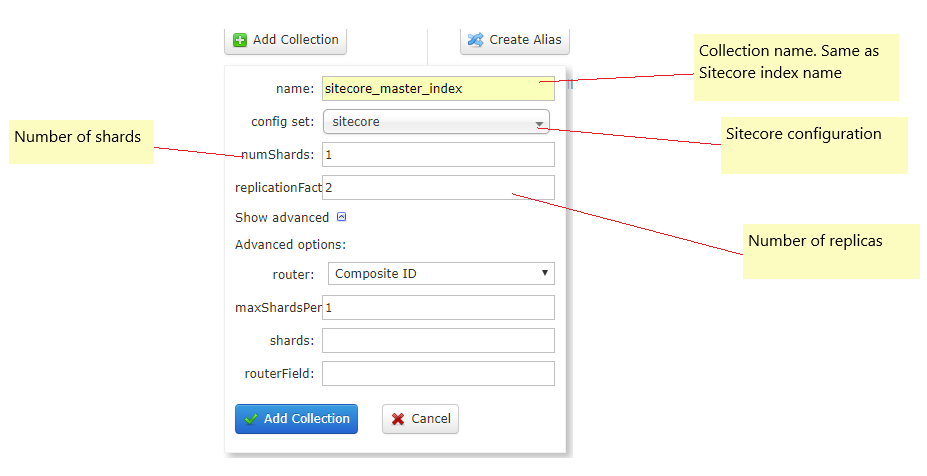
-
Repeat for all Sitecore indexes.
Configure Sitecore to use SolrCloud
Sitecore must connect to a load-balancer, and the load-balancer must handle failover for the Solr nodes.
Follow these steps to configure Sitecore to use SolrCloud as search provider:
-
Open the
App_Config\ConnectionStrings.configfile -
Specify the value of the
solr``.searchkey and add the tokensolrCloud=true:<add name="solr.search" connectionString="http://localhost:8983/solr;solrCloud=true" /> -
If you only access nodes of SolrCloud within a private network, set the
ContentSearch.IndexingManager.DisplayShortStatisticsetting totrue. This eliminates direct requests to the nodes used to display additional index statistics in the Indexing Manager Wizard.
If you want to configure basic authentication, you must add credentials to the connection string as the like this:
<add name="solr.search" connectionString="http://username:password@localhost:8983/solr;solrCloud=true" />
The hostname of the load balancer is localhost in the above examples. Replace as needed.
Populate the Solr schema
To populate the Solr schema:
- Open the Sitecore Control Panel.
- Click Populate Solr Managed Schema.
- Select all indexes and click Populate.
Enable support for SSL
If you have enabled SSL for Solr, you must:
- In the
ConnectionStrings.configfile, ensure that thecontentSearch.solrconnection string is an https URL.