View top AEO opportunities in Channels
- Early access - this feature is in early access and available to any organization with a Scrunch subscription.
- Connect to Scrunch - before you can work with AEO opportunities, make sure your SitecoreAI CMS environment is connected to Scrunch. The connection is live if the AEO opportunities tab appears on your site's Channels page in SitecoreAI.
AEO opportunities in Channels help you identify site-level content improvements that can strengthen your AI citation performance. You can view available opportunities, see which pages are most relevant to each one, and act on the recommended updates.
Each opportunity focuses on a specific aspect of your content, such as factual evidence, content depth, or recency. It also identifies the pages where an update is expected to have the greatest impact.
Find top AEO opportunities
To view the top AEO opportunities for your site:
-
In SitecoreAI, click Channels.
-
Hover over the site tile and click Dashboard.
-
On the Overview tab, in the Engagement section, the widget shows top AEO opportunities.
The AEO opportunities widget appears by default. If you've customized your dashboard, the widget doesn't show up automatically, and you must add it manually.
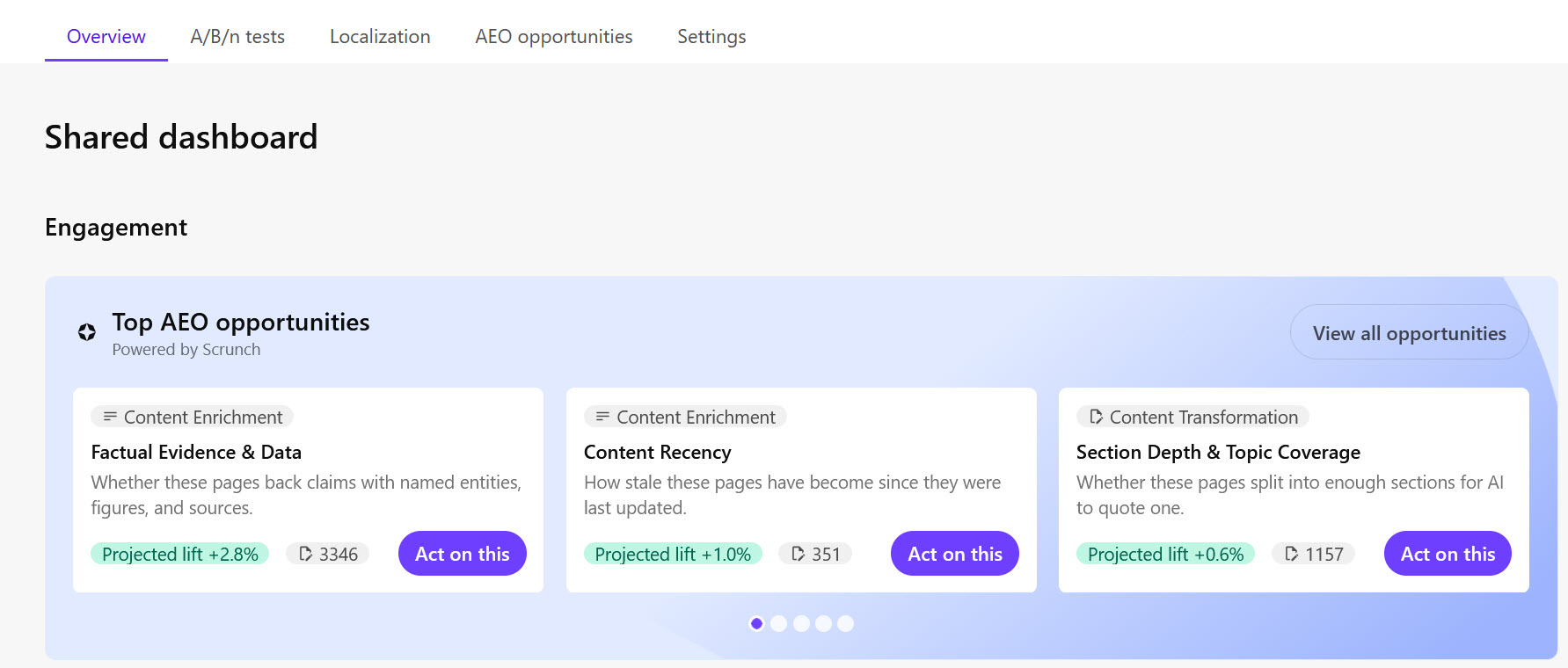
Each opportunity card includes:
- Opportunity type - the broader type of opportunity for content improvement, such as Content Enrichment or Content Transformation.
- Category - the specific area of content to improve, such as Factual Evidence & Data, Expert Authority & E-E-A-T, or Content Recency.
- Description - a brief explanation of the content characteristic the category evaluates.
- Projected lift - the estimated percentage-point improvement in citation rates from addressing the opportunity.
- Recommendations - the number of pages for which content updates are available.
-
To view all opportunities, click View all opportunities. To go directly to a specific opportunity, click Act on this on one of the opportunity cards.
The AEO opportunities tab opens. When you find an opportunity you want to investigate further, see Act on AEO opportunities.