- SitecoreAI CMS
Connect SitecoreAI CMS to Scrunch
By connecting your SitecoreAI CMS environment to Scrunch, SitecoreAI organization members can start working with signals and AEO opportunities directly in the CMS. Connecting involves the following steps:
Before you begin
- Make sure you have a SitecoreAI CMS license and a Scrunch license.
- In SitecoreAI, you must be an Organization Admin or Organization Owner in your Cloud Portal organization to create environment variables in the Deploy app.
- In Scrunch, you must have a brand, the Organization Admin role, and be on an eligible Scrunch plan. For more information about prerequisites, see the Scrunch documentation.
- Make sure the domain configured for your Scrunch brand matches a domain (hostname or target hostname) configured for your SitecoreAI CMS environment. SitecoreAI only displays Scrunch data for matching domains.
- Find your domain in Scrunch in Brand Settings > Configure > Brand Entities > Primary Brand > Edit brand > Brand Website.
- Find your domain in SitecoreAI in Channels > your site's Dashboard > Settings > Site hosts > Edit > Hostname.
- Example domain:
www.my-site.com
Provision a Scrunch API key
To provision a Scrunch API key:
- Log in to Scrunch.
- In the upper-left corner of the dashboard, click your organization name in the header bar.
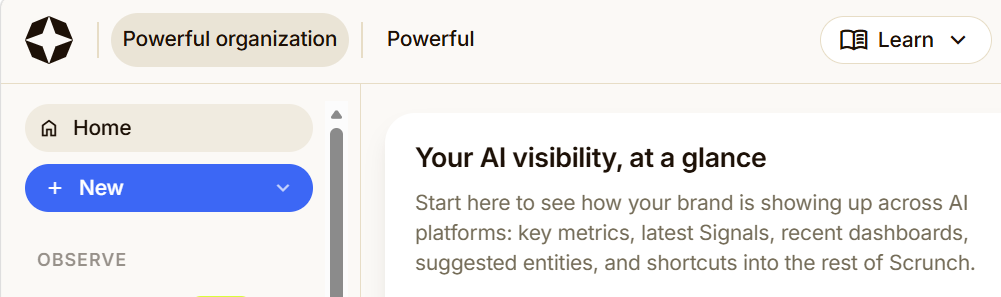 This opens the Organization settings page, where you can manage organization-level resources such as Brands, Members, and API keys.
 - In the side navigation, in the Organization section, click API Keys > New API key.
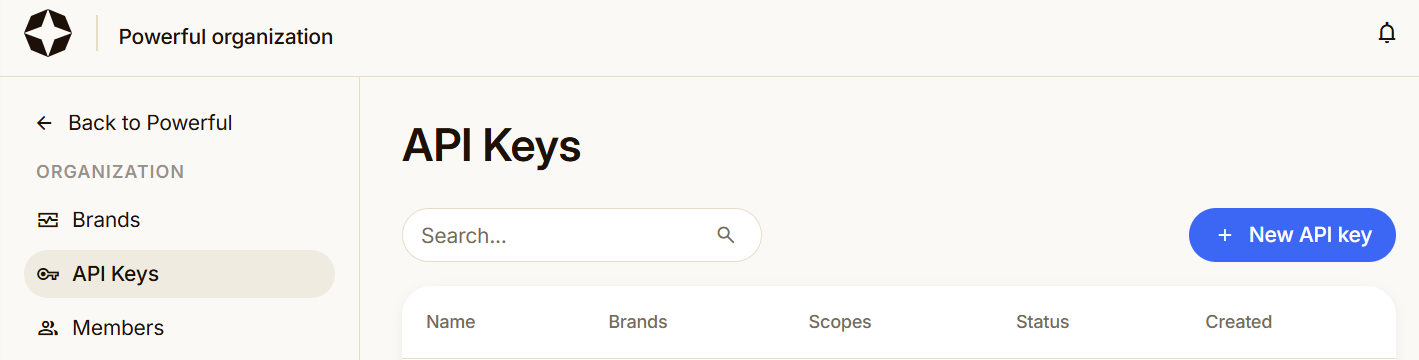
- In the Name field, enter a descriptive name for the API key, such as Scrunch-SitecoreAI-CMS.
- In the Scopes field, select Query.
- In the Limit to brands field, select one brand to limit the API key to.
- Click Create API Key.
- Copy the API key because you won't be able to view it in Scrunch again.
Best practice
- Limit each API key to a single brand, and use the Query scope only. If a key is associated with more than one brand, SitecoreAI can't determine which brand to use and the connection fails.
- Use only one Scrunch API key per SitecoreAI organization. Within that organization, add the API key to only one environment.
Add the API key in SitecoreAI Deploy
Next, you add the Scrunch API key to a single environment in your SitecoreAI organization in the Deploy app.
To add the API key:
- Log in to your Sitecore Cloud Portal organization.
- Open SitecoreAI Deploy and click Projects > your project > Authoring environments > your environment > Variables > Add variable.
- In the Name field, you must enter AI_DISCOVERY_API_KEY. The connection requires this exact name.
- In the Value field, enter your Scrunch API key.
- Switch on the Secret toggle.
- Click Save.
- Click Options > Open Dashboard. Your site's Strategy page opens. A Signals widget appears on the page. In addition, the AEO opportunities tab appears on your site's Channels page.
This confirms that you've successfully connected your SitecoreAI CMS environment to Scrunch. SitecoreAI organization members can now start working with signals and AEO opportunities.
Troubleshooting
SitecoreAI CMS and Scrunch are not connected if:
- The Signals widget doesn't appear on the Strategy > Overview page of the SitecoreAI environment where you added the Scrunch API key.
- The AEO Opportunities tab doesn't appear on the Channels dashboard page of the SitecoreAI environment where you added the Scrunch API key.
To fix the issue, make sure that:
- Your Scrunch API key is valid. The API key is valid if it's limited to a single brand, uses only the Query scope, and is not expired or revoked.
- You entered the API key correctly in SitecoreAI Deploy. If the issue persists, create a new API key in Scrunch and add it in SitecoreAI Deploy.
- You use only one Scrunch API key per SitecoreAI organization. Within that organization, add the API key to only one environment.
- The SitecoreAI Deploy environment variable name is AI_DISCOVERY_API_KEY. The connection requires this exact name.
- The domain configured for the Scrunch brand matches a domain configured for the SitecoreAI CMS environment.
If you have suggestions for improving this article, let us know!