Personalize a page using affinities
Feature availability is part of a phased rollout. Your organization may not see this functionality yet. It will become available when your environment is included in the rollout.
Affinities let you customize page experiences based on what visitors are most interested in.
As visitors view pages with assigned affinities, SitecoreAI calculates affinity scores for the affinity values associated with the attributes you defined. These scores are updated in near real time and can be used as conditions to determine which page variant a visitor sees.
For example, on a site where visitors browse different models and features, affinity scores can indicate which values, such as electric, suv, or performance, best reflect a visitor's current interests.
Make sure you have already set up affinities for your site so affinity scores can be calculated and used for personalization.
You can use affinity scores to personalize a page in two ways:
- Use the Top Affinity condition to target visitors based on their highest affinity score.
- Create a custom condition to combine affinity scores with other rules and target matching visitors.
Use the Top Affinity condition
Use this option to personalize a page based on a visitor's highest affinity score for a specific affinity value.
To use the Top Affinity condition:
-
In the Page builder in Editor mode, in the site tree, select the page you want to personalize.
-
On the Personalize tab, in the left-hand side panel, click Create variant.
-
To create the audience intended for that page variant, in the Create new page variant dialog, enter a name for the variant, then click Next.
-
In the Create your audience dialog, in Build mode, enter the audience name and click Add first condition.
-
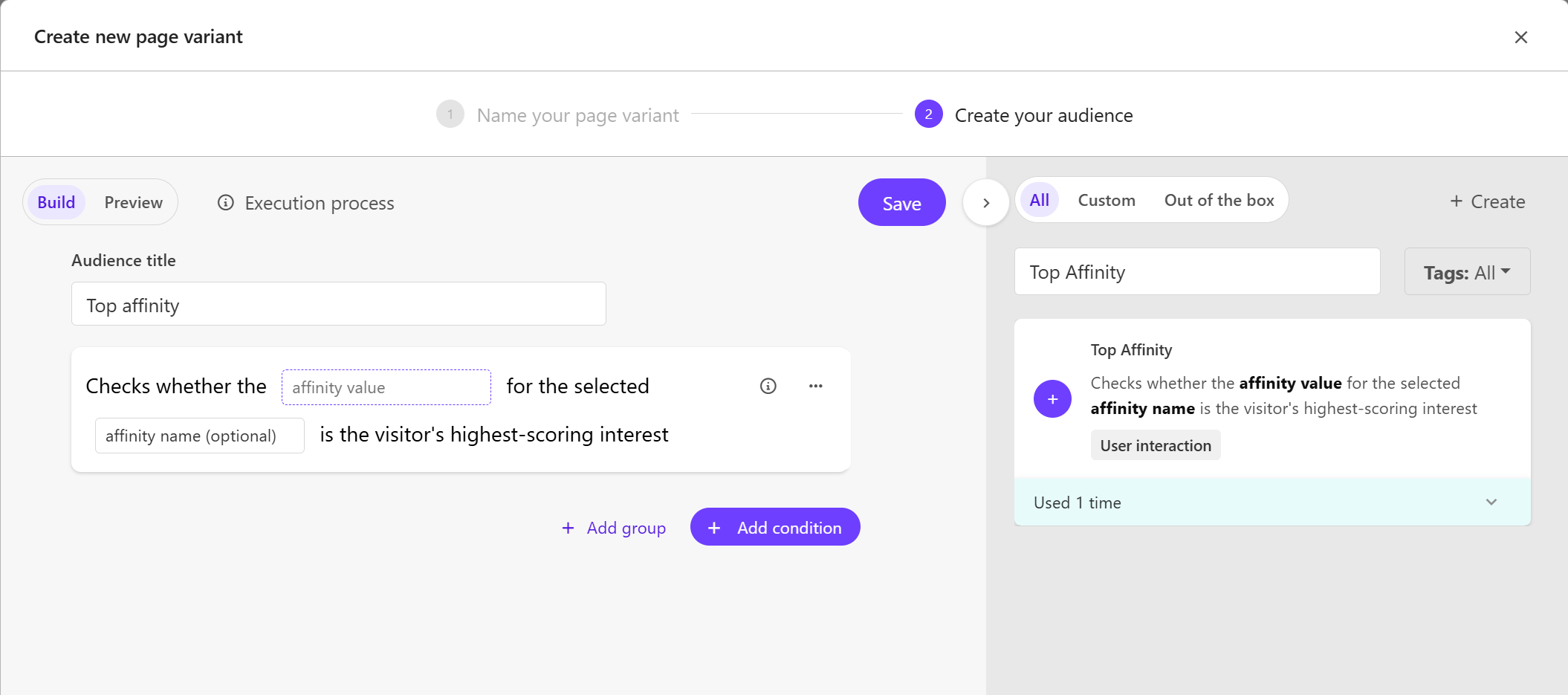
In the search field in the Conditions right-hand pane, search for Top Affinity.
The Top Affinity condition targets visitors whose highest affinity score matches the criteria you define.
-
Click to add the condition.
-
Configure the condition:
-
Affinity value - enter the specific value you want the condition to match, for example, electric, suv, or performance. The condition is met when this value has the visitor's highest affinity score within the specified affinity name.
-
Affinity name (optional) - enter the attribute you want to evaluate, for example, product_type, model, or focus. Use this field to limit the condition to values associated with a specific affinity name.
You can enter multiple affinity names if needed. Press Enter after each one.
ExampleIf you configure the condition with:
- Affinity value: electric and Affinity name: model
SitecoreAI evaluates the visitor's affinity scores for values associated with the model affinity name. If electric has the highest affinity score for that affinity name, the visitor is shown the corresponding page variant.
ImportantAffinity names and values must exactly match those defined during setup.
-
-
Optionally, if needed, you can also:
- Add additional conditions and logical operators between them.
- Group multiple conditions together.
- Reorder conditions or groups using the up or down arrows.
-
Click Save.
-
Your new page variant is now available in the list of variants in the left pane. You can now edit the variant. When editing is complete, publish the variant.
SitecoreAI shows the variant to visitors whose highest affinity score matches the configured affinity value.
Create a custom condition with affinities
Use this option when you want to combine affinity scores with other visitor data or business rules to personalize a page.
To create a custom condition with affinities:
-
In the Page builder in Editor mode, in the site tree, select the page you want to personalize.
-
On the Personalize tab, in the left-hand side panel, click Create variant.
-
To create the audience intended for that page variant, in the Create new page variant dialog, enter the page variant name and click Next.
-
In the Create your audience dialog, in Build mode, enter the audience name and click Add first condition.
-
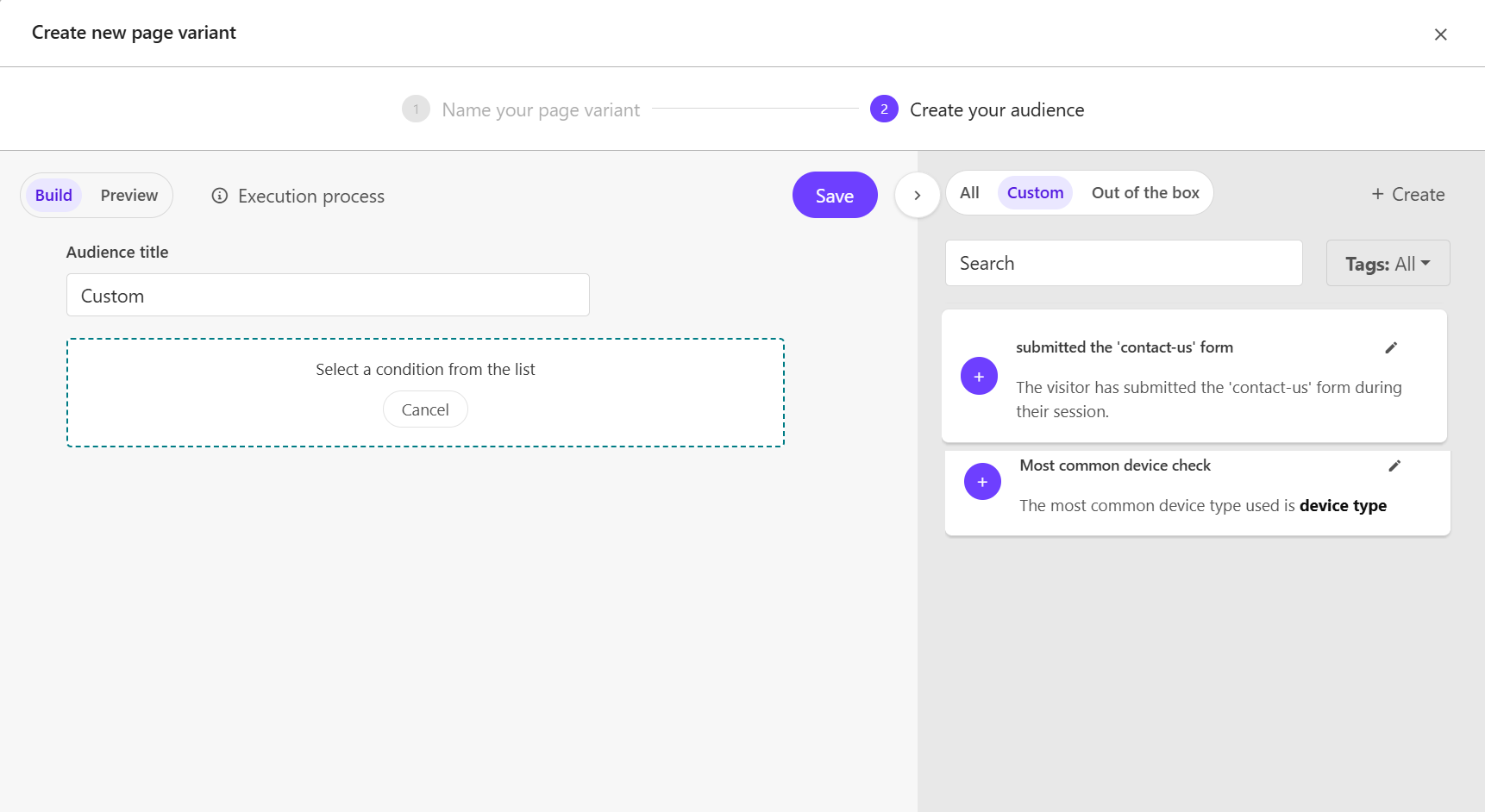
In the Conditions right-hand panel, click Custom, then click Create.
-
Enter a name for the new condition.
-
In the code editor, choose one of the following options:
-
Use JavaScript to write the logic for your custom condition.
Example logic
This example checks whether a visitor has a high interest in electric vehicles and has viewed the Vehicle comparison page:
-
Use the Code Assistant to describe the condition logic in natural language.
Example prompt
Write a condition to display content for visitors whose affinity score for the electric value of product_type affinity name is greater than 50% and who have viewed the Vehicle comparison page.
-
-
Click Save. After saving your custom condition, make sure to define the condition output using the appropriate parameter names.
-
Your new page variant is now available in the list of variants in the left pane. You can now edit the variant. When editing is complete, publish the variant.
SitecoreAI shows the variant to visitors who match the custom condition.