Preview scheduled page versions in a calendar
Use the preview calendar in Page builder to review how a page will appear on a specific date. The calendar highlights dates that contain scheduled content updates and provides a timeline view of upcoming changes, making it easier to validate content releases and publishing schedules before they go live.
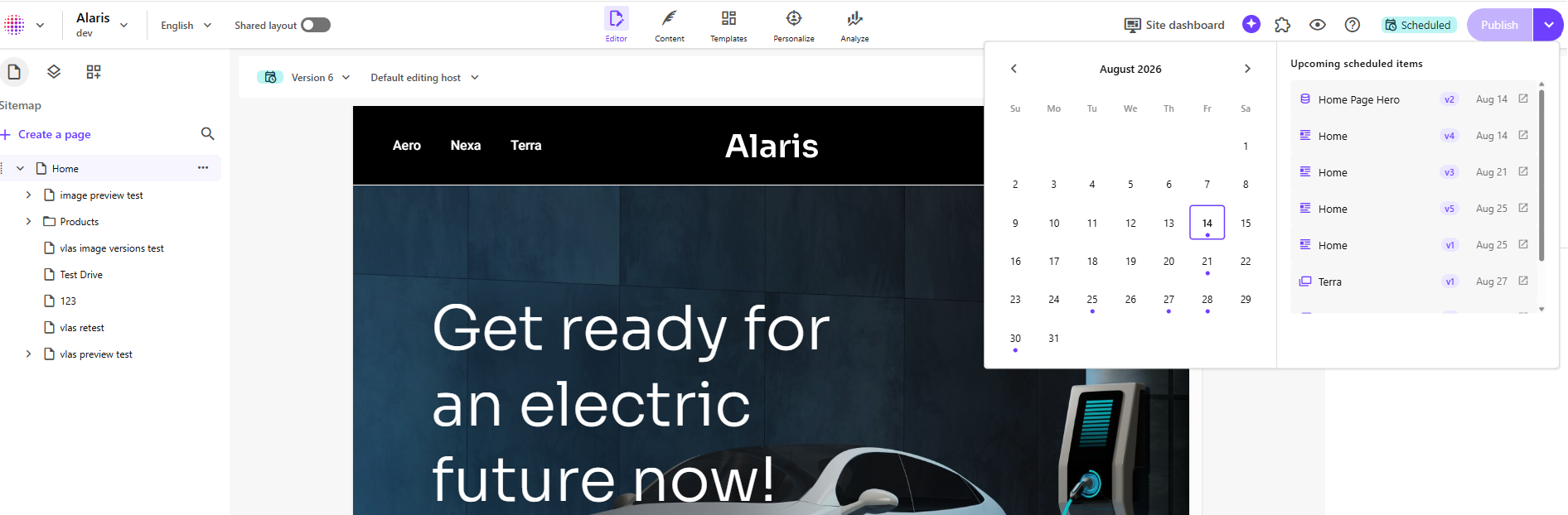
The preview calendar can reflect changes to referenced content that contribute to the final page experience, combining scheduled page versions, datasource updates, media availability, and referenced content changes into a single preview experience. By selecting a date, you can see the page that visitors would see at that moment in time if you publish the page on the selected day.
You can also us the preview calendar to review previously published page states to understand what was available on a past date.
To preview a scheduled page version:
- In Page builder, click Preview.
- Browse the calendar and locate a highlighted date that contains a scheduled page version.
- Click the highlighted date to preview the page as it will appear on that day.
The Upcoming scheduled items section displays future scheduled page versions and content changes in chronological order. If multiple versions of a page are scheduled, the version relevant to the selected date appears in the list. You can also select an item from the list to load the corresponding preview.
When a date is selected, Page builder retrieves the page version and related scheduled content that would be available at that specific date and time, helping you verify publishing schedules, validate upcoming releases, and identify overlapping content changes before publication.
To access and use the preview calendar, your web application must be using Content SDK 2.2 or a later version.