Configure, start, and monitor your site’s localization
You can use the Localization tab of a site's dashboard to manage and scale multilingual experiences with SitecoreAI. By combining AI-powered site translation with brand-aware guidance, you can accelerate localization while maintaining consistent terminology, tone, and brand identity across languages.
From this tab, you can translate entire sites with AI, monitor localization progress, configure supported languages, and apply brand kits that guide how content is translated.
Add a language to the site
In the Localization > Configuration section, you can add or remove languages to define which languages the site supports.
Each site has its own set of enabled languages, selected from the languages available in the environment. After a language is added, you can create language versions of pages and content for that site.
If a page does not yet have a version in a supported language, the site displays content in the default language or uses language fallback if it is configured.
Learn about adding or removing a language to a site in SitecoreAI.
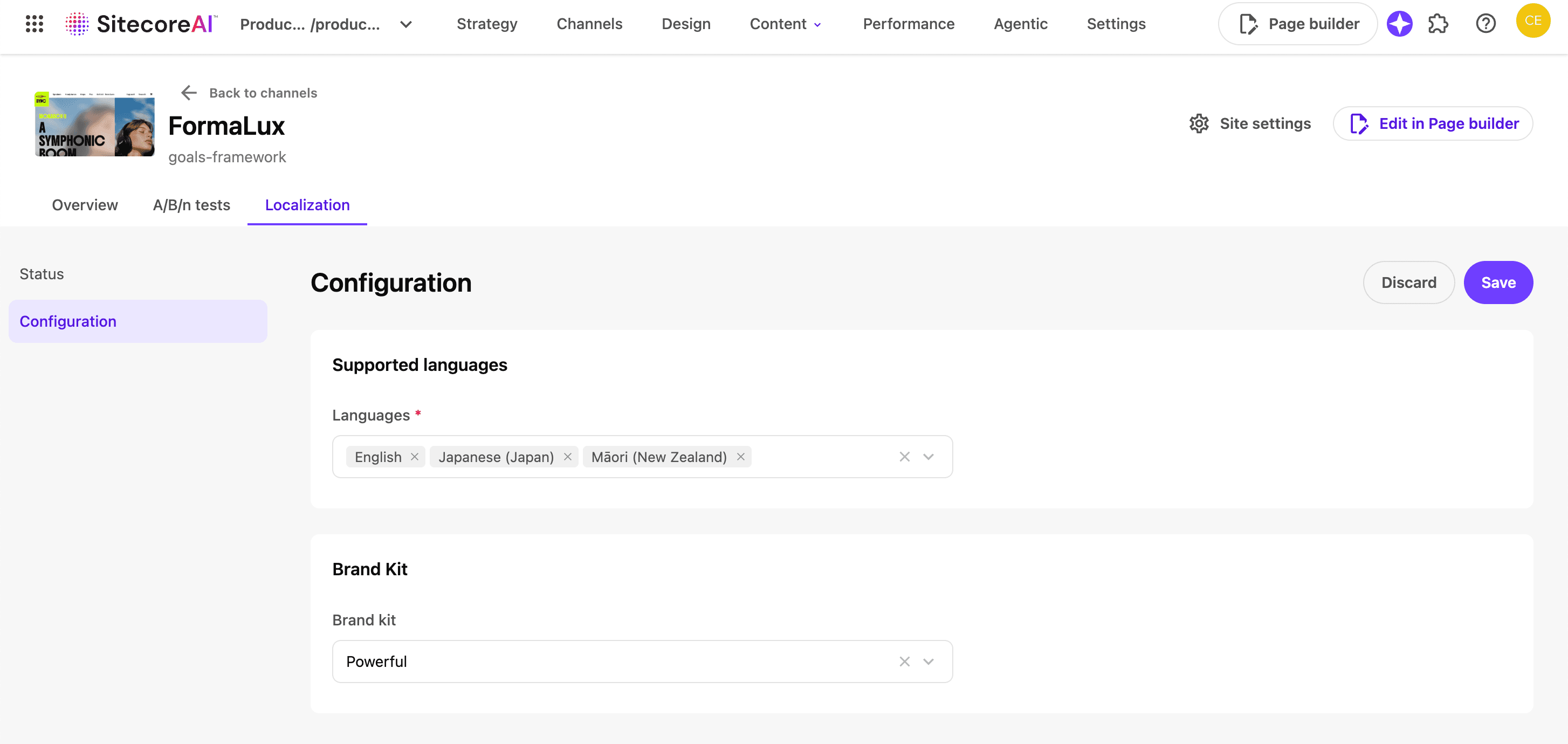
Assign a brand kit to the site
You can assign a brand kit to a site to guide how SitecoreAI generates and translates content.
When a brand kit is assigned, SitecoreAI automatically applies relevant brand kit sections during translation, including:
-
Glossary and localization, which controls how specific terms are translated or preserved.
-
Do’s and don’ts, which guide tone and phrasing when no glossary term is defined.
Assigning a brand kit helps ensure that AI-generated and AI-translated content stays aligned with your brand guidelines across all languages.
Learn how to assign a brand kit to a site.
Start a site translation
You can start an AI-powered site translation from a site's dashboard, either from the the Localization widget on the Overview tab or from the Localization Status tab.
SitecoreAI lets you translate an entire site into a selected language in just a few clicks. When you start a site translation, SitecoreAI creates language versions for site pages and content items that do not yet exist in the target language, helping you scale localization quickly and efficiently. Translation runs in the background, allowing you to continue working while progress is tracked from the site dashboard.
Learn how to translate an entire site with AI.
Monitor localization status
In the Localization table, whether on the Overview widget or Localization Status tab, you can track how localized your site is across all supported languages.
For each language, you can see:
-
which languages are enabled for the site
-
how much of the site has already been translated
-
how many pages or items are still missing a language version
This overview helps you quickly assess localization coverage and identify where translation work is still needed, whether translations are added manually or generated with AI.
Monitor translation jobs
In the Translation jobs table, you can monitor AI-powered site translations as they run.
When you start an AI translation for a site, SitecoreAI processes content in the background and creates language versions for pages and items that do not yet exist in the target language. The Translation jobs table lets you follow progress without interrupting other work.
In the Translation jobs table, you can see:
-
Job - the job name, sometimes containing information such as item being published, its location, and the item ID.
-
Status - the status of the publishing job from creation to publication, including queued, running, completed, or failed. For running, completed, and failed jobs, the status details of the items or pages that were processed or failed.
-
Triggered - the date when the job was triggered, and the name of the user who triggered it.
-
Ended - the time and date when the publishing job ended, and its total duration from when it started running up to the present time - if the job is still running - or to the time it ended.
You can filter the table by job status, languages, or the date it was triggered.
To clear all filters from the table and see the data in full:
-
Click Clear all.