Create a custom condition
You can create custom conditions in both SitecoreAI and Sitecore Personalize. To create custom conditions in Sitecore Personalize, your organization must have a standalone Sitecore Personalize license.
SitecoreAI comes with a set of out-of-the-box conditions you can use to build audiences. But if your personalization logic is not covered by out-of-the-box conditions and you're familiar with JavaScript, you can manually build a custom condition. Custom conditions enable sophisticated, reusable personalization logic tailored to your specific requirements, while maintaining flexibility for unique business needs. Combined with the AI Code Assistant and comprehensive testing tools, even complex conditions remain manageable and maintainable.
Custom conditions are server-side JavaScript expressions that evaluate visitor profiles:·
- Any truthy return value results in content being shown to the visitor.
- Falsy values prevent the content from displaying.
Users with a User, Developer, or Admin app role in SitecoreAI can create custom conditions. You can either modify an existing out-of-the box or custom condition, or build a new one entirely from scratch. These conditions can be created manually or with the help of the AI Code Assistant.
Before you start, we recommend you familiarize yourself with the following topics:
- Types of parameters, context parameters and elements used in conditions.
- Supported and unsupported JavaScript functions
- Best practices for creating custom conditions.
To create a custom condition manually:
-
In the Page builder Personalize mode, in the left-hand panel, click Create variant.
-
Enter a name for the page variant, then click Next.
-
In the Create your audience dialog, in the Conditions right-hand panel, click Create.
-
Enter a name for the new condition.
-
In the code editor, edit the JavaScript.
We recommended that you return an object in the response body. You can copy the code from another custom condition to help get you started.
TipThe value returned in the response can be accessed from the variant API response as 'filter'.
-
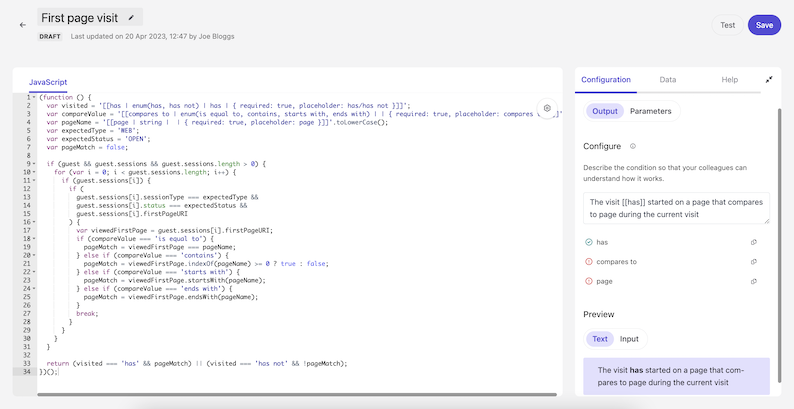
As you define input parameters in the JavaScript coding pane, the parameter names display in the Output tab of the right-hand panel.
-
Click Save to apply your changes. After saving your custom condition, make sure to define the condition output using the appropriate parameter names.
Define the condition output
The condition output is a combination of descriptive phrases and input parameters. This is what a user will see when they select a condition to apply to an experiment or experience, as shown below:
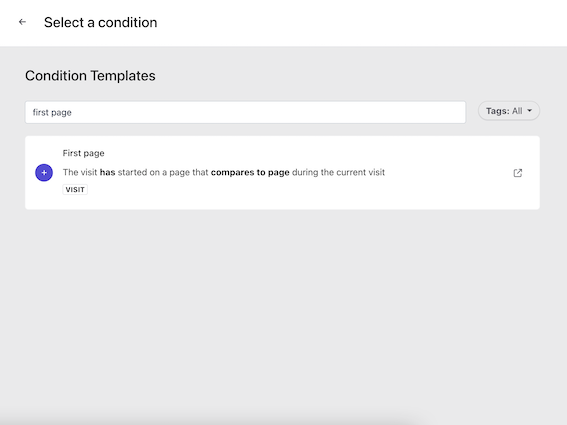
"The visit has / has not started on a page that compares to page during the current visit"
In this example, has / has not, compares to, and page are input parameters that the user will select values for when they apply the condition to an experiment or experience. We recommend that you phrase the condition output in a way that's similar to how you would structure a sentence.
To define the condition output:
-
In the right-hand panel, select the Output tab.
-
Enter the text and the parameters in the Configure text box. This is the what the user will see when they apply the condition to the experiment or experience. As you type, the output displays in the Preview section. Valid parameters are bolded. To see the input parameter values that the user will be able to select from, click the Input option.
Parameters are case-sensitive and must be wrapped in double square brackets, for example:
[[path.name]].NoteYou must include all the condition parameters in the Configure text box, that are defined in the JavaScript coding editor. Parameters that are defined in the JavaScript but haven't been included in the Configure text box have a red exclamation mark. Click to copy the parameter name and paste it into the Configure text box.
Parameters that have been included in the Configure text box and are valid have a green checkmark.
This image shows that the has input parameter is defined in the JavaScript and has been included in the Configure text box. The green checkmark displays to indicate the input parameter was successfully included. The compares to parameter and page parameter have red exclamation marks because although they are included in the Configure text box, they are not wrapped in double square brackets and have an invalid syntax. To make the syntax valid and have the green checkmark display, wrap the parameters in double square brackets.
-
A preview of the condition output displays on the Output tab. This is useful to see how the user will view the condition when applying it to an experiment or experience. Click the Input option to view the parameter values that a user can select for the condition.
-
Click Test to test the condition using guest data. We recommend testing the condition before you publish it, to identify any errors and ensure optimal performance.