Model a component in Design Studio
Content modeling in Design Studio lets teams define the structure, fields, and rules behind their components before those components are used on pages. Component modeling ensures consistent data definitions, improves reuse across sites, and enables faster component creation workflows.
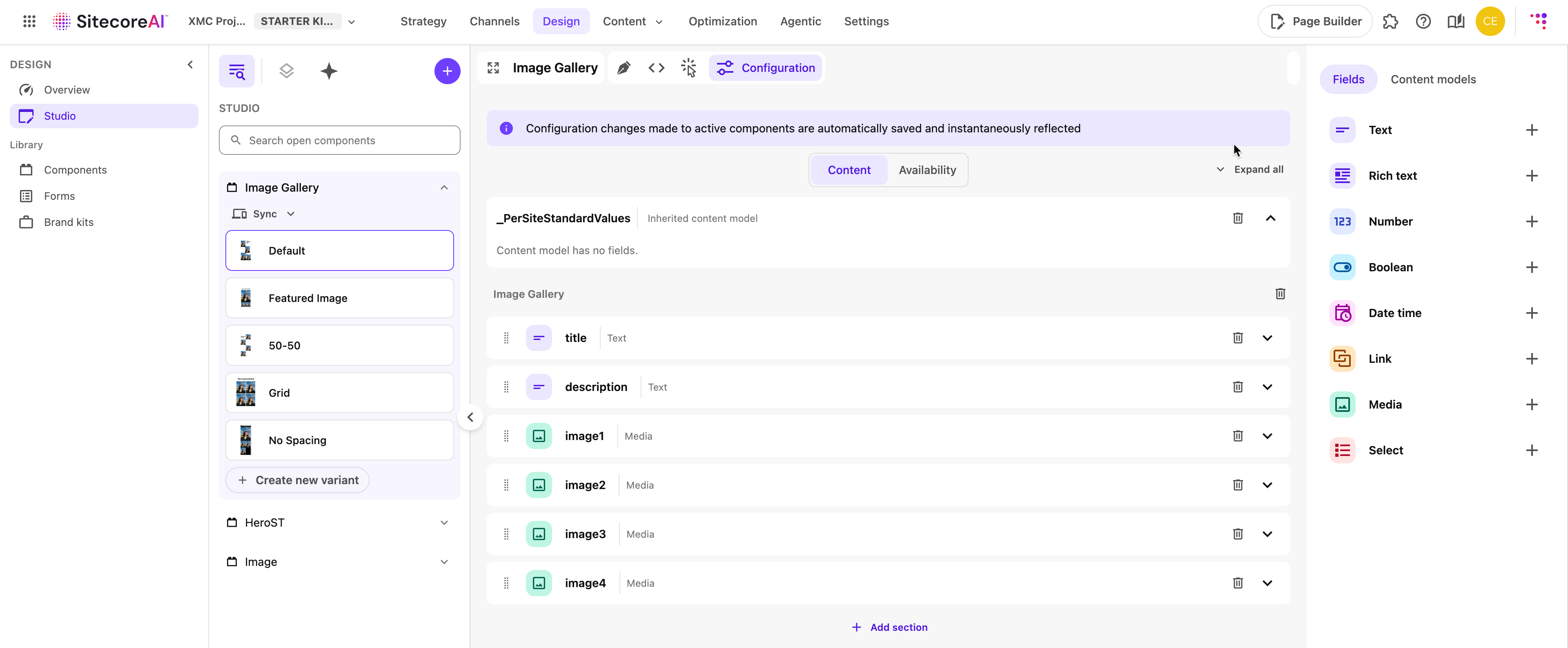
In the Studio mode of the Design Studio, you can visualize the model of any component, as well as model new components. This is done by assigning individual fields to an existing component, or by adding an existing content model to a component. A content model defines the fields and data structure a component uses. When you assign or clone a model, the component receives a model ID that determines its structure.
To create a model in Design Studio:
-
Cloned models - Cloning creates a new model based on an existing one. The clone receives a new model ID, allowing you to modify it independently. From the component’s perspective, assigned and cloned models behave the same because the component simply references a model ID.
-
Inherited models - Inherited models remain linked to their original model. When the base model changes, the inherited model receives those updates.
Modeling components helps designers, developers, and content authors maintain alignment and build components that behave consistently across environments. These features simplify experimenting with structures and iterating quickly.
Components created and configured in Design Studio can also be managed programmatically through the Components API.
Model a component
To model a component in Design Studio:
- Open the component you want to model in Studio.
- To add fields or content models to the component, open the Studio Configuration mode > Content tab.
- To add an individual field to the component, in the Fields tab of the right-hand panel, click Plus for the field of your choice.
- To add a content model, in the Content models tab of the right-hand panel, use the Search field to find the content model you need, then click Plus .
- To create a new model based on an existing one, click Clone model.
- To use a model that remains linked to their original model, click Inherit model.
- In the Content tab, you can configure added fields with its type, name, and helper text, except for fields belonging to inherited models that keep the configuration of the original model.
You do not need to save. The component will now reference the updated model ID.
Set availability for a component
Design studio lets you configure a component's availability, to control which sites, templates, and placeholders can use the component. For example, you may want to limit certain components to specific page templates, such as using a promo component only on landing pages, or a copyright component only on footers placeholders.
To set up sites, page templates, or placeholders availability for a component:
- Open the component you want to model in Studio, Configuration mode , Availibility tab.
- Then you can do one of the following:
- To make the component available to all sites, all page templates, or all placeholders, click All sites or All.
- To make the component available to specific sites, page templates, or placeholders only, click Select specific, then use the drop down menu to select the sites, page templates, or placeholders for which the component should be available.
- To remove a an item from the list, click X for the item you want to remove.
- To remove all the items from the list of specific items, click the X near the drop-down menu arrow.