Manage an artifact
In Agentic studio, an artifact is the primary output generated by an agent or a flow. It is a standalone, editable content block that represents the result of an AI-driven task.
Examples of artifacts include:
- A research summary generated by the Researcher agent.
- A campaign brief created by the Brief Generator agent.
- Social media content generated by the Bulk Content Generator.
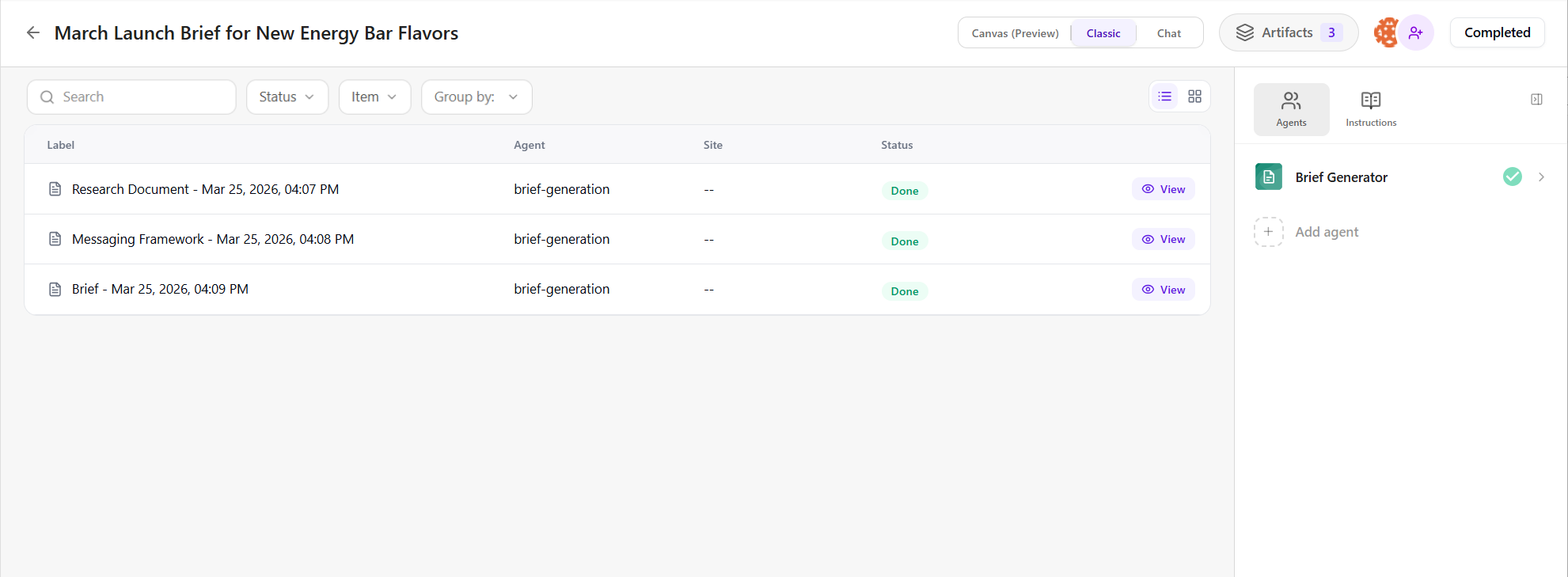
Within a space, you can view all generated artifacts in the main pane, as shown in the following image:
Some agents generate artifacts that are structured into individual fields (such as title, objective, or body content). These fields can be edited separately, refined using AI, or evaluated with a confidence score.
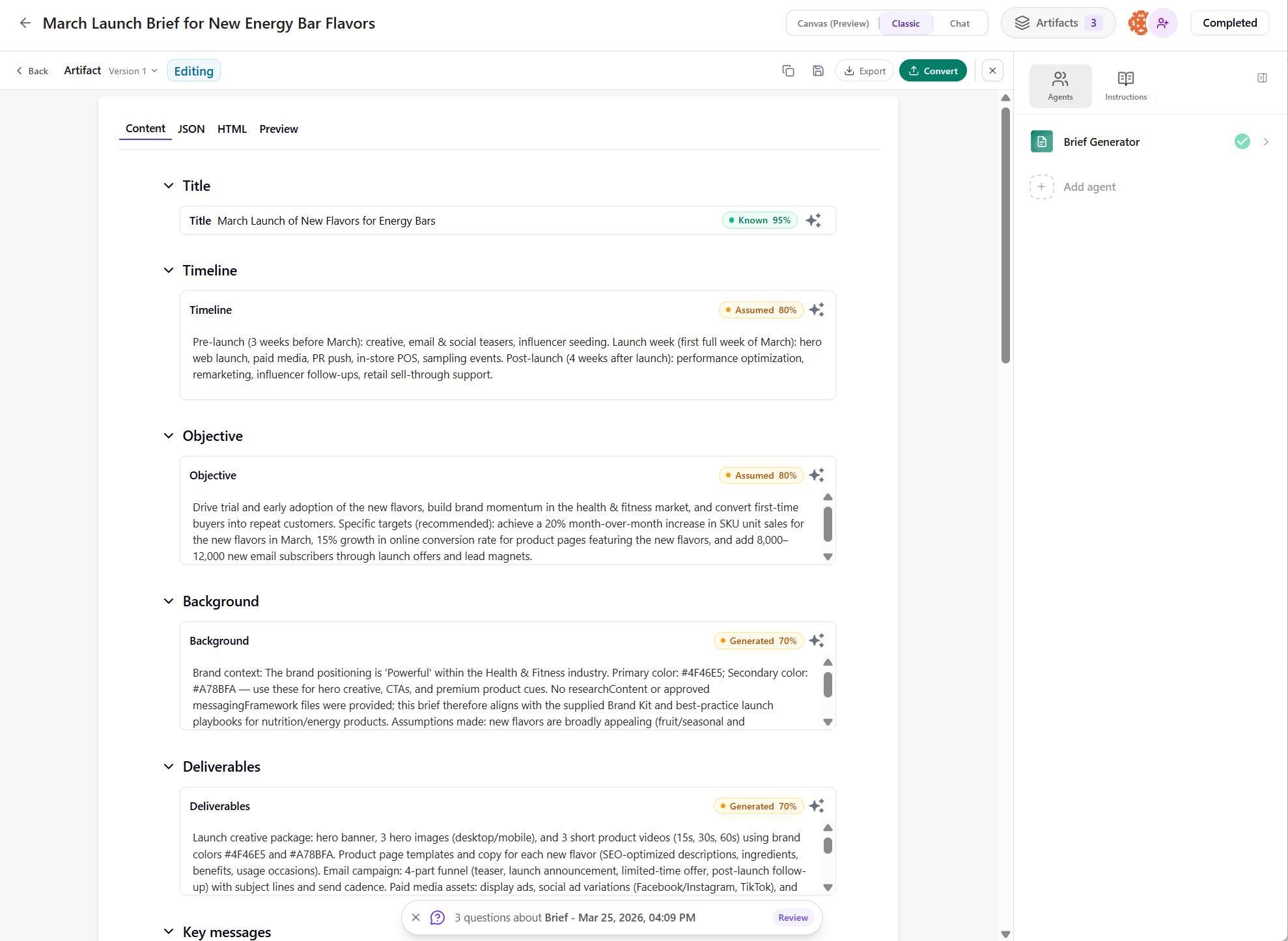
The following sections explain how to view, review, edit, refine, and compare artifacts.
View an artifact
You can open any artifact generated within a space, including its saved versions.
To view an artifact:
-
In the navigation menu, click Agentic and then, in the left sidebar, click Spaces.
-
On the Spaces page, locate the relevant space. You can use filters or search by title, agent name, or flow.
-
Click the space to open it.
-
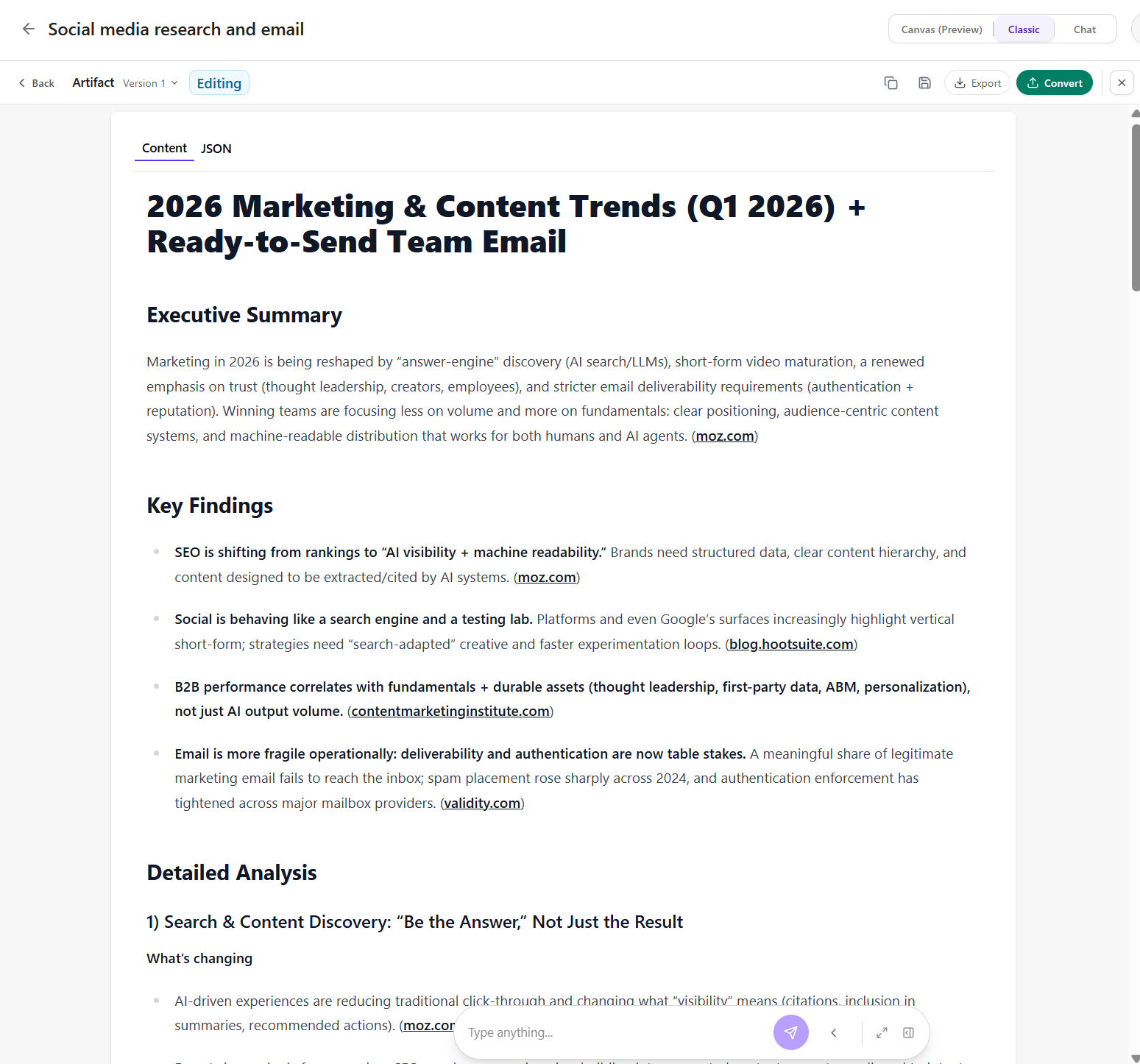
In the main pane, in Classic view, locate the artifact and click View. The artifact content is displayed and the artifact is added to Context in the chat interface.
-
If the artifact has multiple versions, use the version drop-down menu (for example, v2) to select the version you want to view.
-
In some cases, you can also switch between Content, JSON, and Preview to view the artifact in different formats.
Review artifact confidence scores
If an artifact contains structured fields, each field displays its own confidence score.
A confidence score helps you assess how reliably AI generated the content and how well it aligns with your inputs. Based on the score, AI may also suggest follow-up questions to clarify missing details and improve the content.
To review confidence scores:
-
In the navigation menu, click Agentic and then, in the left sidebar, click Spaces.
-
On the Spaces page, locate the relevant space. You can use filters or search by title, agent name, or flow.
-
Click the space to open it.
-
In the main pane, in Classic view, locate the artifact and click View. The artifact content is displayed and the artifact is added to Context in the chat interface.
-
In each structured field, review the confidence score displayed next to the content.
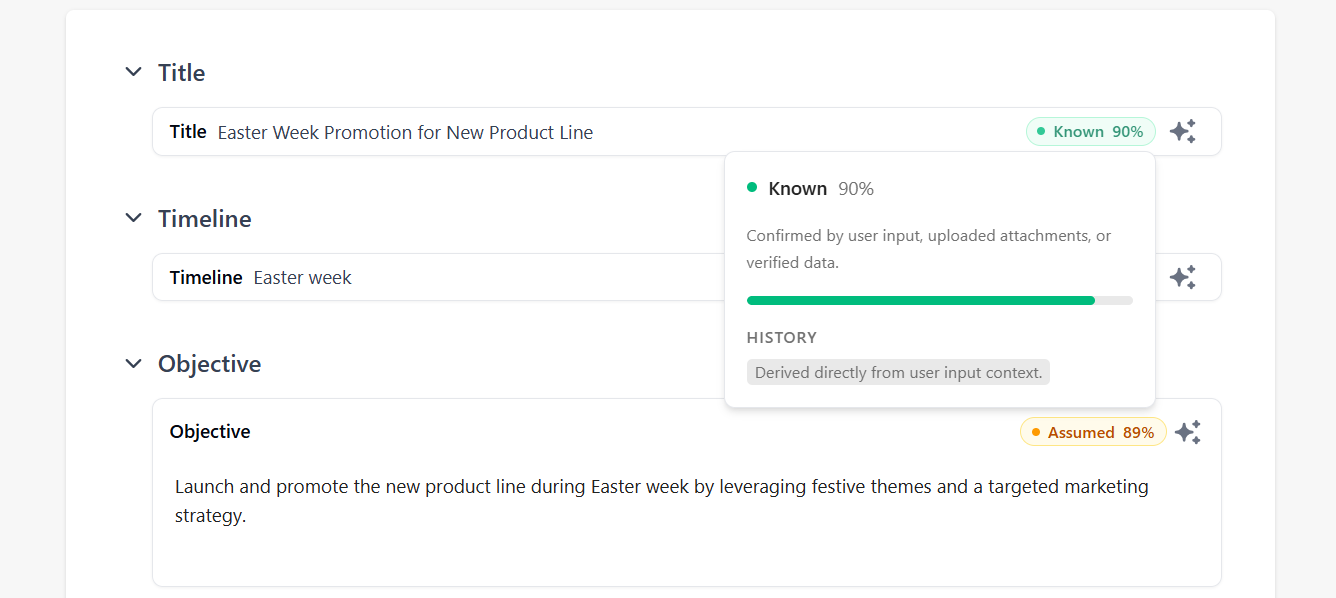
Each score includes:
- A percentage from 0 to 100%.
- A label indicating how the field was generated:
- Known - based on user-provided information or selected context.
- Assumed - inferred from available context.
- Generated - created without a direct source. Review is recommended.
Fields marked Assumed or Generated should be reviewed or clarified. To improve these fields, answer the AI’s follow-up questions.
Answer AI's questions to refine artifact fields
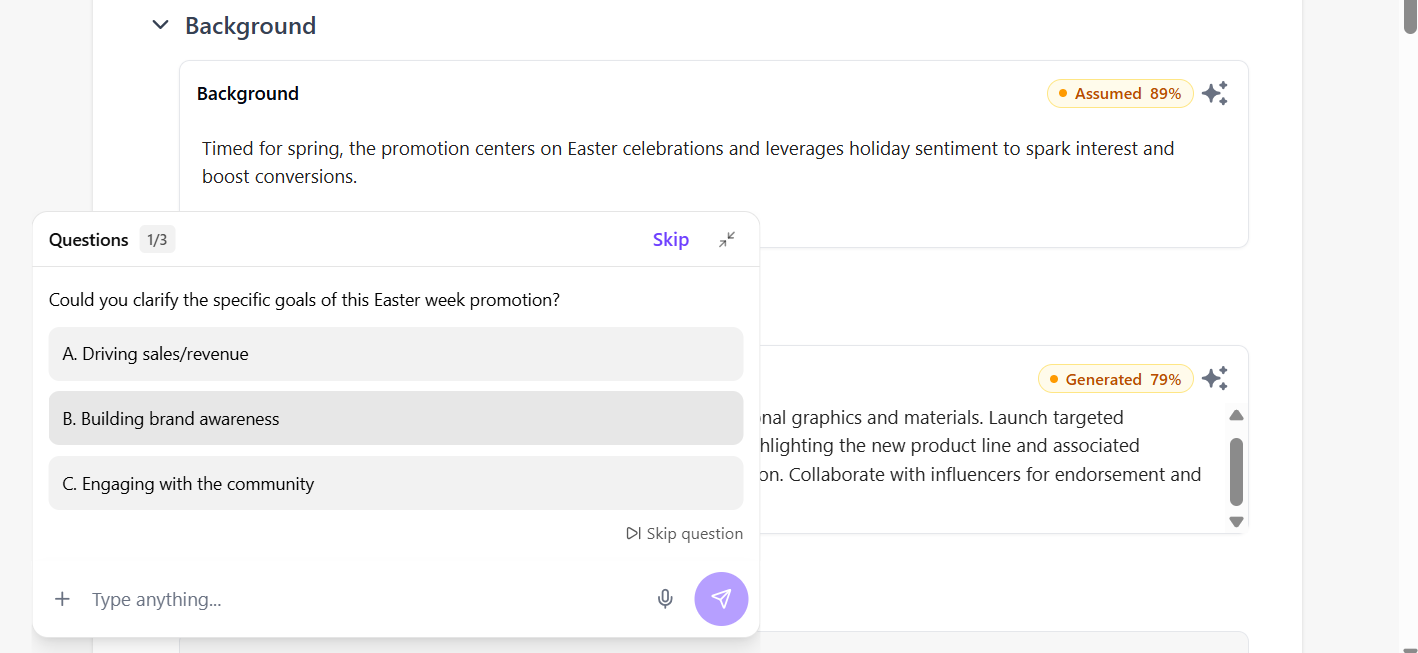
If an artifact contains structured fields, AI may generate follow-up questions when information is missing or unclear. Fields that require clarification are typically marked with a lower confidence score and labeled Assumed or Generated.
Answering these questions helps improve accuracy and regenerate the affected field. If the existing content is sufficient, you can skip the review.
To refine artifact content using AI questions:
-
In the navigation menu, click Agentic. Then, in the left sidebar, select Spaces.
-
On the Spaces page, locate the relevant space. You can use filters or search by title, agent name, or flow.
-
Click the space to open it.
-
In the main pane, in Classic view, locate the artifact and click View. The artifact content is displayed.
-
At the bottom of the screen, click Review to view the AI's questions.
-
Review the question.
-
Respond by selecting an option.
AI regenerates the field based on your response and automatically creates a new version of the artifact.
Refine artifact content manually
You can edit artifact content directly to make updates as needed.
To edit an artifact manually:
-
In the navigation menu, click Agentic. Then, in the left sidebar, select Spaces.
-
On the Spaces page, locate the relevant space. You can use filters or search by title, agent name, or flow.
-
Click the space to open it.
-
In the main pane, in Classic view, locate the artifact and click View. The artifact content is displayed.
-
Make your changes as needed. You can add, delete, move, or modify content.
All changes are saved automatically as a new version of the artifact.
-
To switch between saved versions, use the version drop-down menu (for example, v2 (Current)).
-
Optionally, you can:
- Click icon to delete a version.
- Click Save as new version to create a new version while keeping the current version unchanged.
Refine artifact fields using AI
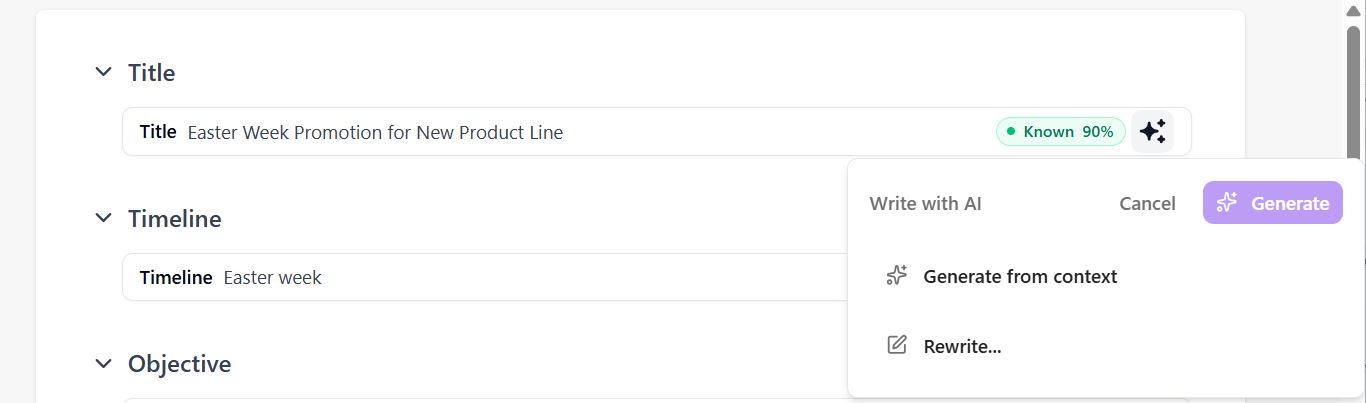
If an artifact contains structured fields, the Write with AI option is available for each field. You can use AI to rewrite or enhance individual fields.
To refine a field using AI:
-
In the navigation menu, click Agentic. Then, in the left sidebar, select Spaces.
-
On the Spaces page, locate the relevant space. You can use filters or search by title, agent name, or flow.
-
Click the space to open it.
-
In the main pane, in Classic view, locate the artifact and click View. The artifact content is displayed.
-
Locate the field you want to refine, then click the Write with AI icon.
-
In the Write with AI dialog, choose one of the following:
- Generate from context - refines the field using relevant context and research.
- Rewrite - regenerates the content in the selected field.
AI generates new content based on your selection.
-
Review the generated result, then choose one of the following:
- Refine - generate another variation.
- Discard - cancel the suggestion.
- Insert - replace the existing content. Changes are saved automatically as a new version.
Refine artifact content using chat
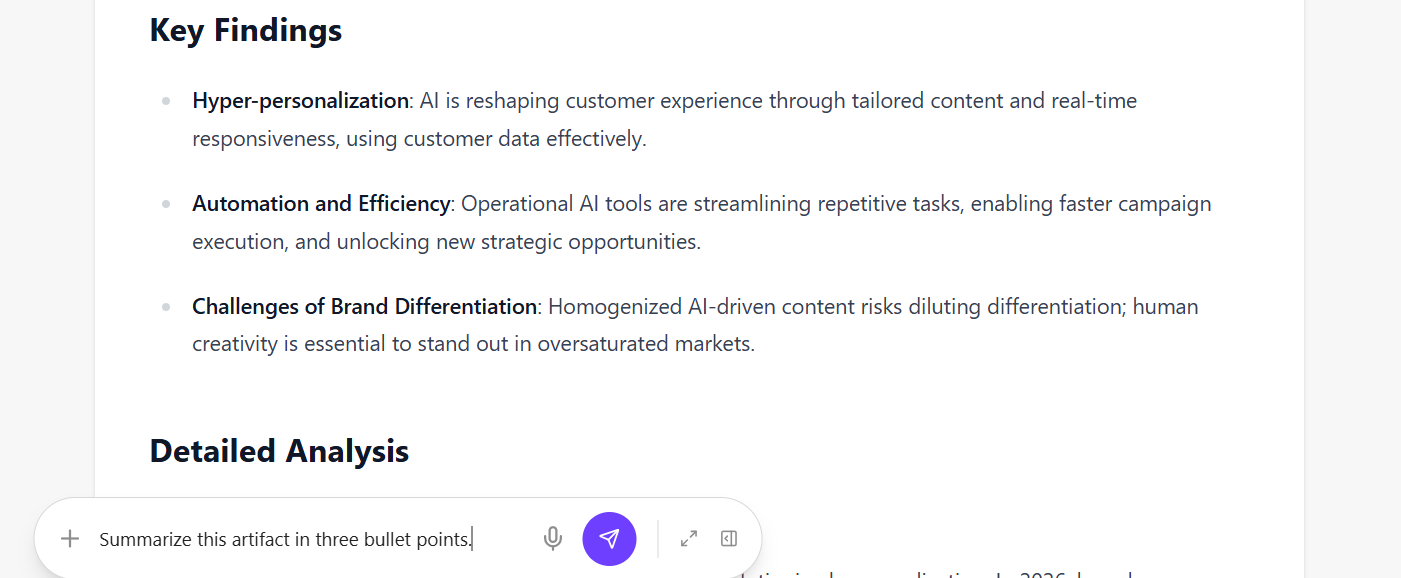
You can chat directly with an artifact to refine, expand, or regenerate its content using AI. The interaction applies only to the selected artifact and creates a new version based on your request.
To refine artifact content using chat:
-
In the navigation menu, click Agentic. Then, in the left sidebar, select Spaces.
-
On the Spaces page, locate the relevant space. You can use filters or search by title, agent name, or flow.
-
Click the space to open it.
-
In the main pane, in Classic view, locate the artifact and click View. The artifact content is displayed.
-
At the bottom of the screen, use the chat input field to enter a prompt.
Example prompts:
- Summarize this artifact in three bullet points.
- Make the content more engaging.
- Rewrite this for a technical audience.
-
Press Cmd + Enter (Mac) or Ctrl + Enter (Windows) to submit.
AI generates a new version of the artifact automatically.
-
Review the updated output or continue the conversation as needed.
Compare artifact versions
An artifact can have multiple versions, allowing you to track changes over time. You can compare a selected version with its previous version to review what has changed.
To compare artifact versions:
-
In the navigation menu, click Agentic. Then, in the left sidebar, select Spaces.
-
On the Spaces page, locate the relevant space. You can use filters or search by title, agent name, or flow.
-
Click the space to open it.
-
In the main pane, in Classic view, locate the artifact and click View. The artifact content is displayed.
-
In the upper-right corner, click the icon.
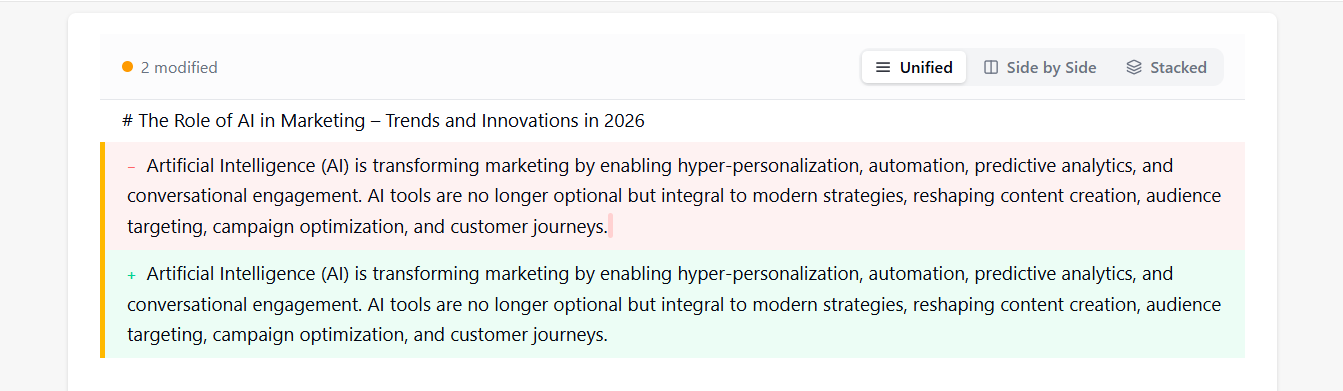
NoteBy default, changes appear in the Unified view, where the previous version is shown above the current version.
To change how differences are displayed, switch to Side by Side or Stacked view.
-
Review the highlighted changes to see what was modified between versions. You can see:
- The number of modified fields.
- Visual indicators showing previous text in red and current text in green.
-
To return to the standard view, click the icon again.
Copy or export an artifact
You can reuse artifact content outside Agentic studio.
To copy or export an artifact:
- In the navigation menu, click Agentic and then, in the left sidebar, select Spaces.
- On the Spaces page, locate the relevant space. You can use filters or search by title, agent name, or flow.
- Click the space to open it.
- In the main pane, in Classic view, locate the artifact and click View. The artifact content is displayed.
- Click the Copy icon to copy the artifact content to your clipboard.
- Click Export to download the artifact as a text (TXT) file. The file is saved to your local folder.