Add a deliverable to a campaign
A deliverable represents a specific outcome needed for a campaign, such as a landing page, email template, or marketing asset. Deliverables help organize campaign work by grouping related tasks under a shared outcome. Each deliverable can contain tasks required to complete it.
To add a deliverable to a campaign:
-
In the navigation menu, click Strategy.
-
In the left sidebar, click Campaigns.
-
On the Campaigns page, click the name of the campaign that you want to add a deliverable to.
-
On the Deliverables tab, click Create.
-
In the Create new deliverable dialog, enter a descriptive Name, up to 255 characters.
TipExample: Product landing page
For a product launch campaign, create a deliverable called Product landing page and set its due date.
You can then add tasks for page design, copywriting, product imagery, and reviews. All tasks remain grouped under the same deliverable.
-
In the Due date field, select a date from the calendar.
-
Click Create. The deliverable page opens.
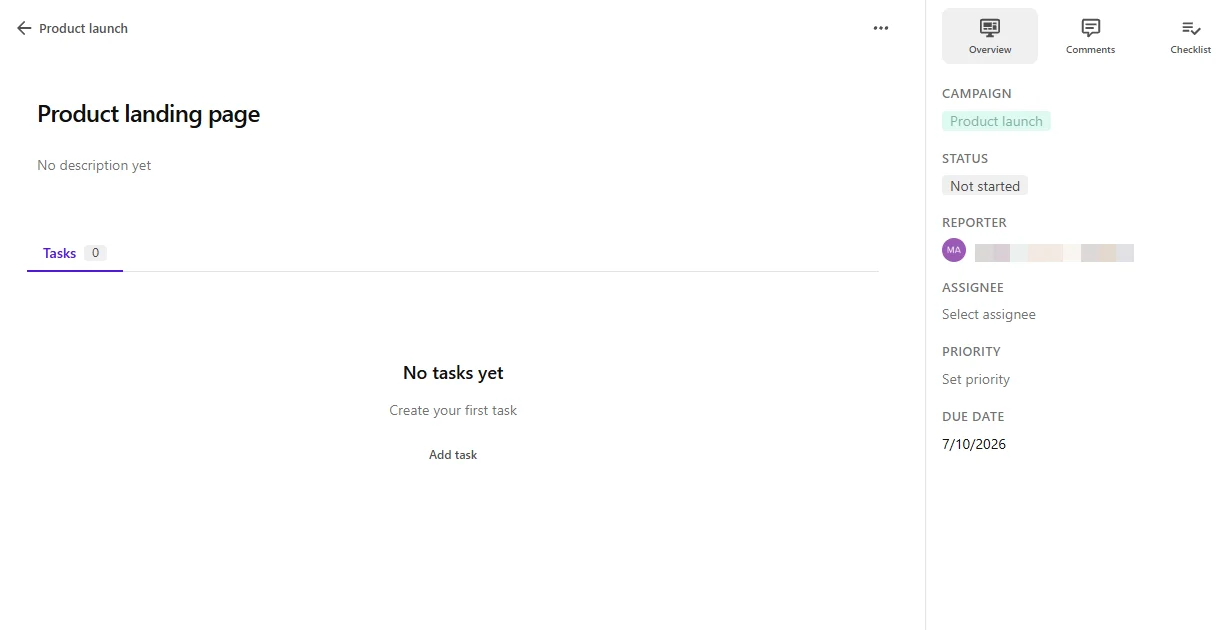
Add deliverable details
To add deliverable details:
- Optionally, click the field below the deliverable name to add a description.
- In the right pane, on the Overview tab, review or set the following details:
- Campaign - displays the name of the campaign from which you are creating the deliverable.
Warning
A deliverable's campaign assignment is permanent and cannot be changed.
- Status - select Not started, Backlog, Triage, In progress, In review, Pending feedback, Completed, or Cancelled.
- Assignee - select the team member responsible for the deliverable.
- Priority - select Urgent, High, Medium, or Low.
- Due date - select a due date from the calendar.
- Campaign - displays the name of the campaign from which you are creating the deliverable.
You can also use the following tabs for additional deliverable management:
- Comments - add comments and tag team members. See Collaborate on a task.
- Checklist - create and manage checklists. See Add a task checklist.
- When finished, click or anywhere outside the task dialog to return to the Tasks tab. Your changes are saved automatically.
Next steps
After adding a deliverable, you can:
- Repeat the steps to add more deliverables to the campaign.
- Add tasks to define individual tasks requred to complete the deliverable.
- Collaborate on a deliverable by adding comments and tagging team members.
- Add a checklist to track supporting requirements or reviews.
- Edit deliverable details as needed to update the status, assignee, priority, or due date.