Managing campaigns
Campaigns in Strategy serves as the central hub for managing marketing campaigns.
A campaign represents a key marketing initiative, goal, or activity that your team aims to accomplish, such as product launches, website updates, seasonal promotions, or digital ad strategies. Campaigns can be created directly for planned initiatives or created from briefs. A campaign gives related briefs, deliverables, and tasks a shared context for planning and execution.
Campaigns brings campaign activities together so teams can plan, organize, and track work in one place. From here, you can create campaigns, add deliverables and tasks, edit campaign details, and monitor progress using different views to track status, workload, and timelines.
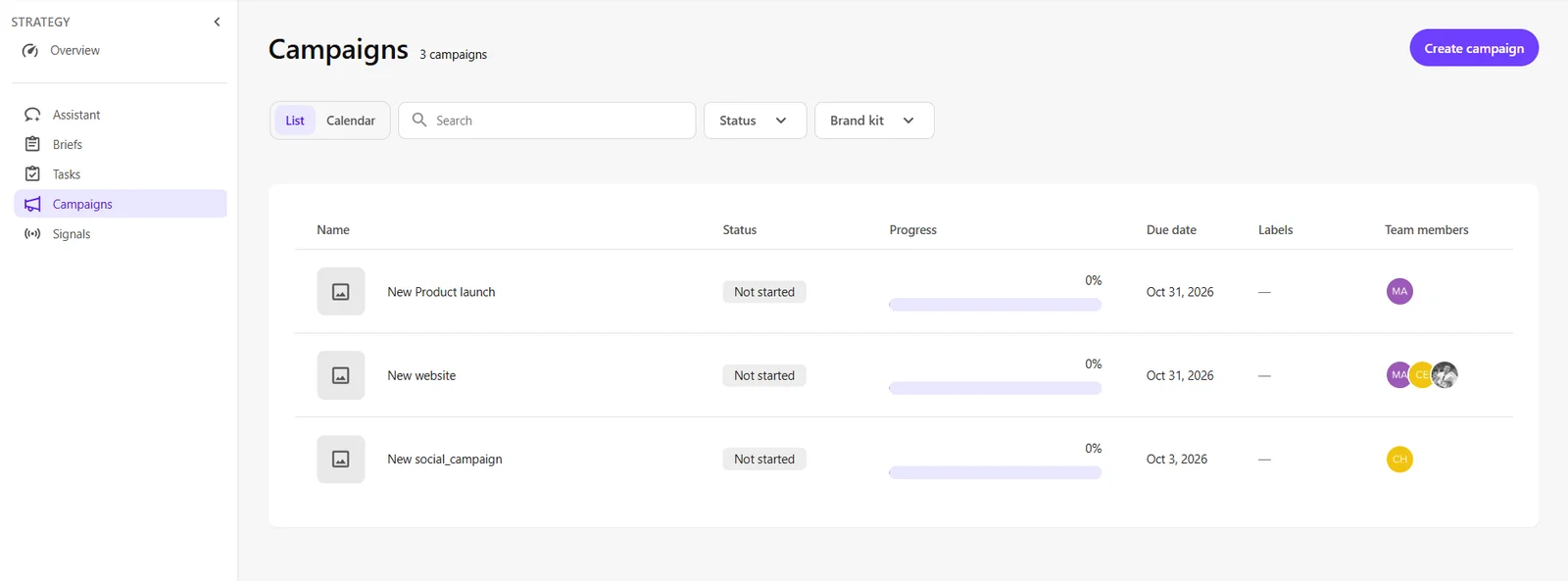
To open Campaigns, in the navigation menu, click Strategy. Then, in the left sidebar, click Campaigns.
The Campaigns page shows all campaigns in your organization. It provides two ways to view campaigns:
- List - displays campaigns in a structured list, including their status, progress, due date, labels, and team members. You can sort and filter the list by status and brand kit.
- Calendar - displays campaigns according to their start and end dates, helping you plan the marketing year from a single view. Switch among Month, 3 months, 6 months, and Year views; create campaigns or adjust dates directly in Month view. For more information, see Campaign calendar.
To switch views, click List or Calendar on the Campaigns page.
Campaign management process
Marketing initiatives can start from an idea or from a planned commitment. You can convert a brief into a campaign or create a campaign first and then associate briefs with it.
Start with a brief
- Create and refine a brief to establish the objectives, audience, message, and creative direction. You can do this manually or by using AI.
- Convert the brief into a campaign.
- Add deliverables to define the outcomes needed, then add tasks to organize responsibilities.
Start with a campaign
- Use the campaign calendar to review your annual plan, or create a campaign directly.
- On the campaign's Briefs tab, link an existing brief or create a new one. Multiple briefs can capture additional requirements as planning evolves.
- Add deliverables that represent the content or other marketing outputs needed for the campaign.
- Create tasks under deliverables, assign team members, and use comments to collaborate.
Marketing initiative: Running a digital ad campaign launch
Campaign name: Spring Product Awareness Campaign
Tools used: Strategy, Page builder Personalize mode, Analytics
Tasks assigned to team members:
-
Prototype campaign component's variant for a designer
-
Create corresponding component's variants for a developer
-
Create audience segments for a marketer
-
Build personalized page variant for a content author
-
Track performance using real-time analytics and compare variant effectiveness for a marketer
Outcome: Streamlined collaboration across marketing, content teams, and developers. Faster go-to-market, and improved conversion tracking.
Campaign overview
Selecting a campaign from the Campaigns page opens the campaign overview page, where you can manage campaign details and resources, plan deliverables and tasks, and coordinate work.

At the top of the page, you can:
- View campaign information - see the campaign's status, thumbnail, name, labels, description, and selected brand kit.
- Manage campaign members and settings - add or remove team members, or click the horizontal ellipsis icon to edit or delete the campaign.
- Monitor campaign progress - use the progress bar to track task completion and elapsed time. For example, 9% indicates the percentage of completed tasks, while Day 11 of 31 shows how far the campaign has progressed through its scheduled duration.
The following tabs on the campaign overview page bring together the different aspects of campaign planning and execution, from managing deliverables and tasks, to associating briefs and supporting resources.
Deliverables
The Deliverables tab lets you define and manage the outputs needed for your campaign, such as landing pages, media assets, or content items. Each deliverable represents a specific outcome and brings together the tasks required to complete it.
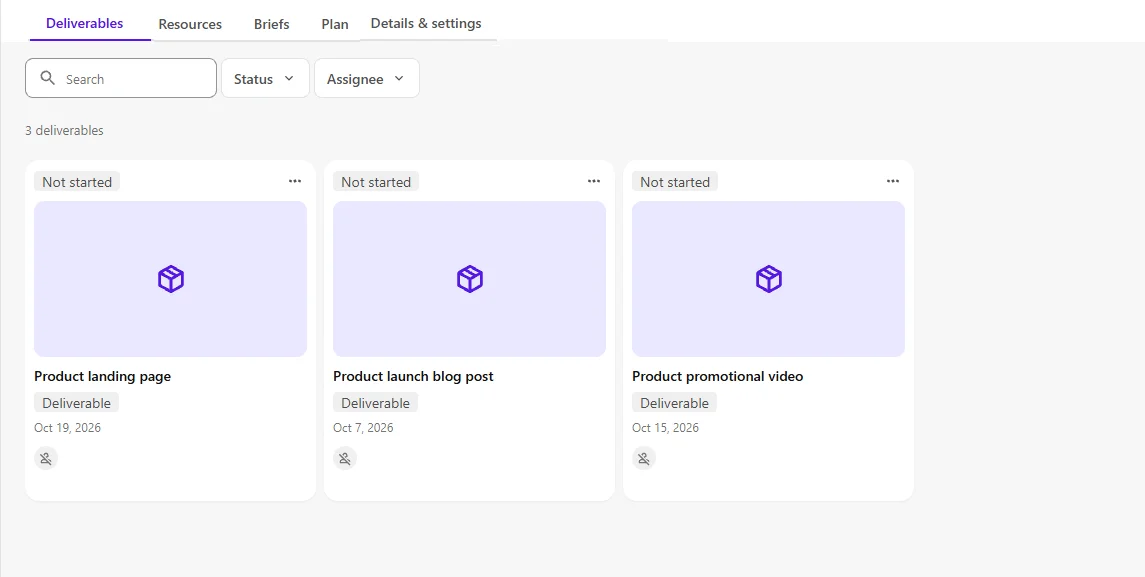
On this tab, you can:
- View deliverables - switch between Thumbnail, List, and Calendar views to organize and track deliverables. Use filters to narrow results by status and assignee, or search for specific deliverables.
- Create deliverables - define campaign outputs, set due dates, and organize related work by adding tasks related to the deliverable.
- Edit deliverable details - update a deliverable's status, assignee, priority, or due date.
- Collaborate on a deliverable - add comments and tag team members to share updates or request feedback.
- Add a checklist - track supporting requirements or reviews and mark checklist items as completed.
- Rename or delete a deliverable - change a deliverable's name or remove a deliverable that is no longer needed.
Resources
The Resources tab brings together supporting documents and images associated with your campaign, keeping relevant materials accessible to your team.
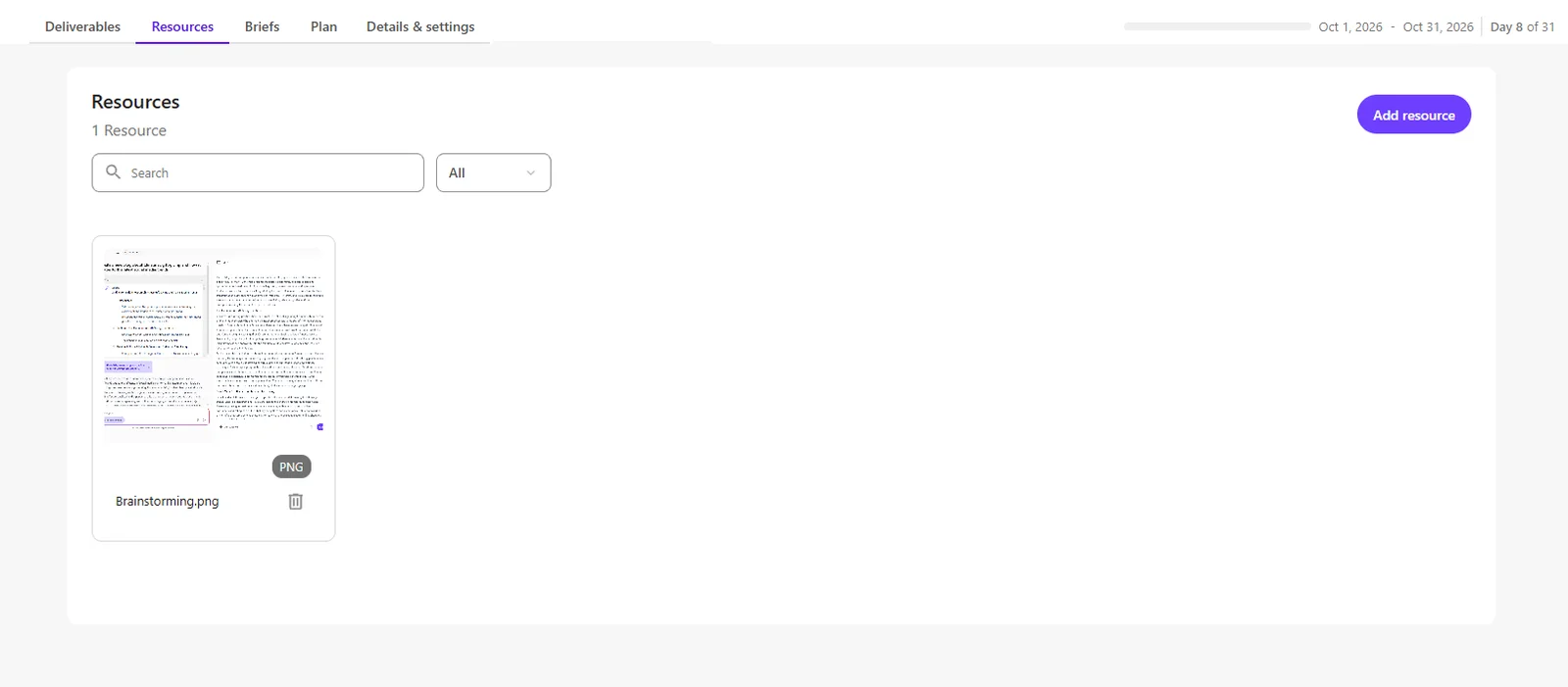
On this tab, you can:
- Add resources - click Add resource to upload campaign-related documents and images.
- Find resources - search for files or filter them by type, such as Document or Image.
- Access resources - preview images, view file details, or download documents.
- Remove resources - click Delete to delete files that are no longer needed.
Briefs
The Briefs tab connects campaign execution with its strategic and creative direction. You can manage briefs created before the campaign or add new briefs as your planning evolves.
Each brief captures information such as objectives, target audiences, key messages, and creative requirements.
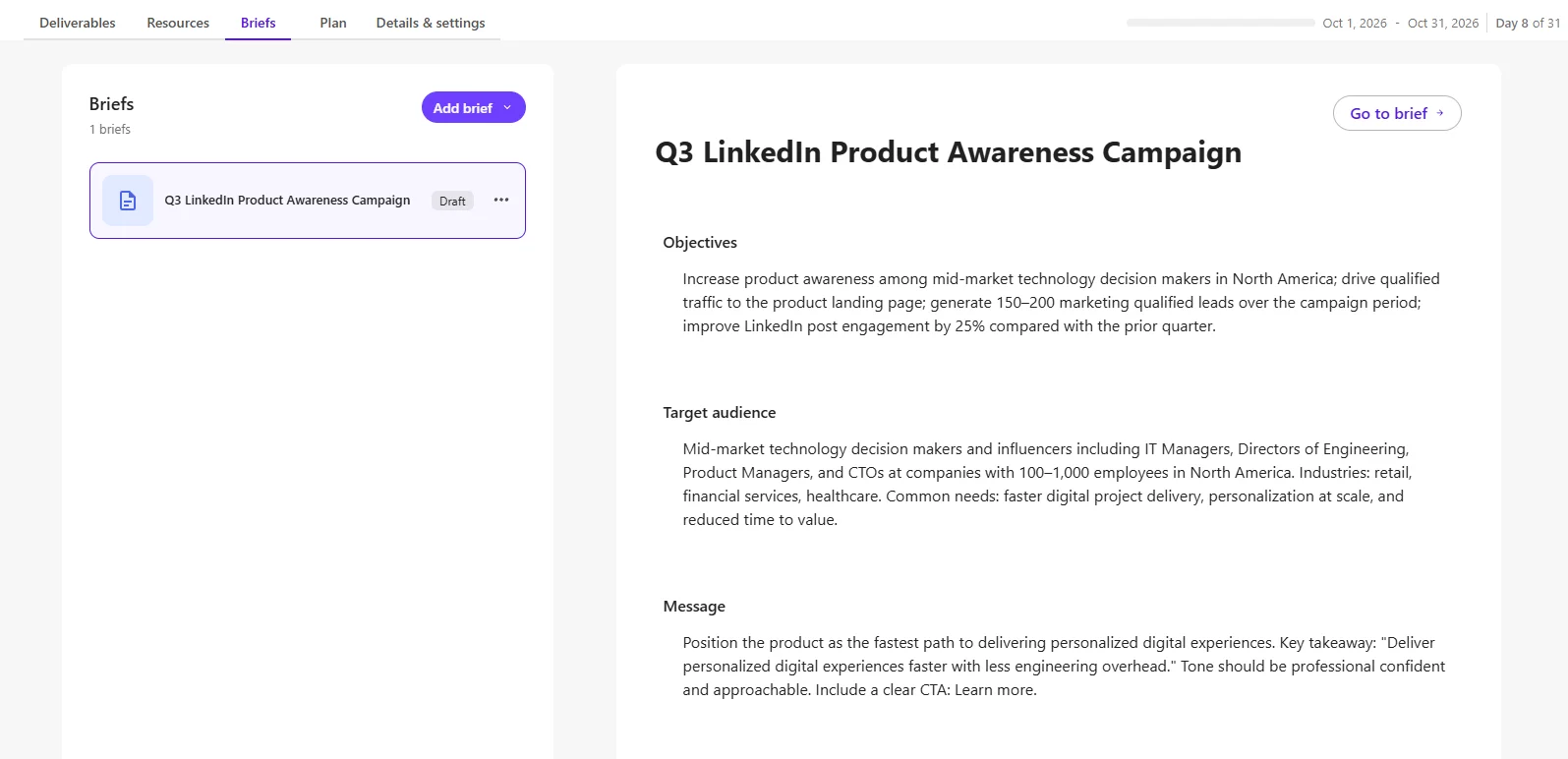
On this tab, you can:
- View and preview briefs - access briefs associated with the campaign, including briefs that were linked from the brief details page or converted into campaigns.
- Add briefs - link an existing brief or create a new brief o define additional campaign requirements.
- Edit briefs - click Go to brief to open and update its details.
- Unlink briefs - remove the brief's association with the campaign.
Plan
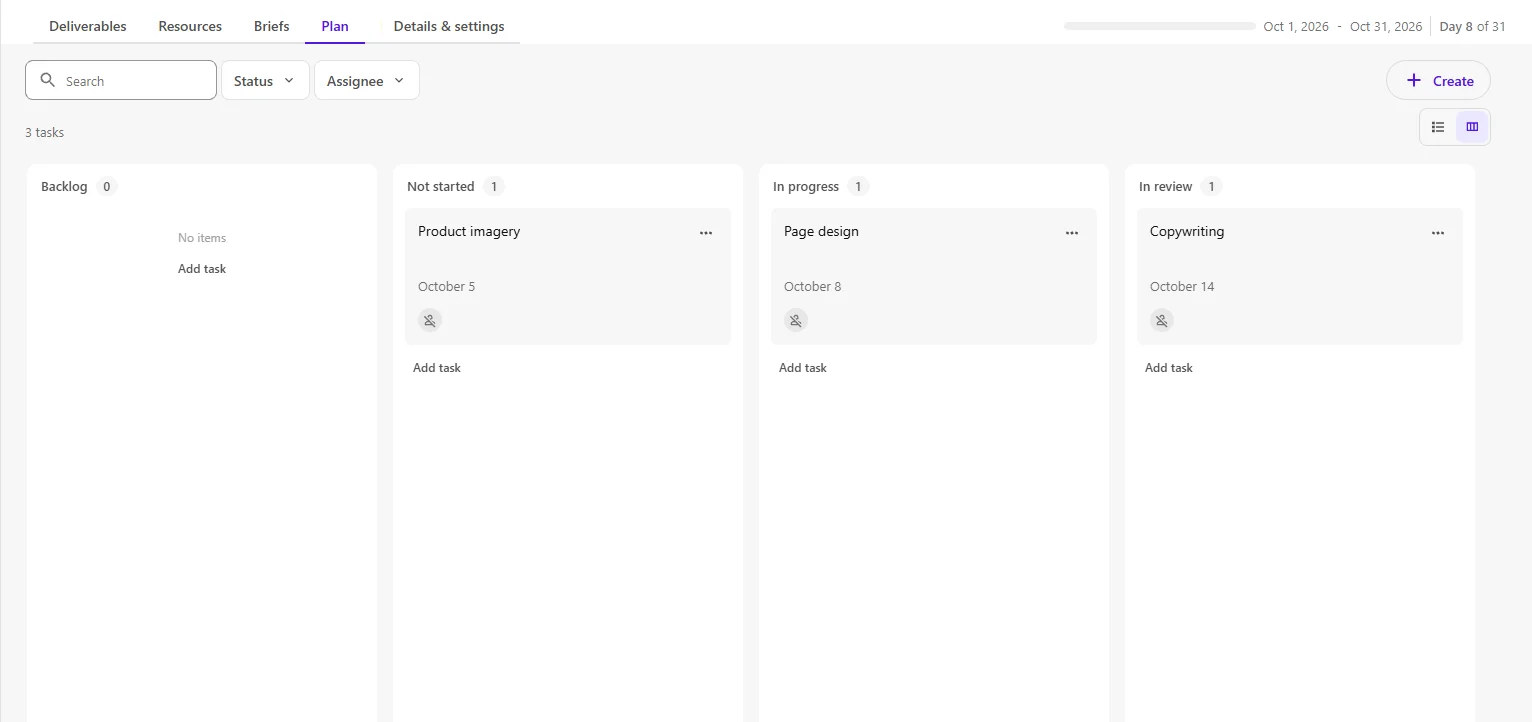
The Plan tab provides a centralized view of all tasks associated with a campaign, including tasks under deliverables and tasks created directly within the campaign. Use it to organize work, manage assignments, and track progress.
 .
.
On this tab, you can:
- View tasks - switch between List and Kanban views to organize and track tasks. Use filters to narrow results by status and assignee, or search for specific tasks.
- Create tasks - define an activity that needs to be completed, independently or as part of a campaign.
- Edit task details - update a task's status, assignee, priority, or due date.
- Create subtasks - use subtasks to break down a larger task into smaller activities.
- Collaborate on a task - add comments and tag team members to share updates or request feedback.
- Add a task checklist - track supporting requirements or reviews and mark checklist items as completed.
- Rename or delete a task - change a task's name or remove a task that is no longer needed.
Details & settings
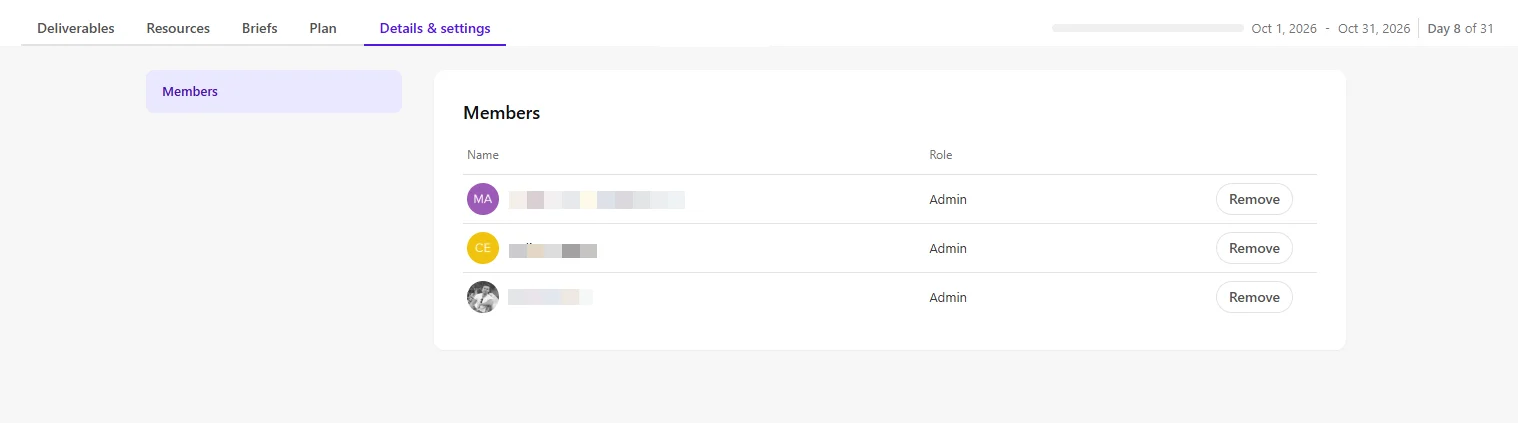
The Details & settings tab lets Admins manage sites and campaign membership.
On this tab, Admins can:
- Approve or deny campaign join requests.
- Remove themselves or other campaign team members.