Add a task to a deliverable
Create a task to track an activity that needs to be completed as part of a campaign deliverable. Add one or more tasks to organize and track work toward a specific outcome, such as designing a landing page, writing copy, or preparing marketing assets.
You can assign each task to a team member, set its priority and due date, and use comments and checklists to coordinate work.
To create a task associated with a campaign but not with a specific deliverable, see Add a task to a campaign.
To add a task to a deliverable:
-
In the navigation menu, click Strategy.
-
In the left sidebar, click Campaigns.
-
On the Campaigns page, click the campaign that includes the deliverable you want to add a task to.
-
On the Deliverables tab, click the deliverable you want to add a task to.
-
On the deliverable details page, click Add task.
-
Enter a task name (up to 255 characters), then press Enter or click .
The task appears on the deliverable's Tasks tab. The same task also appears automatically on the campaign's Plan tab.
Add task details
To add task details:
- On the Tasks tab, find and click the task you want to add to edit. The task dialog opens.
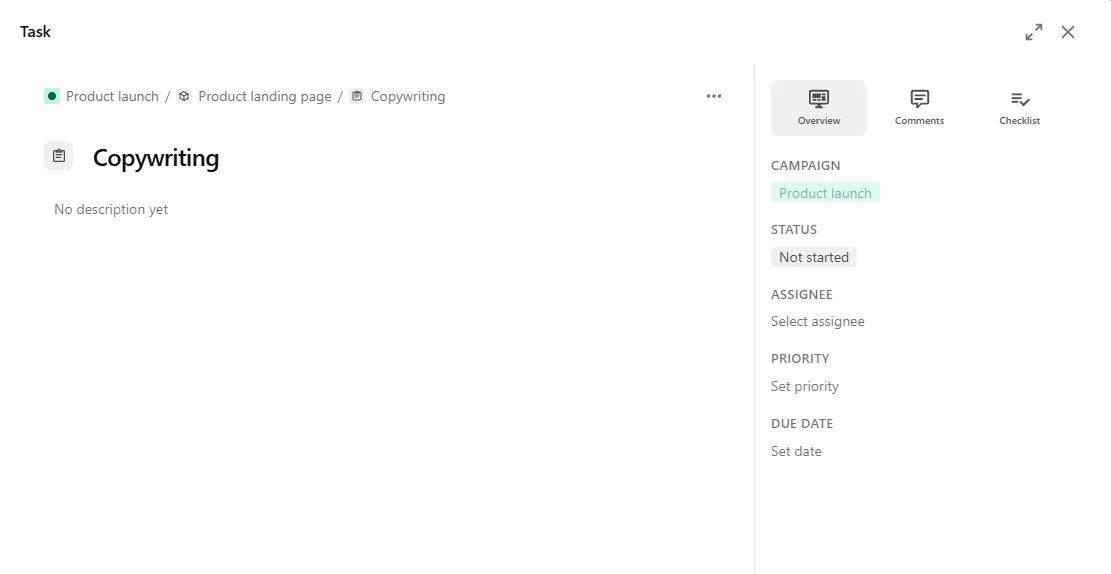
- To update the task details, use the tabs in the right pane.
- In the right pane, on the Overview tab, update any of the following:
- Status - select Not started, Backlog, Triage, In progress, In review, Pending feedback, Completed, or Cancelled.
- Assignee - select the team member responsible for the task.
- Priority - select Urgent, High, Medium, or Low.
- Due date - select a due date from the calendar.
You can also use the following tabs for additional task management:
- Comments - add comments and tag team members. See Collaborate on a task.
- Checklist - create and manage checklists. See Add a task checklist.
- When finished, click or anywhere outside the task dialog to return to the Tasks tab. Your changes are saved automatically.
Next steps
After adding a task to a deliverable, you can:
- Repeat the steps to add more tasks to the deliverable to organize the remaining work.
- Edit task details to update its status, assignee, priority, or due date.
- Add subtasks to define additional work that must be completed for the task.
- Collaborate on a task by adding comments and tagging team members.
- Add a task checklist to track supporting requirements or reviews.