Managing tasks
Tasks in Strategy provides a flexible way to create, organize, and track work across SitecoreAI. You can create tasks for any activity that needs to be completed, whether it's a standalone task or part of a specific campaign.
With Tasks, you can manage different types of tasks in one place, from reviewing content and updating SEO metadata to coordinating approvals and organizing media assets, without requiring every task to be tied to a campaign.
You can assign tasks to team members, set priorities and due dates, collaborate through comments, and use checklists to track supporting requirements or reviews.
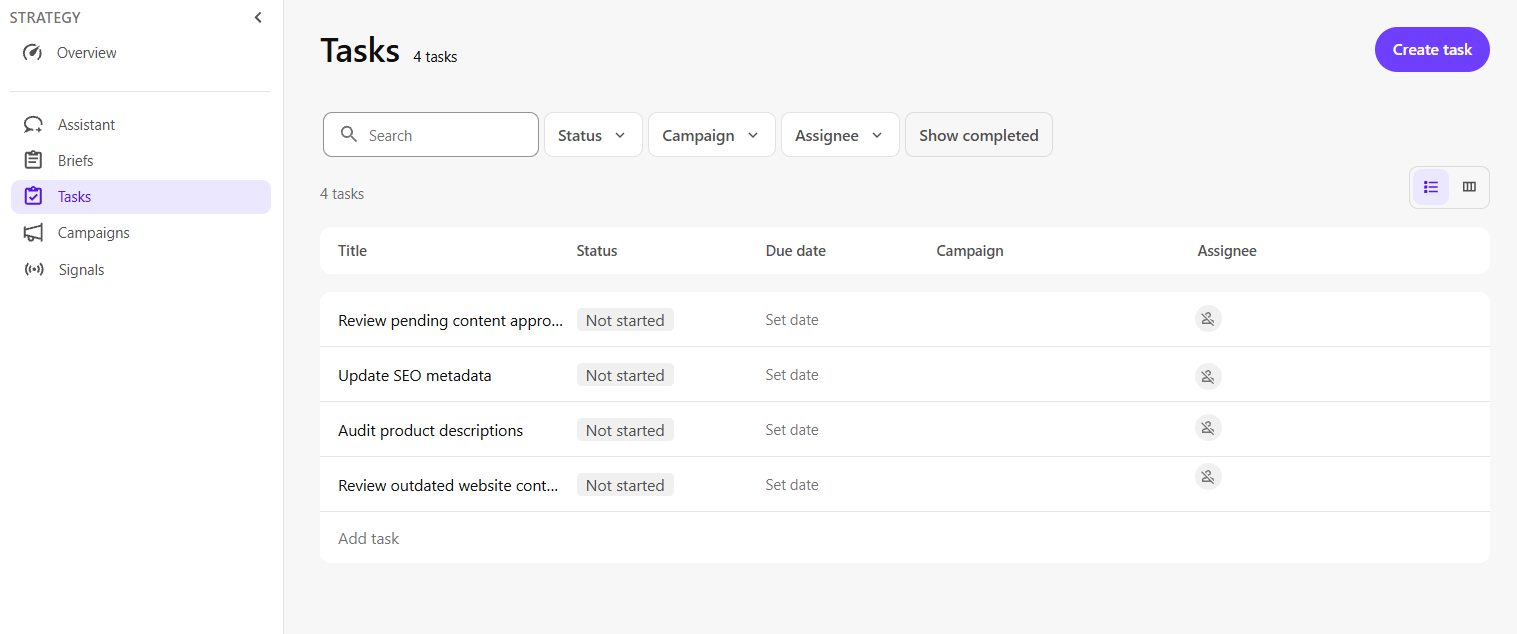
To open Tasks, in the navigation menu, click Strategy. Then, in the left sidebar, click Tasks.
The Tasks page provides two views:
- List - displays tasks in a structured list so you can review task details, assignments, and progress.
- Kanban - organizes tasks by status to provide a visual overview of work as it progresses.
Task management
You can create and manage tasks for standalone activities or work associated with campaigns.
For example, you might create a task to review outdated website content, assign it to a content editor, set a due date, and use a checklist to track the required reviews.
From the Tasks page, you can:
- View tasks - switch between List, and Kanban views to organize and track tasks. Use filters to narrow results by status, campaign, and assignee, or search for specific tasks.
- Create tasks - define an activity that needs to be completed, independently or as part of a campaign.
- Edit task details - update a task's status, assignee, priority, or due date.
- Add subtasks - use subtasks to break down a larger task into smaller activities.
- Collaborate on a task - add comments and tag team members to share updates or request feedback.
- Add a task checklist - track supporting requirements or reviews and mark checklist items as completed.
- Rename or delete a task - change a task's name or remove a task that is no longer needed.