Manage tasks in Kanban view
The Kanban view provides a visual way to manage tasks as work progresses. It displays tasks from the Tasks page as cards grouped into columns by status.
You can access Kanban view from the Tasks page to manage tasks across campaigns, or from a campaign's Plan tab to manage tasks associated with that campaign.
Use the Kanban board to identify tasks that need attention, track activities awaiting review or feedback, and update task statuses by moving cards between columns.
View tasks in Kanban view
You can open Kanban view from either the Tasks page or a campaign's Plan tab.
To open Kanban view:
- In the navigation menu, click Strategy.
- Choose one of the following:
- Tasks - in the left sidebar, click Tasks to view tasks across campaigns.
- Campaign tasks - in the left sidebar, click Campaigns, open a campaign, and select the Plan tab to view its tasks.
- Click in the upper-right corner to switch to Kanban view.
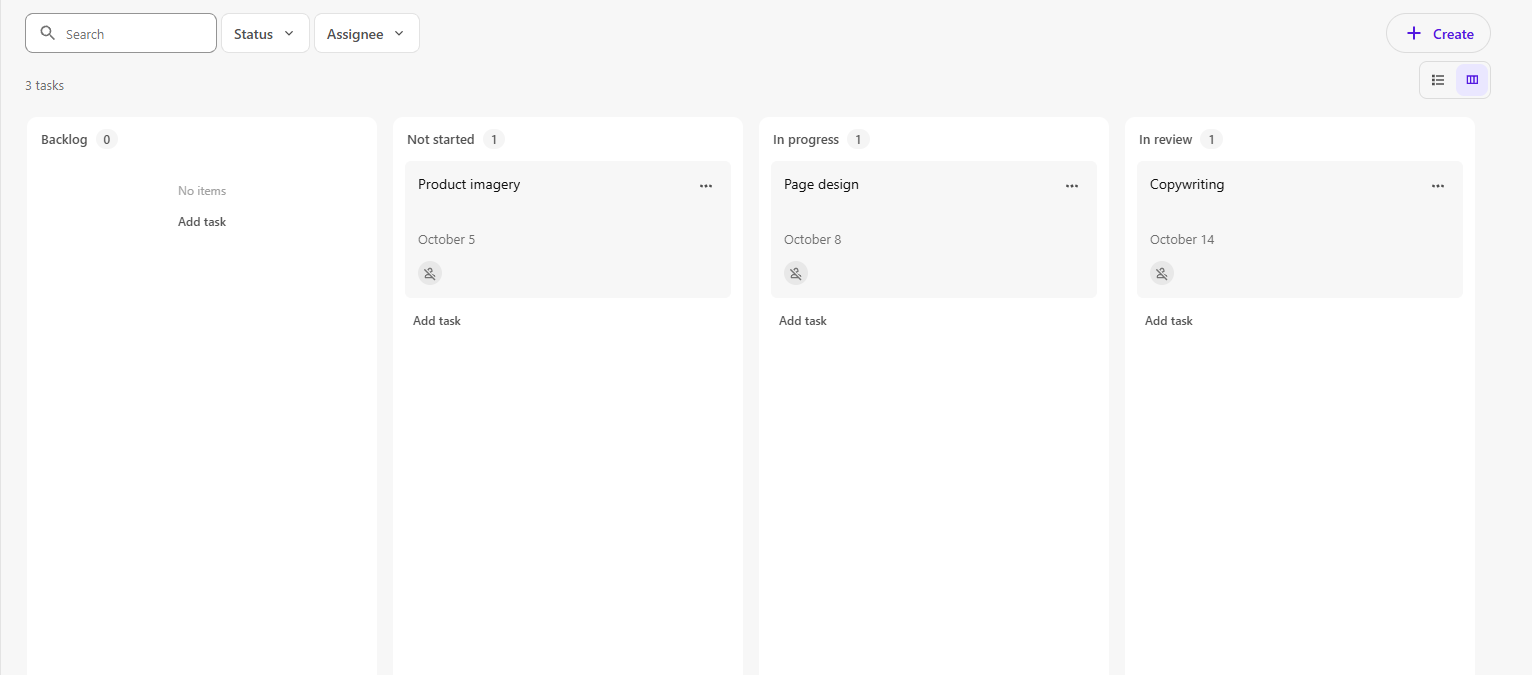 .
.
The Kanban board displays tasks as cards grouped by status, such as Backlog, Not started, In progress, In review, and Completed.
On the Kanban board, you can:
- View tasks - see tasks grouped by status, including tasks associated with campaigns.
- Search for tasks - use the search field to find a task by name.
- Filter tasks - use the Status and Assignee filters to narrow the tasks displayed.
- View task details - click a task card to open its details in the task dialog.
Create a task in Kanban view
You can create a task directly in a status column on the Kanban board.
To create a task in Kanban view:
-
Open Kanban view from the Tasks page or a campaign's Plan tab.
-
Click Add task in the status column where you want to create the task.
-
Enter a task name (up to 255 characters), then press Enter or click .
The task appears in the selected status column.
-
Optionally, click the task card to edit its details.
Update task status in Kanban view
You can update a task's status directly on the Kanban board without opening the task dialog.
To change a task's status:
-
Open Kanban view from the Tasks page or a campaign's Plan tab.
-
Find the task you want to update.
-
Drag the task card to the column representing its new status.
The task moves to the selected column, and its status updates automatically.
For example, drag a landing page design task from Not started to In progress when work begins, and then to In review when the design is ready for review.
You can continue moving tasks between status columns as work progresses.