Run an agent
Agents can help you you complete marketing tasks quickly and efficiently, such as generating content, conducting research, or translating copy. You can run a single agent on demand for focused tasks. If your task involves multiple steps or coordination between agents, consider using an agentic flow instead.
To help you get started, SitecoreAI include several prebuilt agents.
When you run an agent, it generates an artifact. The AI thought process is displayed to help you understand how the outcome was generated. You can convert the chat conversation into a space to track progress and store results.
-
Make sure you know what you want to achieve. A clear objective helps you choose the right agent and get better results.
-
Review available agents to find the best fit for your task.
-
Make sure the agent is configured for your needs. See Before you start using agents.
You can run an agent in three ways:
- From the Agents page.
- From the chat interfaces in Agentic studio.
- From anywhere in SitecoreAI by clicking AI assistant in the upper-right corner.
Run an agent from the Agents page
To run an agent from the Agents page:
-
In the navigation menu, click Agentic.
-
In the left sidebar, click Agents.
-
On the Agents page, find and click the agent you want to run.
This opens the agent in the Chat interface. If the agent requires additional information, you are prompted to answer questions before continuing. You can also add additional tools and context before generating a response.
Run an agent from the Chat interface
To run an agent from the Chat interface:
Always review AI-generated artifacts carefully and validate key information before using them.
-
In the navigation menu, click Agentic.
-
In the left sidebar, either click Overview or Chat
-
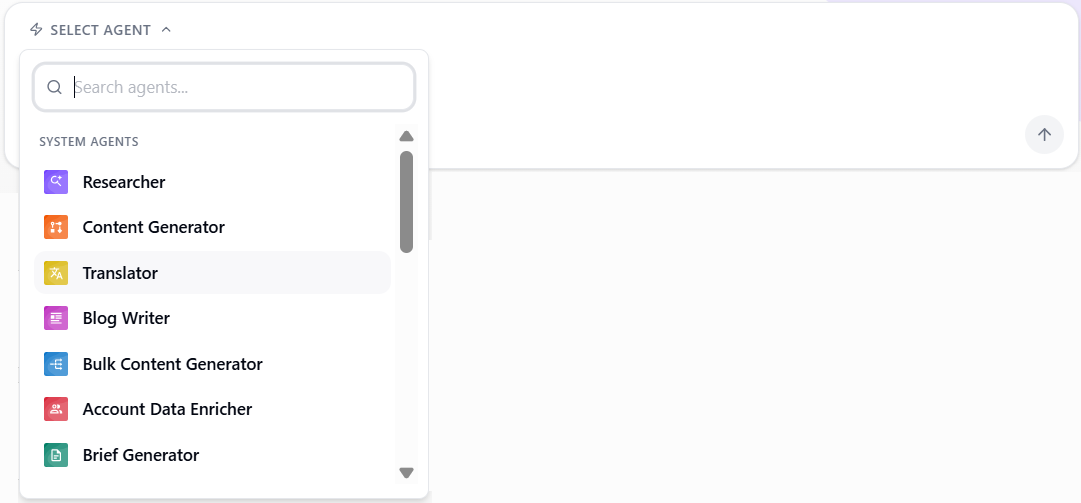
In the chat interface, click Select Agent and choose the agent you want to run.
-
Enter a prompt.
-
On the Agents tab, if setup is required, click the agent and configure it (for example, select target languages for the Translator agent).
-
Optionally, add more information to guide the agent:
- Click Context to include sources such as artifacts or your organization’s brand kit.
- Click Items to include sites, collections, artifacts, briefs, or CSV files.
- Click Attach files to upload files related to your request.
-
Press Cmd + Enter (Mac) or Ctrl + Enter (Windows) to submit the request.
TipProcessing might take some time. You can leave the page and return to the space at any time to track progress.
The agent processes your request and when processing is complete, the results appear in the chat.
-
To move this chat into a space for further collaboration, click Convert to space .
Run an agent from anywhere in SitecoreAI
To run an agent from anywhere in SitecoreAI:
-
Click AI assistant in the upper-right corner.
-
In the chat drawer, click Run agents and, in the panel that opens, click the agent you want to run.
-
Provide the required input.
-
On the Agents tab, if setup is required, click the agent and configure it (for example, select target languages for the Translator agent).
-
Optionally, add more information to guide the agent:
- Click Context to include sources such as artifacts or your organization’s brand kit.
- Click Items to include sites, collections, artifacts, briefs, or CSV files.
- Click Skills & Tools to add agent skills.
- Click Attach files to attach files to the request.
-
Click Start to run the agent.
The agent processes your request and when processing is complete, the results appear in the chat conversation.
Processing might take some time. You can leave the page and return at any time to track progress.
Always review AI-generated artifacts carefully and validate key information before using them.