- Custom agents
Available actions in the workflow editor
The following actions are available in the workflow editor organized by category. Each action represents a step in a workflow that an agent executes to complete a task.
Agents
| Action | Usage | Example |
|---|---|---|
| Invoke Agent | Calls another agent to perform a task and returns its result. | Run a standard Customer Feedback Sentiment agent to process the user input before content generation. See Example: Configuring an Invoke Agent action. |
Content generation
| Action | Usage | Example |
|---|---|---|
| Generate Content | Creates new content based on instructions and context. | Generate a blog post from a product brief and target audience details. |
| Save Document | Saves generated content as a file or artifact. | Save a generated campaign plan as a downloadable PDF. |
| Compose Message | Combines inputs into a clear, user-facing message. | Turn multiple research findings into a concise executive summary. |
| Compose for Variant | Creates different versions of content for different audiences or conditions. | Generate separate versions of content for enterprise customers and small businesses. |
| Generate Image | Creates images based on prompts or content. | Generate a hero image for a blog post about AI trends. |
Context parameters
| Action | Usage | Example |
|---|---|---|
| Extract Context Params | Pulls key details from user input to use later in the workflow. | Extract company name, industry, and target audience from a user request. |
| Review Context Params | Checks if required information is complete and asks for missing details. | Prompt the user to provide a missing target market before continuing. |
| Normalize Params | Standardizes data formats so they are consistent. | Convert all dates into the same format before generating a report. |
| Expand Variants | Creates multiple variations from a single input. | Generate content in multiple languages or for different regions. |
| Retrieve Context Artifacts | Pulls in related documents or data to provide more context. | Use a product brief or document dded to the workflow to enrich generated content. |
Control flow
| Action | Usage | Example |
|---|---|---|
| For Loop | Repeats a set of steps for each item in a list. | Generate personalized emails for each contact in a list. |
| If/Else | Chooses different actions based on conditions. | If the user is in healthcare, generate compliant messaging; otherwise, use standard messaging. |
| Go To Action | Jumps to another step in the workflow. | If the step fails, go back and try again. |
Data processing
| Action | Usage | Example |
|---|---|---|
| Parse Accounts | Reads and structures account or customer data. | Extract structured account data from a file such as a CSV. |
| Format Enriched Accounts | Organizes enriched data into a readable format. | Turn account research into a formatted report for sales teams. |
| Update Document | Adds or updates content in an existing document. | Insert generated images into a marketing report. |
HTTP
| Action | Usage | Example |
|---|---|---|
| HTTP Request | Connects to an external API to fetch or send data. | Post content to an external system such as a social media platform. See Using HTTP Request in a workflow. |
Human in the loop
| Action | Usage | Example |
|---|---|---|
| Approval | Pauses the workflow until a human reviews and approves. | Require a manager to approve the generated report before finalizing. |
Research
| Action | Usage | Example |
|---|---|---|
| Deep Research | Gathers up-to-date, detailed information on a topic. | Research current trends in AI marketing tools. |
| Structured Research | Collects consistent, structured data across multiple items. | Gather revenue, industry, and size data for a list of companies. |
Structured content
| Action | Usage | Example |
|---|---|---|
| Get Structured Schema | Retrieves a predefined structure for content generation. | Fetch the product page schema before generating content. |
| Extract Variant Structure | Retrieves the structure for a specific variant. | Fetch the schema for a localized version. |
Tools
| Action | Usage | Example |
|---|---|---|
| Invoke Tool | Calls a specific Agent API tool or function within the system. | Use the Get Content tool to fetch existing page content before translating it. See Using Invoke tool in a workflow. |
Variables
| Action | Usage | Example |
|---|---|---|
| Set Variable | Stores a value to use later in the workflow. | Save the selected language to reuse in multiple steps. |
| Reset Variable | Clears or updates a stored value. | Reset the campaign name before starting a new workflow run. |
Configuring actions
Each action must be configured before the workflow can run. This includes selecting the action type and defining its inputs, outputs, and settings.
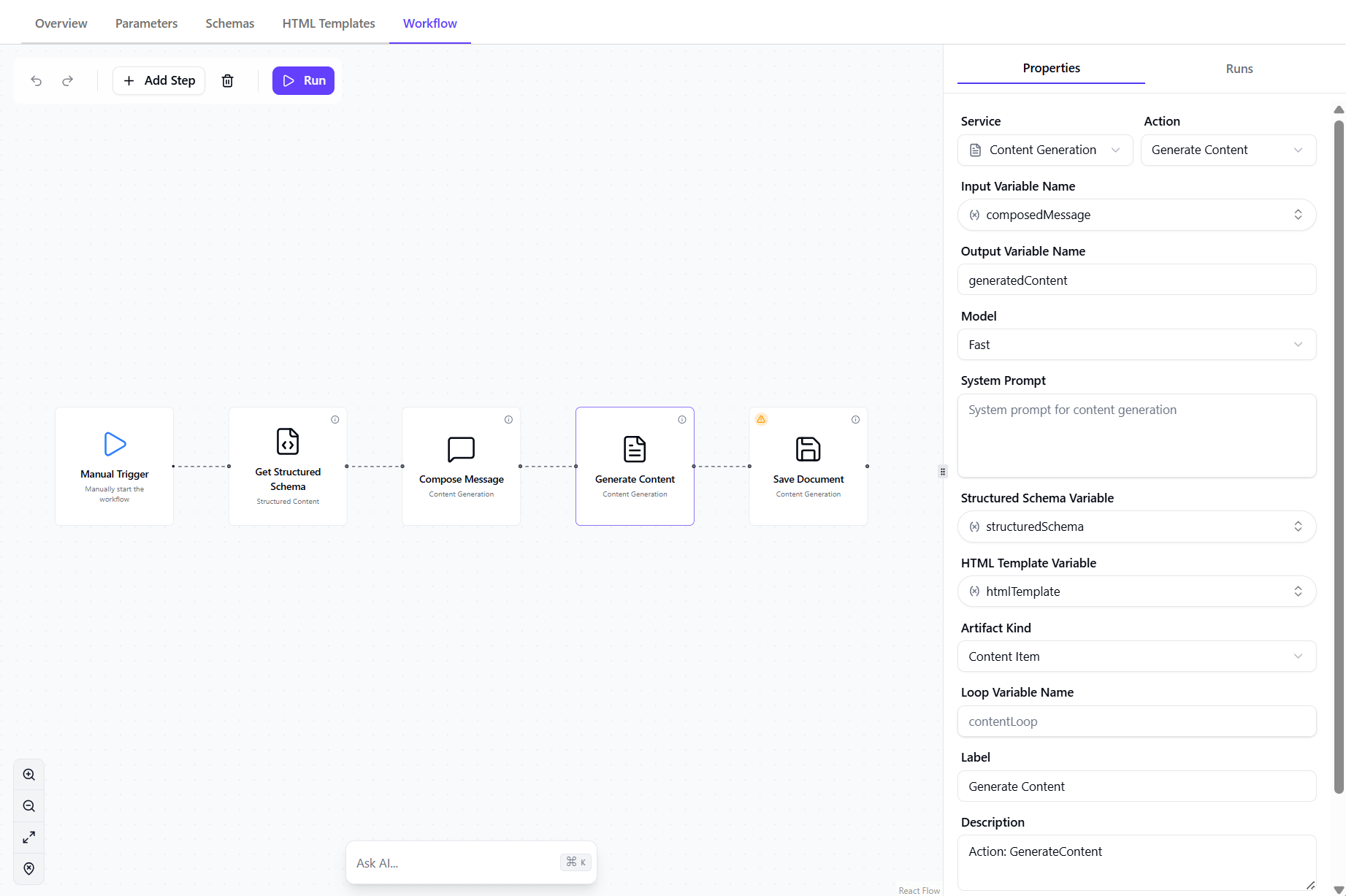
The available configuration in the Properties pane vary by action type. Most actions include the following settings.
-
Input and Output variables - define how data enters the step and how results are passed to the next step.
Example: Use
researchResultas input and store the output asgeneratedPost. -
Model settings - select the model that processes the request based on speed, quality, or complexity requirements.
Example: Choose a Fast model for drafts.
-
Message template - defines how user inputs are converted into instructions for the AI. See best practices for writing prompts for guidance.
Templates typically include placeholders that are replaced with workflow variables (for example,
{{topic}},{{target_audience}}). They can vary between actions depending on the task.Example: Write a LinkedIn post for a
{{target_audience}}about{{topic}}. -
System prompt - provides high-level instructions that guide how the AI behaves, including tone, rules, or constraints. See best practices for writing prompts for guidance.
Example: You are a senior B2B marketing strategist. Keep the tone professional and concise.
-
Schema and HTML template selection - select the structured output format and how it is rendered in preview.
-
Artifact and Storage Settings - configure how generated content is saved and identified.
Example: Save the output as text, image, or content item.
Example: Configuring an Invoke Agent action
This example demonstrates how to configure an Invoke Agent action to reuse the capabilities of a standard agent with skills within a workflow.
The Invoke Agent action allows you to call an existing standard agent as a subagent, enabling you to leverage its custom and system skills, logic, and configurations instead of recreating them. This is useful for modular workflows where existing agents can be reused across multiple processes.
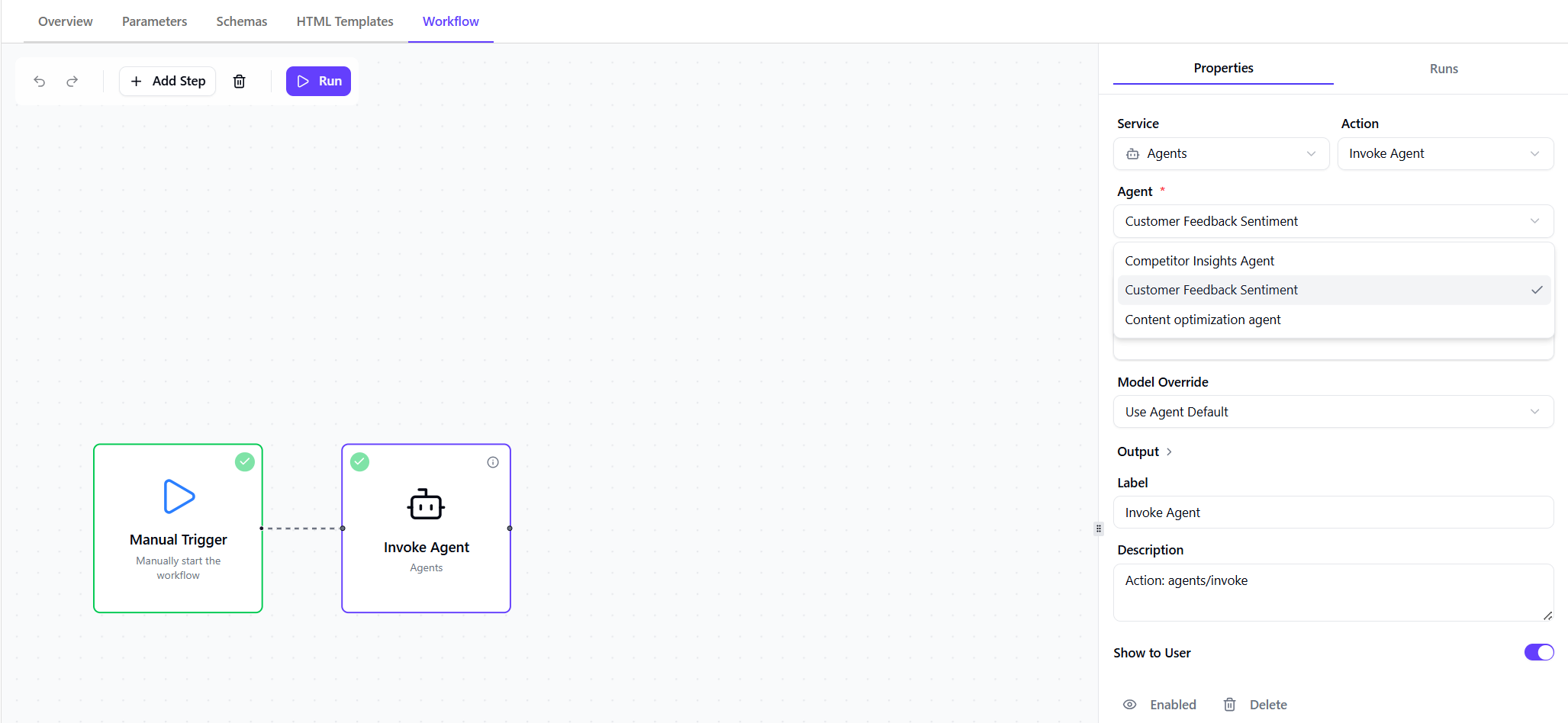
Configuration:
- Agent - select the standard agent you want to reuse (for example, Customer Feedback Sentiment)
- Message - the input passed to the invoked agent. For example, when this is the first action after the trigger, you can pass the user’s input directly.
- Model Override - use the agent’s default model or override it if needed.
- Output - the response returned by the invoked agent, which can be used in subsequent workflow steps. Ensure this variable matches the input for your next step.