Saved reports
Sitecore Search lets you save reports with configured settings and filters, view saved reports, and delete them when they are no longer required.
Save a report
To save a report:
-
In Sitecore Search, on the menu bar, click Analytics
 .
. -
Apply any filters you want to define the data in the saved report.
-
In the top right-hand corner of the report page, click Save.
-
In the Save Report dialog, in the Report Name field, enter a name for the report.
-
Click Save.
The report is added to the Customized Reports section and all reports on the page are regenerated.
Open a saved report
To open a saved report:
-
In Sitecore Search, on the menu bar, click Analytics
. -
In the left pane, click Customized Reports, then click Saved Reports.
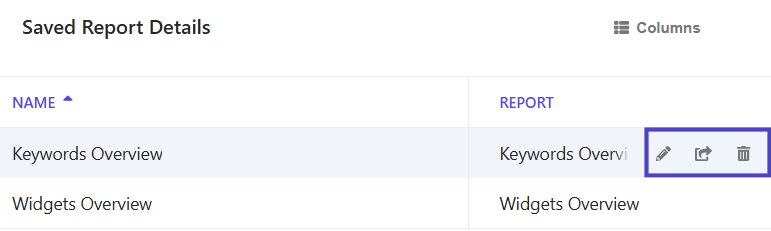
The Saved Report Details table displays a list of saved reports.
-
Click the report you want to open.
You can change how a saved report displays by clicking Columns and removing or changing the order of columns.
Edit, delete, or schedule delivery of a saved report
You can edit the name of a saved report, delete a saved report, or share the report with others by scheduling a time to send it by email.
To delete a saved report:
- In Sitecore Search, on the menu bar, click Analytics .
- In the left pane, click Customized Reports > Saved reports.
- In the table that lists the reports, hover your mouse over a saved report.
- Using the buttons, do any of the following:
- To edit the report name, click Edit.
- To schedule delivery of the report, click Schedule.
- To delete a report, click Delete.