Act on AEO opportunities in Channels
- Early access - this feature is in early access and available to any organization with a Scrunch subscription.
- Connect to Scrunch - before you can work with AEO opportunities, make sure your SitecoreAI CMS environment is connected to Scrunch. The connection is live if the AEO opportunities tab appears on your site's Channels page in SitecoreAI.
After finding an AEO opportunity for your site in Channels, you can review the pages associated with it and, where available, apply AI-suggested content updates.
Not every recommended page can be updated in SitecoreAI. SitecoreAI can apply a recommendation only when it can locate the page in your workspace and match the suggested change to editable content in the current version of that page.
Review AEO opportunities
Each AEO opportunity identifies pages where a content update could improve your site's AI citation performance. On the AEO opportunities tab, you can select an opportunity, review its suggested fix, and investigate the recommended pages.
For pages authored in the SitecoreAI Page builder, you can review each content update recommendation and apply or reject it.
A recommendation reflects the page's content as of the Last scan date. If the page changes after that date, the recommendation may no longer apply and appears as unmatched. If you've already applied a recommendation, it appears as applied. Once all recommendations for a page are applied, the page is marked completed; new recommendations for that page appear only after the next scan.
To review opportunities:
-
On the AEO opportunities tab, select the opportunity you want to act on from the left panel.
The main panel shows the opportunity details, including the category, description, and suggested fix.
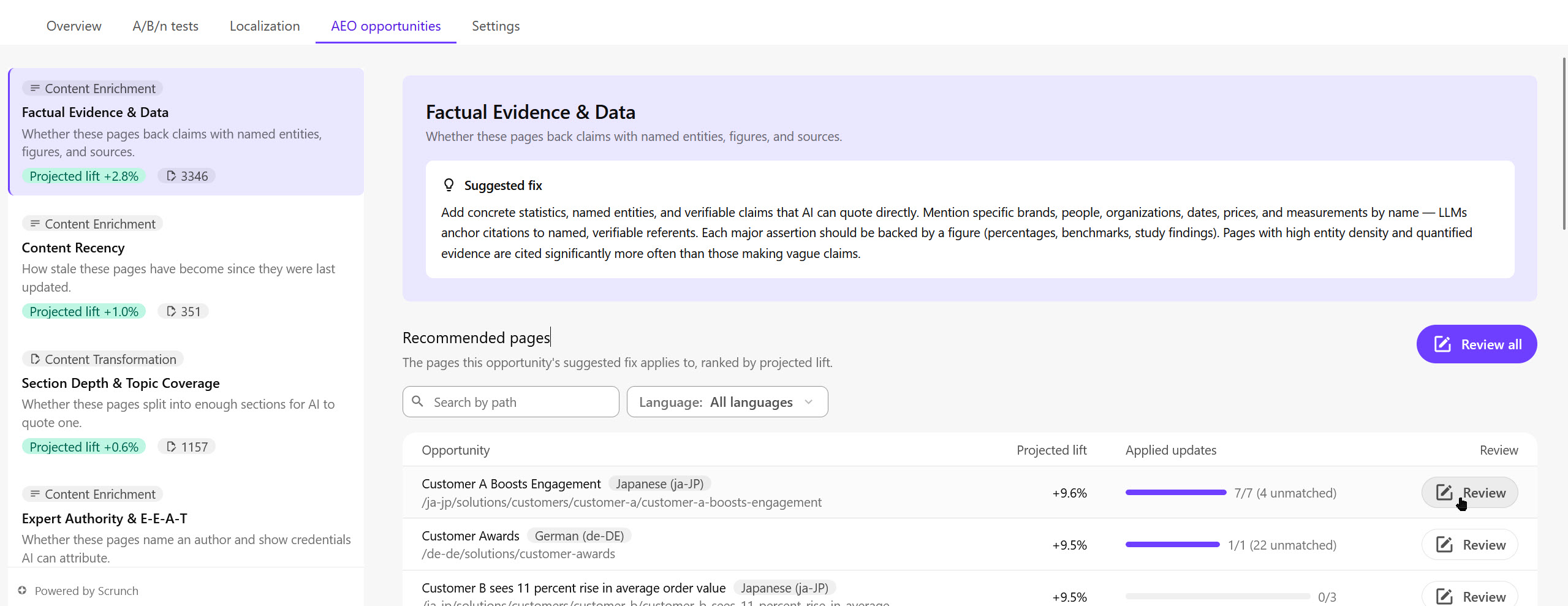
The upper part of the main panel shows:
- Category and description - the specific area of content to improve and a brief explanation of the content characteristic the category evaluates.
- Suggested fix - guidance on the content changes you can make to address the opportunity.
-
In the Recommended pages section, review the pages associated with the selected opportunity. Search for a page by path or filter the list by language.
Each row shows:
- Opportunity - the page associated with the recommendation showing the path.
- Projected lift - the estimated percentage-point improvement in citation rates from addressing the opportunity.
- Applied updates - the updates already applied to the page. If there are updates that can't be applied, it is marked Unmatched. See unmatched recommendations for details.
-
Click Review for the page you want to update, or click Review all to go through all pages in sequence.
Understand the review page
Clicking Review opens the review page for the selected webpage. Here, you can compare the page content with the suggested changes and decide which updates to apply.
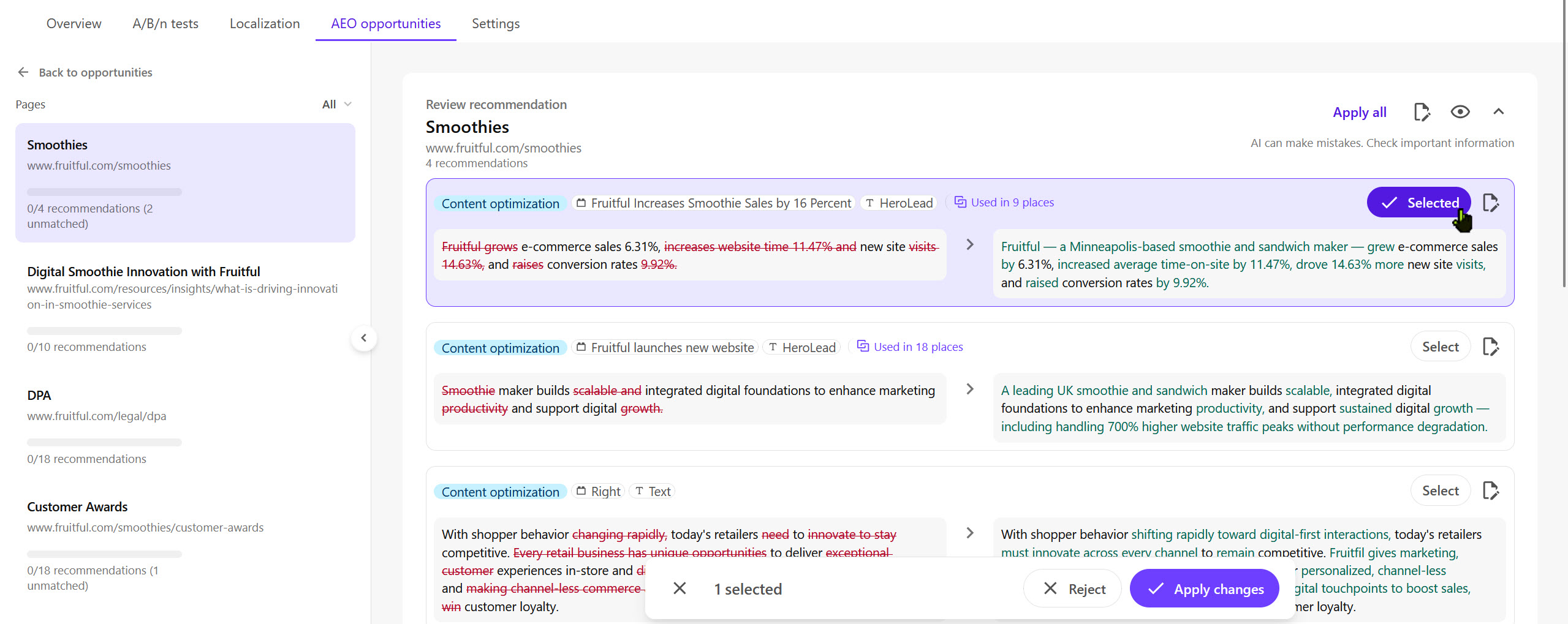
The review page can also include these sections:
- Review recommendations - suggested changes that SitecoreAI matched to editable content on the page and can apply.
- Previously applied content changes - recommendations that were already applied to the page.
- Previously rejected content changes - recommendations that were declined.
- Unmatched - recommendations that SitecoreAI can't currently apply. See unmatched recommendations for more details.
- On this page - needs a manual edit - suggested changes that you need to apply manually.
- No longer on this page - suggested changes for a previous version of the page. SitecoreAI CMS no longer has that version, so there is nothing to change.
You can do the following on the review page:
- Open the specific content block a recommendation applies to in Content mode by clicking next to the recommendation. This deep-links directly to the affected component.
- Open the page in the Page builder by clicking next to Apply all. This opens the page in the Page builder without deep-linking to a specific component.
- Preview the live page by clicking .
- To navigate to a different page in this signal without going back, click the page name in the left panel.
Apply recommended content updates
To apply recommended content updates:
-
On the review page, compare the original and suggested content side by side, then for each content block, Select the changes you want to apply.
CautionAI-generated suggestions can contain inaccuracies. Review each recommendation carefully before applying it.
NoteAEO recommendations don't take your brand kit's Glossary and Localization terms or Do's and Don'ts guidelines into account. If your site has an established terminology or translation workflow, review suggested content carefully before applying it.
-
Click Apply changes to Page to apply your current selections, or click Apply all:
- If you opened the review page via Review all, Apply all applies all updates across every page in the signal.
- If you opened the review page via Review for a specific page, Apply all applies all updates on the current page.
The selected content block will have a Content item updated label. SitecoreAI creates a new content version for the page. In the Page builder, you can continue editing, approve, and publish the page. Nothing goes live until you publish.
Any updates you did not select remain listed on the review page and can still be applied.
NoteApplying content updates does not guarantee an immediate change in citation or mention rates. Publication timing, competitor activity, and other external factors also affect AI visibility metrics. Content update recommendations focus on improving page content and are a starting point, not a comprehensive solution for AI visibility.
Reject recommended content updates
To reject recommended content updates:
-
On the review page, compare the original and suggested content side by side, then for each content block, Select the changes you want to reject.
-
Click Reject to apply your current selection. The selected content block will have a Rejected label.
NoteYou can't undo a rejection, but you can still apply a rejected content update later if you change your mind. Once all recommended content updates for a page are applied, the page is marked Completed.
Unmatched recommendations
Some recommendations on the review page may appear under the Unmatched section. This means SitecoreAI generated a content update for the page, but the text it refers to does not match any editable field in the current version of the page. This can happen, for example, if the page was edited after the recommendation was generated.
For unmatched recommendations, you can manually apply the change in the Page builder or dismiss the recommendation if it is no longer relevant or you do not intend to apply it.