Change your personal settings
In the Control Panel, you can set up your personal settings, for example the region and language options, to make the application suit your needs.
To change your personal settings:
-
On the homepage, in the navigation header, click Settings.
-
In the right-hand pane, click Desktop.
-
On the Desktop, in the left bottom corner, click on the Sitecore logo, then click on Control Panel.
-
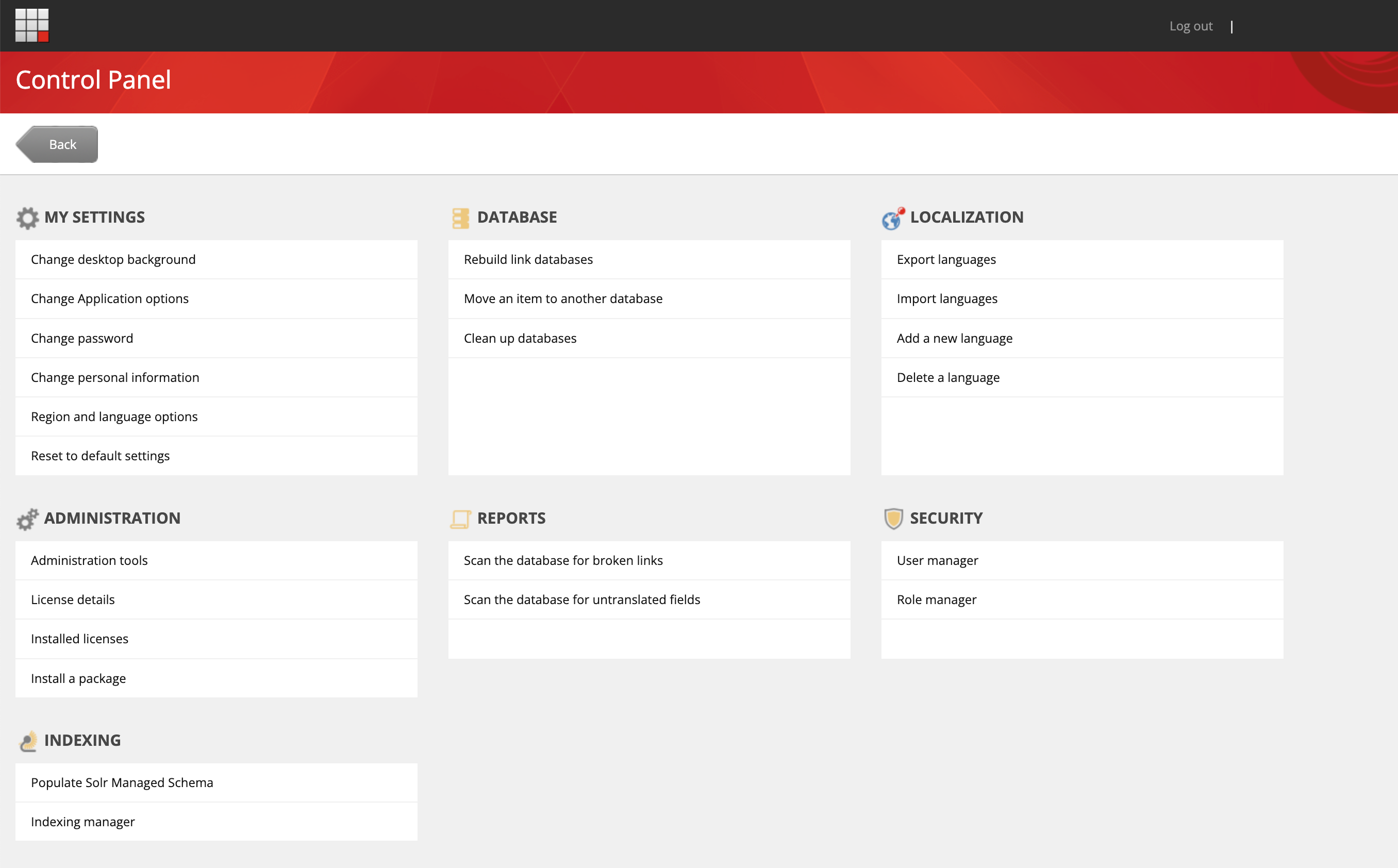
In the Control Panel, in the My settings section, you can change the following settings:
-
Change desktop background – in the Background field, select the image that you want to use, specify the position of the image and the color that you want to surround the image if it does not fill the screen.
-
Change Application options – in the Application Options dialog, on the Content Editor tab, specify which elements you want to display on the Content Editor. On the View tab, you can customize the content tree.
-
Change password - you can't change your password from the Control Panel:
-
If you log in to SitecoreAI using the default Sitecore authentication, you can change your password from the Sitecore Cloud Portal.
-
If you log in using single sign-on (SSO), you can only change your password through your identity provider.
-
-
Change personal information - in SitecoreAI, you can't change your personal information from the Control Panel:
-
If you log in to SitecoreAI using the default Sitecore authentication, you can change your name, phone number, and job role in the Sitecore Cloud Portal. In the top-right corner of the menu bar of the Cloud Portal, click your profile picture > Manage account, then on your profile page, click Edit details.
-
If you log in using single sign-on (SSO), you can only change your personal information through your identity provider.
-
-
Region and language options – in the Regional and Language Settings dialog, you can specify the formats that you want to use for numbers, currencies, times, and dates. In addition, you can specify the language that you want the client application to use.
-
Reset to default settings – click to reset all your personal settings to the default settings.
-
-
When you have finished setting up your personal information, click Back to return to the Dashboard.