Edit the website content
When you edit content in rich text fields, you can benefit from the advanced editing functionalities in the Rich Text Editor or in Microsoft Word.
For minimal editing functionality, you can edit rich text fields directly on the item or page.
The Rich Text Editor
The Rich Text Editor is the standard text editor with which you can edit all the content in a rich text field.
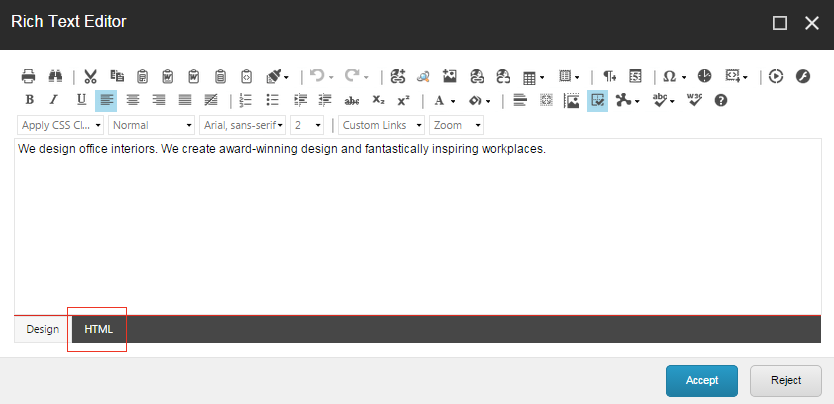
In the Rich Text Editor, you can:
-
Paste text from Microsoft Word.
-
Find and replace text.
-
Insert pictures or other media items.
-
Insert and delete links to other parts of the website and to external websites.
-
Insert symbols.
The Rich Text Editor is a standard word processing tool, but in Sitecore, most of the formatting functionality has been removed because the style sheets and templates for a website determine the format of the items that content authors create and edit.
Edit a rich text field
To edit a text field in the Content Editor:
-
In the Content Editor, navigate to the item or page that you want to edit. Make sure to select the relevant version and language of the item.
-
To open the rich text editor, in the content area, locate the Rich Text field you want to edit and click Show Editor.
NoteYou can edit the fields that are shared between different versions of an item. In the ribbon, on the Presentation tab, in the Layout group, click Final Layout, and then in the drop-down menu, click Shared Layout. This loads the shared layout for the item and lets you edit the shared content.
-
Make the appropriate changes to the content in the text field.
In the Rich Text Editor, if you prefer to edit the content in HTML format, click HTML.
-
When you are finished editing the content, click Accept to save your changes.