Generate variants of a component with AI
The Design studio empowers marketers and developers to collaboratively create, preview, and refine components using AI-assisted tools. One of its most powerful features is the ability to generate AI-driven design variants directly within the studio environment.
Generating variants with AI is available for Admin or Advanced users roles.
Generate a variant
To generate a component variant with AI:
-
In the Design studio Components library, locate the component you want to use to generate variants, then click Open in Studio. Alternatively, in the Studio, click > Open existing component, then locate the relevant component in the library and click Add to studio.
-
When in the Studio, in the tab of the component you want to work with, click Create variant. You can use the drop-down menu to display the component as it renders in a specific site.
-
Using natural language prompts in AI chat, generate a new variant.
We recommend using the following template for a prompt:
[Action] + [Element] + [Key attributes or style changes] + [Context or audience] + [Tone or visual intent]
You can also use the following characters:
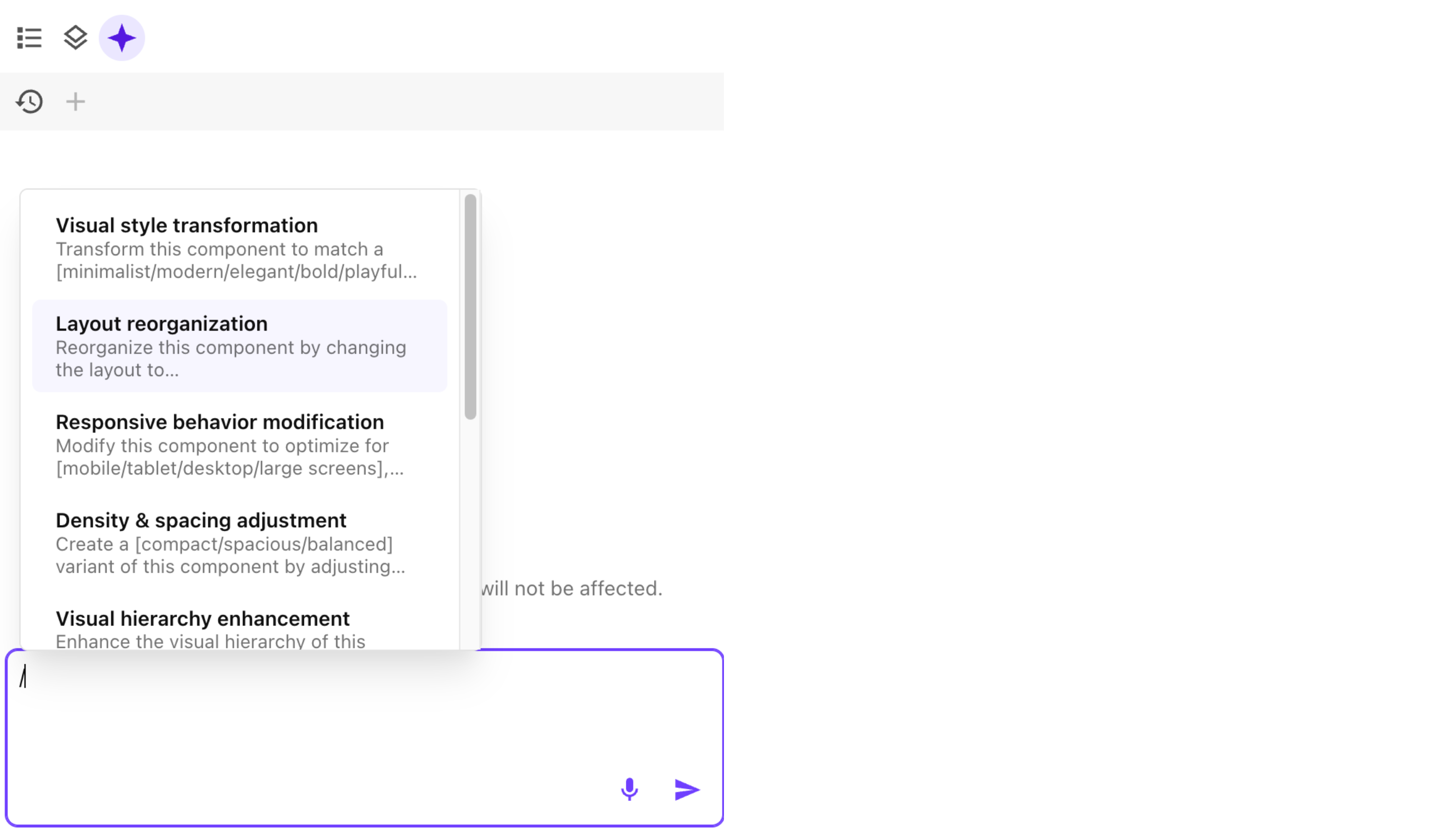
- / to benefit from a list of predefined quick actions.
- @ to select specific elements from the component.
You can enter up to 5 prompts in the chat queue.
-
You can upload up to three images in .jpeg, .jpg, or .png format, each no larger than 20 MB, to serve as visual references for creating the variant. Refer to this file in your prompt to ensure it is considered. For example, write your prompt as such: "Create a variant of this component that looks like the attached image."
-
You can upload a JSON file, such as one exported from a Figma design, to guide variant generation. Make sure to reference this file in your prompt using the exact design token names so it is applied correctly. For example, write your prompt as such: "Create a variant of this component using the primary color and border radius from the attached file."
-
You can at any point click Restore to return to a specific version of the generated variant.
-
Once you are satisfied with the generated variant, click Code to review the code or to use it to adjust layout, colors, and content as needed.
-
Click Save variant to save the variant of an active component, or Activate to activate the component and its new variant.
-
Install the code of the variant to make it available for use in Page builder.
Variant generation prompts
To generate new component variants quickly and accurately with the Design studio, no coding required. Just describe what you want with clarity and context:
-
Refer to elements and styles by their correct names using @.
For example: “Create a new variant that highlights @CustomerRatings more prominently. Keep it clean and minimal, suitable for an eco-friendly e-commerce brand.”
-
Make use of the quick actions templates by using /.
-
Clearly state what should change or remain unchanged.
For example, instead of “Update the button.", use "Redesign the call-to-action button to be more visible on mobile—larger size, high-contrast color, rounded edges. Do not change the background of the component.”
-
Use the following prompt anatomy: Define your goal + Specify what to change + Add visual or tonal cues.
For example, instead of “Make a new version of the banner.”, use “Create a new banner variant that emphasizes trust, using softer blues and customer testimonials for a healthcare landing page.”
Detailed prompts increase the likelihood of getting the output you expect. Well-structured prompts reduce iteration cycles, saving time and effort.