Managing briefs
Briefs in Strategy is where teams create and manage campaign briefs.
A brief is a key document that guides the planning and execution of campaigns. It helps teams define important details such as objectives, target audiences, requirements, and key milestones, ensuring alignment across teams.
In SitecoreAI, marketers can create smart briefs manually or use the built-in AI assistant to generate text, build timelines, and suggest relevant content.
For faster brief creation, marketers can use the Brand Assistant to generate briefs by simply describing their needs. Although this occurs outside the Briefs page, all AI-generated briefs are automatically saved there for easy access and collaboration.
Access the Briefs page
To access the Briefs page, in the navigation menu, click Strategy. Then, in the left sidebar, select Briefs.
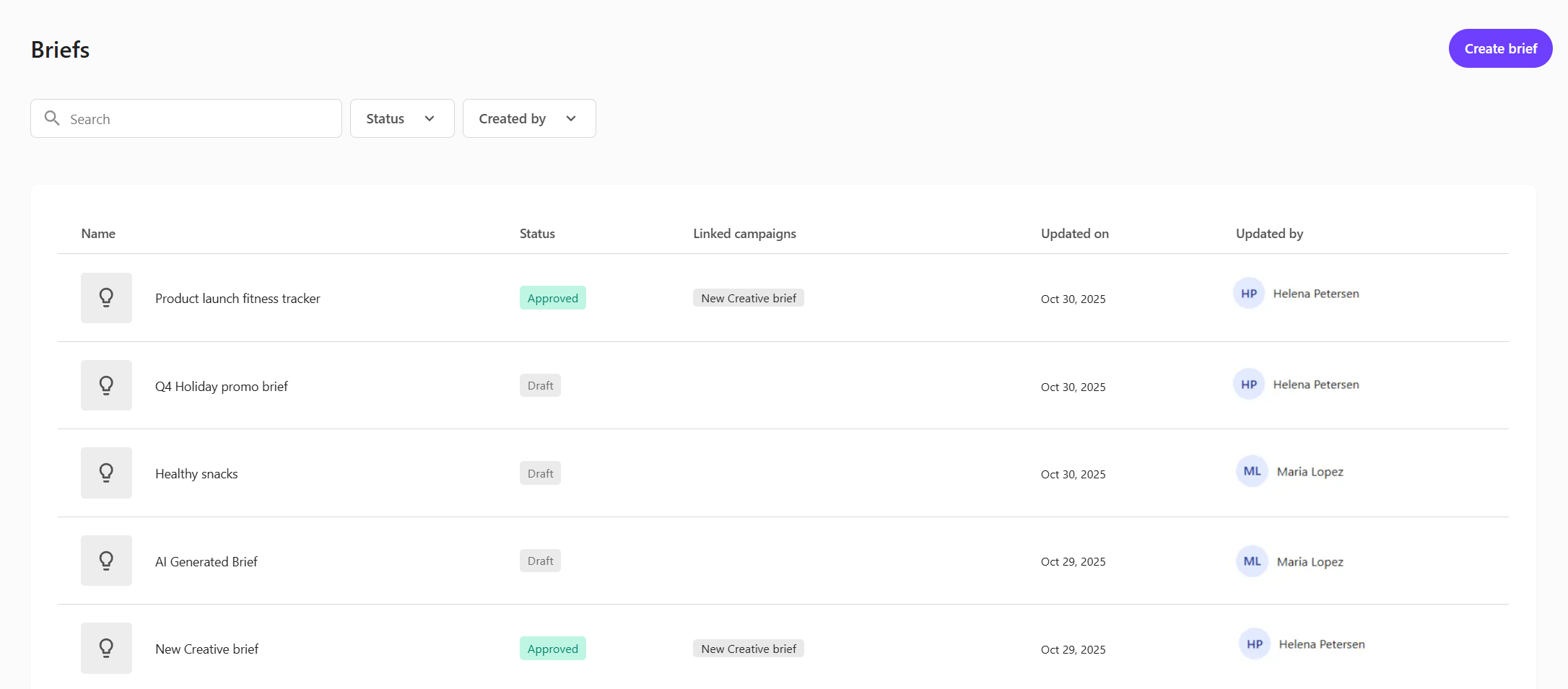
The Brief types page lists all briefs in your organization, including those generated through the Brand Assistant.
Each brief displays a status, any linked campaigns, the date it was last updated date, and updated by. You can filter briefs by these attributes to find and track them easily.
From this page, you can:
- Create a new brief by clicking Create brief.
- Click an existing brief to view or edit it.
Brief development process
A brief follows a lifecycle with stages such as Draft, In review, and Approved. These stages reflect the current status and progress of the brief.
The brief development process typically includes the following steps:
- Create a brief - start by either creating a smart brief manually or generating one using Brand Assistant. The structure of the brief will depend on the selected brief type.
- Edit brief details - update all required fields such as objectives, target audience, creative requirements, and timelines. You can also link the brief to an existing campaign to align planning and execution.
- Collaborate and review - team members can add comments, create to-do tasks, and verify that all details align with marketing goals and overall strategy.
- Convert to a campaign - once approved, convert the brief into a campaign, allowing teams to move from strategic planning to delivery.
Fields in a brief
When you select a brief from the Briefs page, the brief details page opens. Here, you can view, edit, and update the fields of the brief.
The fields depend on the brief type selected during creation.
- The brief type is the template that defines which fields are included.
- The brief is where you enter values for those fields.
In the following example, the brief details page displays all fields defined by the selected brief type. You can edit the content for each field as needed.
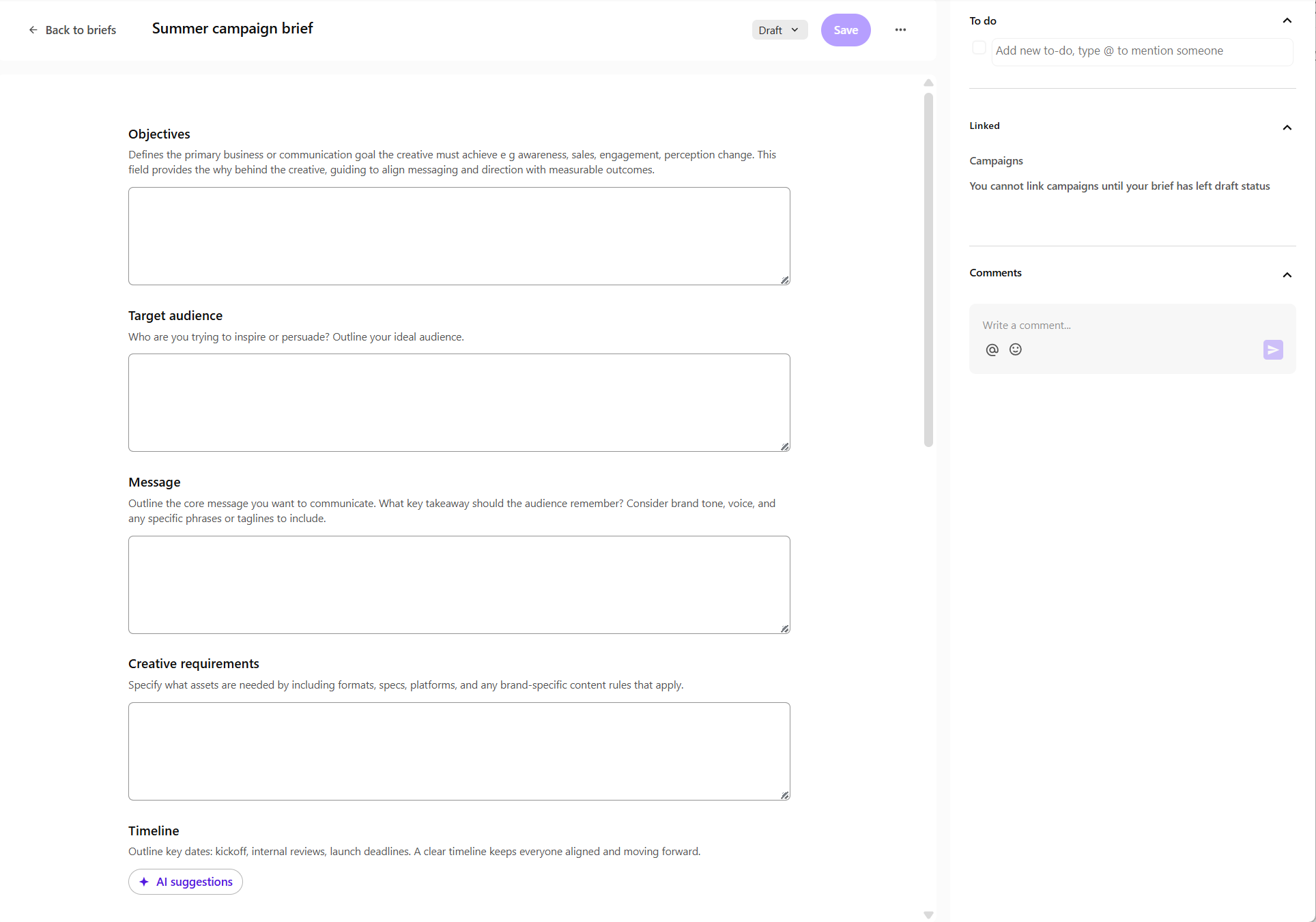
Some examples of fields typically included in a brief are:
- Objectives - define the goals of the campaign and its intended outcomes.
- Target audience - describe who the campaign is for and what motivates them.
- Message - define the main idea and tone of the campaign.
- Creative requirements - specify visual and design guidelines aligned with the brand.
- Timeline - outline key milestones and deadlines.
- Due date - specify when the brief must be completed or approved.
- Budget - estimate the campaign budget and allocate resources.
- Market research - summarize insights into trends, competitors, and audience behavior.
- Additional notes - include supporting information or guidance.
- References - attach supporting files such as documents, images, or mockups.